Synchronization
When the school works with a local installation of ClassMata (on a computer at the school), its data stays on site. The Synchronization page sends it to the online database and fetches the updates, so the online portal and the local installation tell the same story. Accessible from Administration → Synchronization.
Permissions. The page requires access to Administration and the Synchronization permission (see Role Management).
Where to run it? Synchronization is launched from the school's local installation. From the online portal, the button answers "Impossible to run a synchronization from the online portal". In the mobile app, the page is not offered.
The page
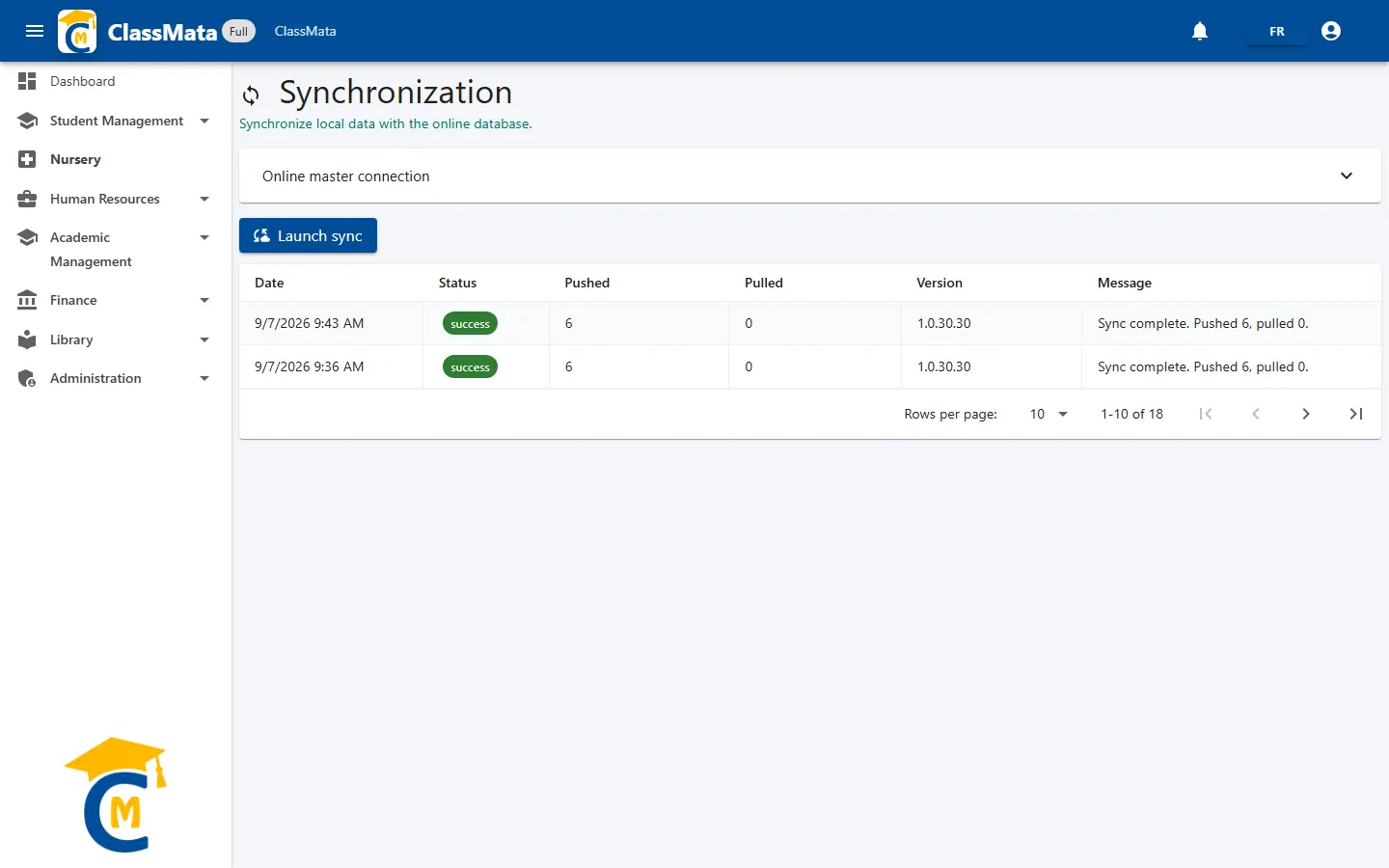
It has three elements:
- The Online master connection panel;
- The Launch sync button;
- The history table of synchronizations.
Online master connection
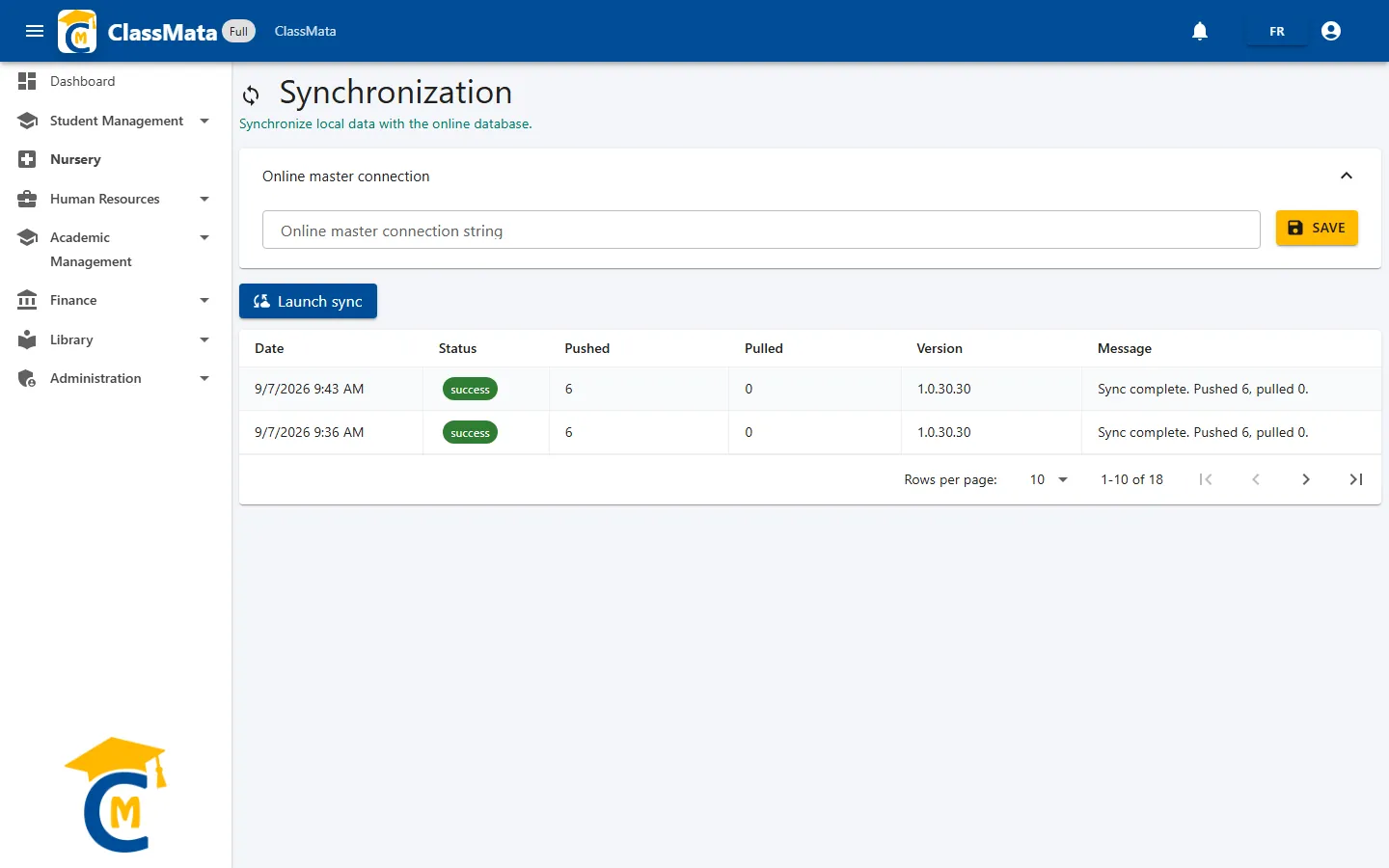
This panel is used to give the connection to the online database once: paste the online master connection string given to you by the ClassMata team, then click Save ("Online master connection saved."). As long as it is not filled in, the panel is open and shows the warning "The online master connection is not configured.".
Confidentiality. This string gives access to the school's online database: do not share it and do not copy it into a document.
Launch a synchronization
Launch sync starts the exchange. Meanwhile, the button shows "Syncing…" and a progress bar shows the table being processed and the percentage done. At the end:
- the message "Sync complete." confirms success, otherwise "Sync failed." (with the reason when it is known);
- two chips sum up the checks made: Tenant verified / Tenant not verified and Version up to date / Version outdated. An outdated version means your ClassMata is behind the server's version.
History
Each synchronization leaves one row in the table:
| Column | Content |
|---|---|
| Date | Start of the synchronization |
| Status | success, failed or running |
| Pushed | Number of rows sent to the online database |
| Pulled | Number of rows received from the online database |
| Version | ClassMata version that launched the synchronization |
| Message | Detailed result, for example "Sync complete. Pushed 6, pulled 0." |
Tip. If a synchronization fails, run it again once the internet connection is back; if it keeps failing, pass the text of the Message column on to the ClassMata team.
Last updated: