Transactions
This is the school's cash desk: it is where you collect students' fees, record the school's other income and expenses and print the financial reports. It relies on the accounting plan and the fee structures. Accessible from Finance → Transactions.
Permissions. The page requires access to the Finance module. Each tab and each action has its own permission (table below). Buttons a user may not use do not appear; reports they may not print are greyed out.
| Tab / action | Permission (Role Management screen) |
|---|---|
| Tuition | School fees Deposit |
| Scholarships buttons | Scholarship |
| Income & Expenses | Stock sheet (the cash journal) |
| Add a transaction | Receipts / Bills |
| Edit a transaction | Edit (Accounting Plan) (the second entry of that name in the list) |
| Delete a transaction | Delete |
The page has three tabs: Tuition, Income & Expenses and Financial Reports.
Tuition: collect a student's fees
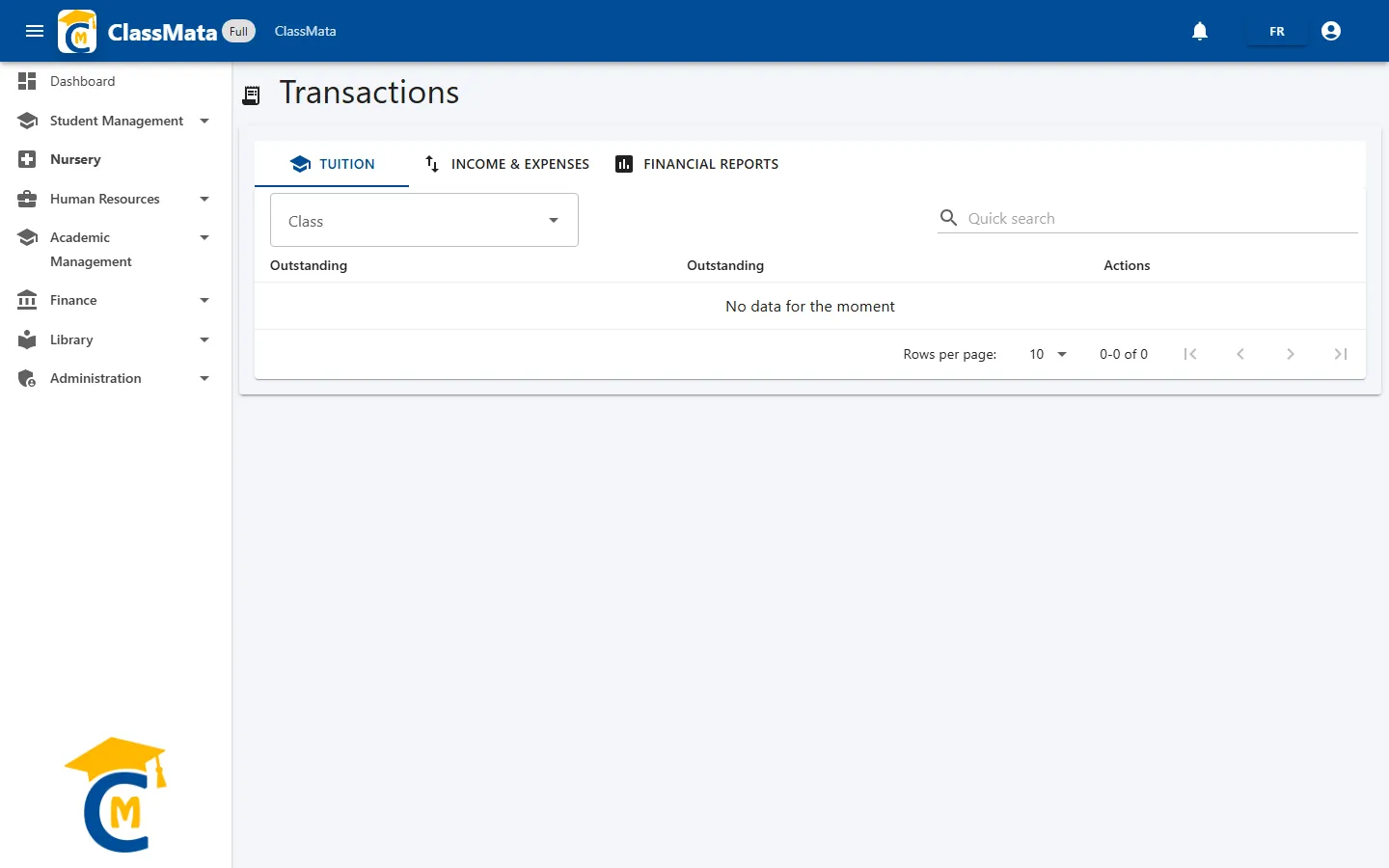
First choose a Class: type a few letters, then select it.
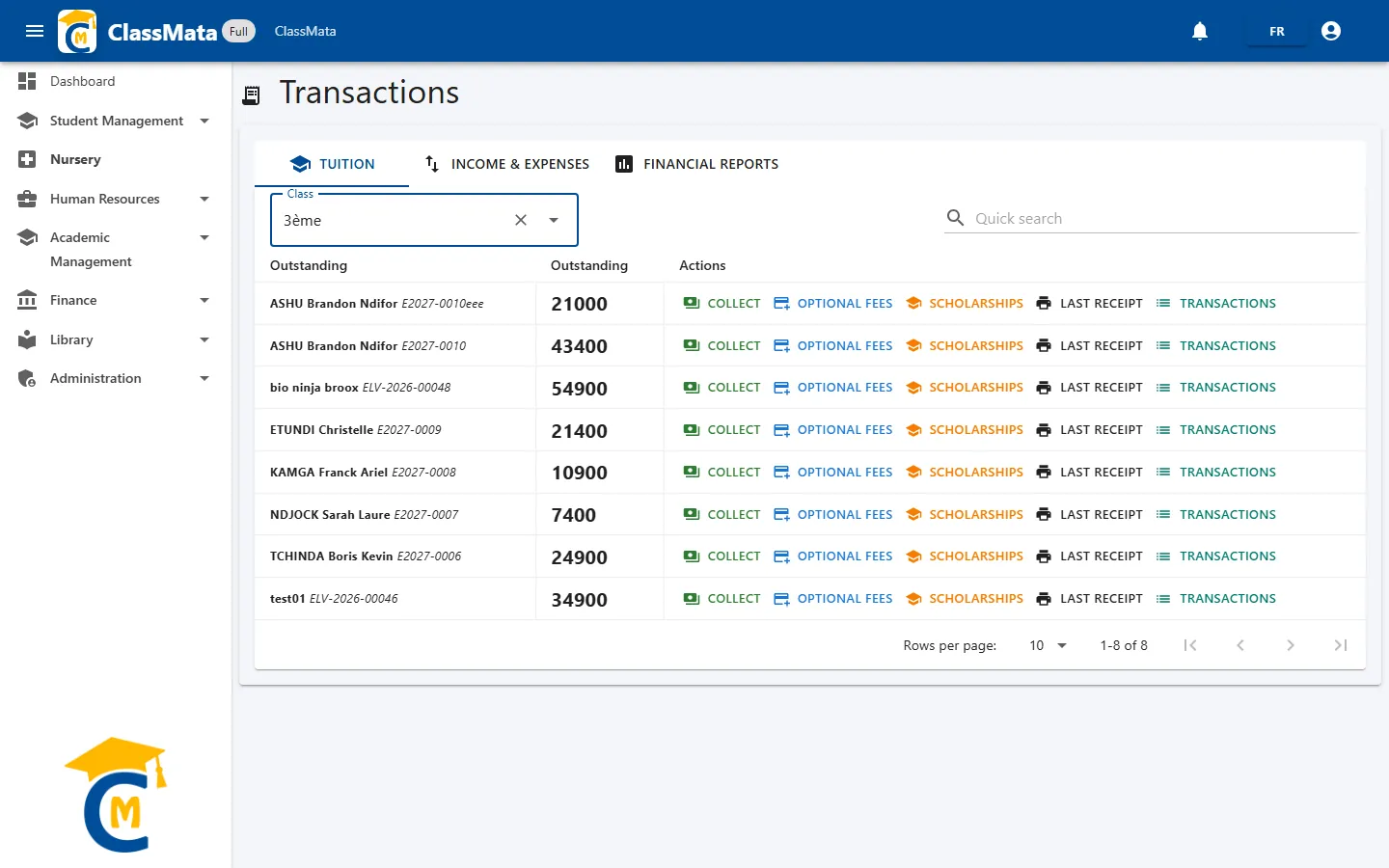
The list shows each student (name and ID), the amount they still have to pay (in bold: registration, tuition and other required fees, after scholarships) and five action buttons. The Quick search filters on the name or ID.
No fee structure, no collection. If the class has no fee structure, the amount left to pay is 0 and collection is refused: first assign a structure to the class.
Collect
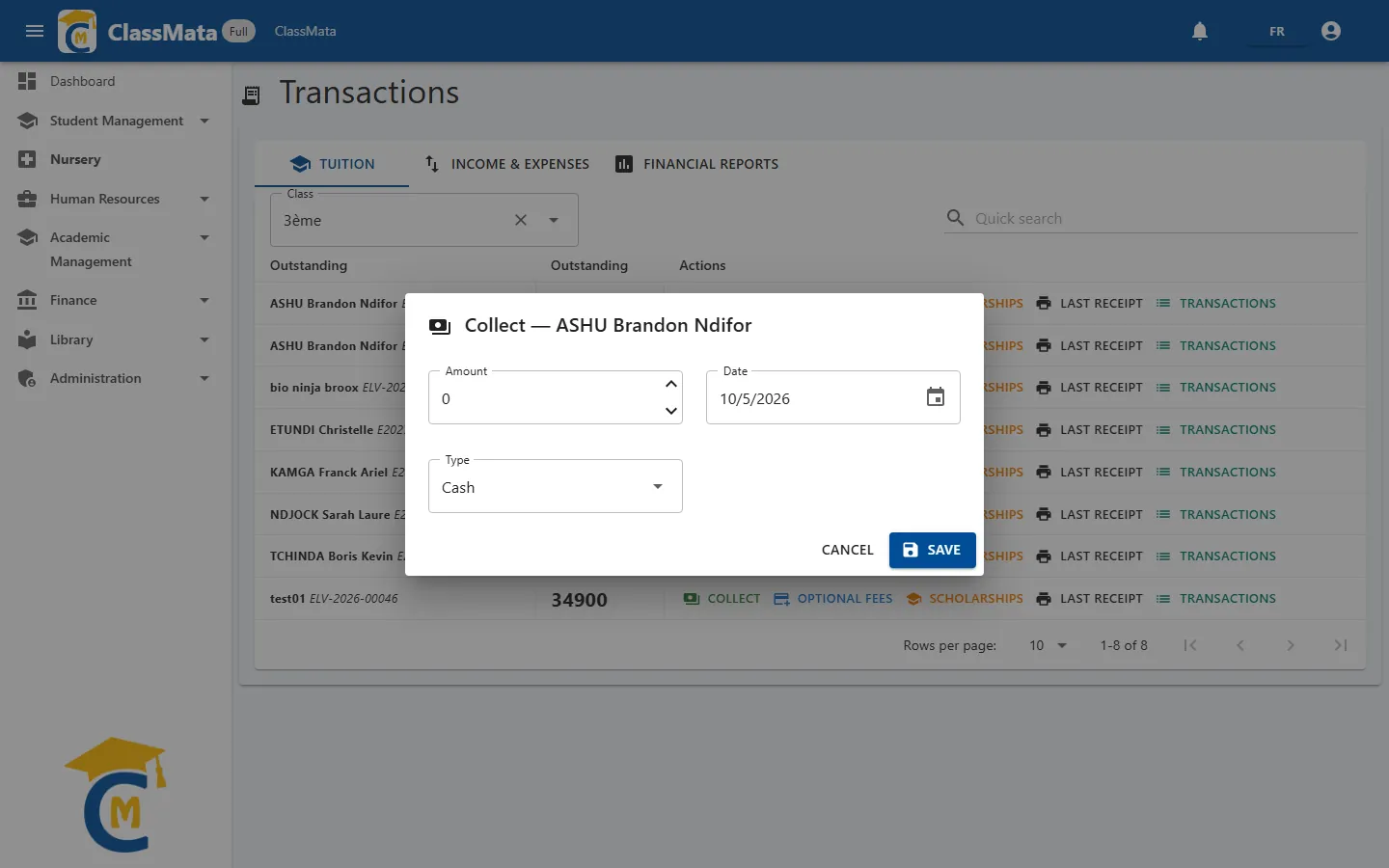
Collect opens the payment window:
| Field | Content |
|---|---|
| Amount | Sum paid. It must be greater than zero |
| Date | Payment date (today by default) |
| Type | Cash or Bank |
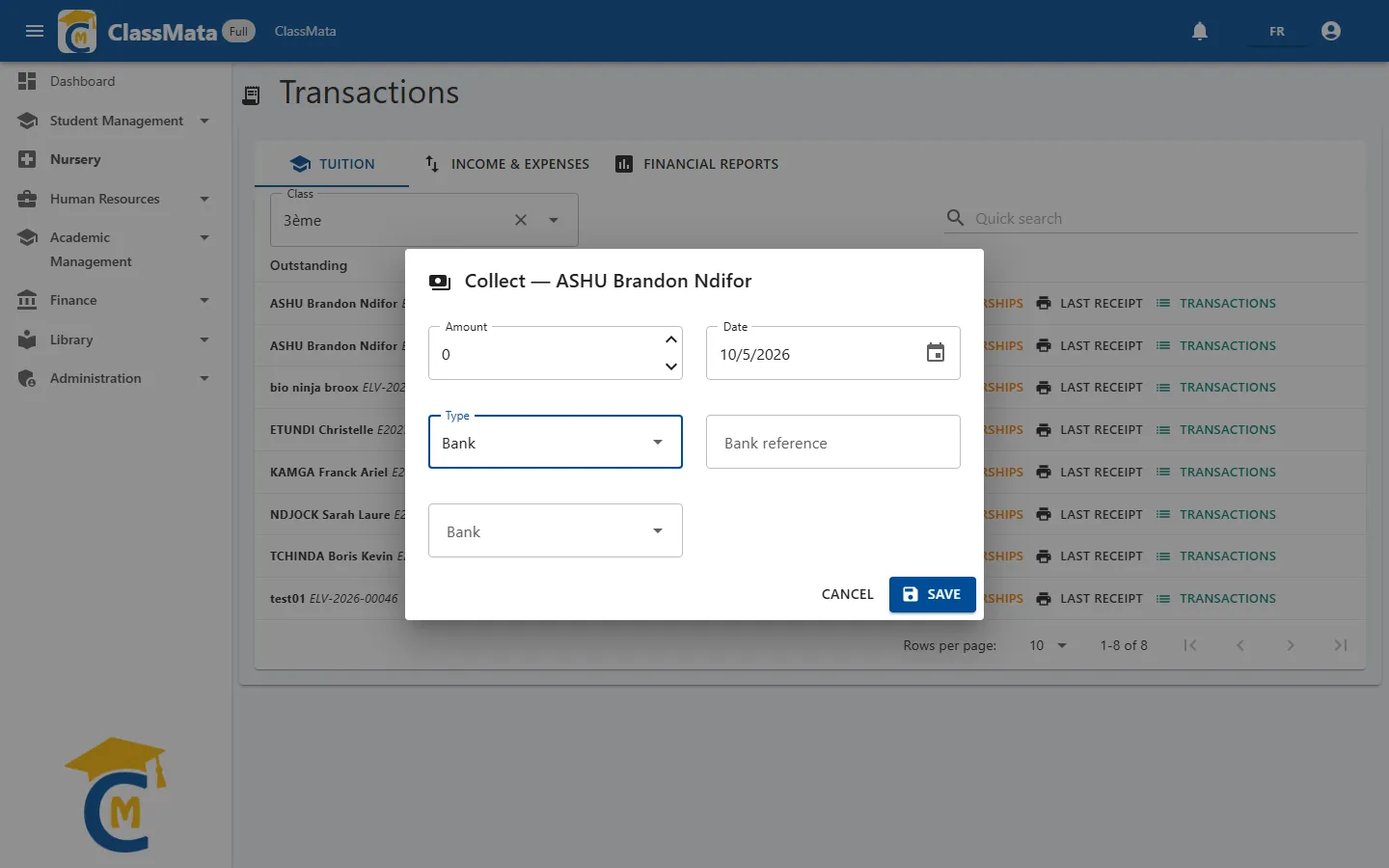
| Bank reference and Bank | Shown for a bank payment. The bank is chosen from the list defined in Settings. They are only compulsory if the "Require bank and reference for bank payments" setting is on |
Click Save: ClassMata asks you to confirm the collection, showing the amount in figures and in words. This is your last chance to correct it.
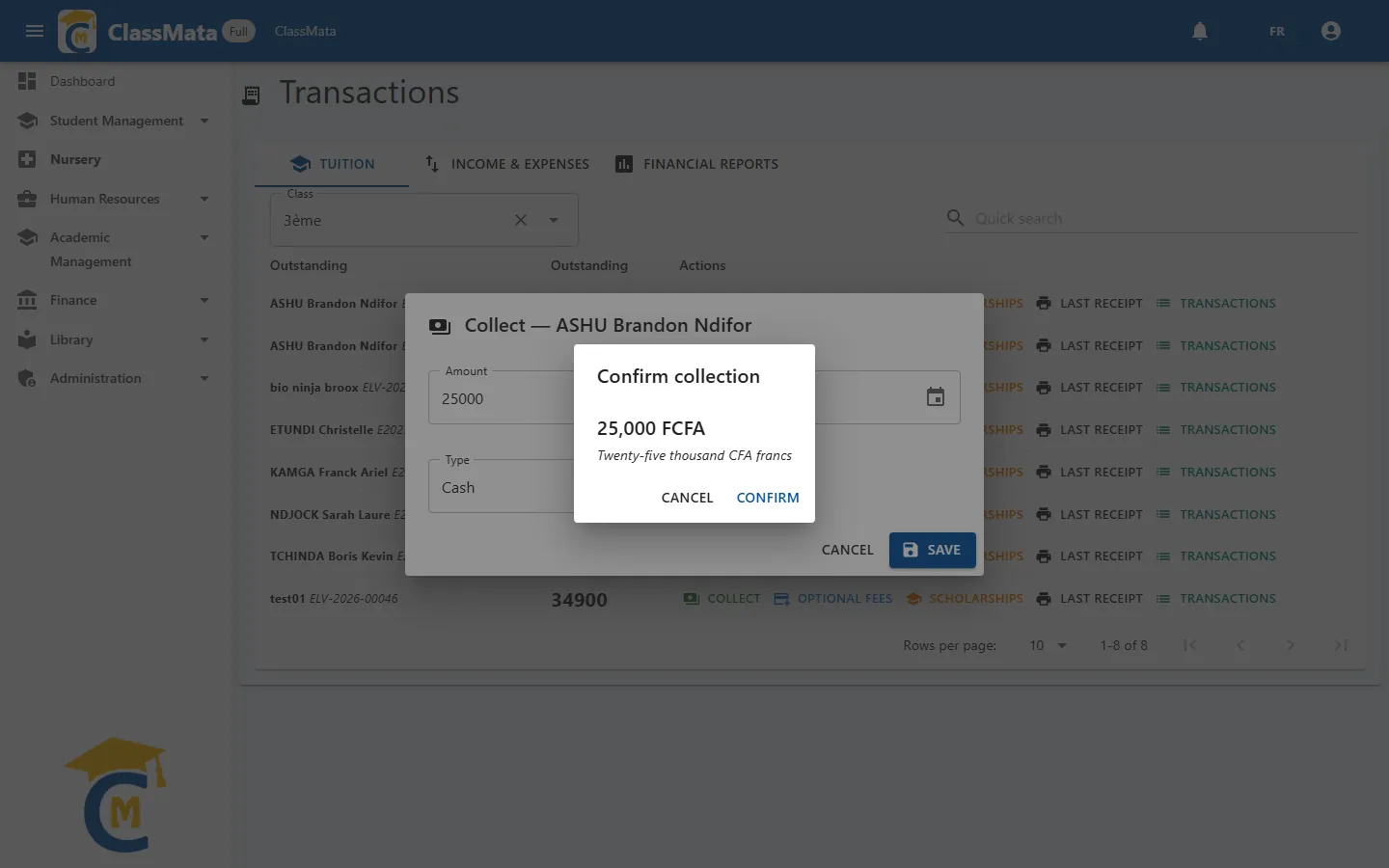
After Confirm, the payment is spread automatically over the student's fees (registration, then tuition, then other required fees, in the order set in the fee structure) and the receipt(s) are displayed for printing. Fee lines flagged "Distinct receipt" are each printed on their own receipt; the others are grouped on a single one. ClassMata also triggers the "Payment received" event: if the matching notification template is active, the student is notified.
What if the amount is too high? A line can only be paid partially if it is flagged Fore pay in the fee structure. If part of the sum cannot be placed anywhere, ClassMata displays "A surplus of … cannot be allocated. Consider it paid and refund the surplus?". Pay & refund records the part that can be placed (you give the surplus back to the student); Cancel records nothing.
Optional fees
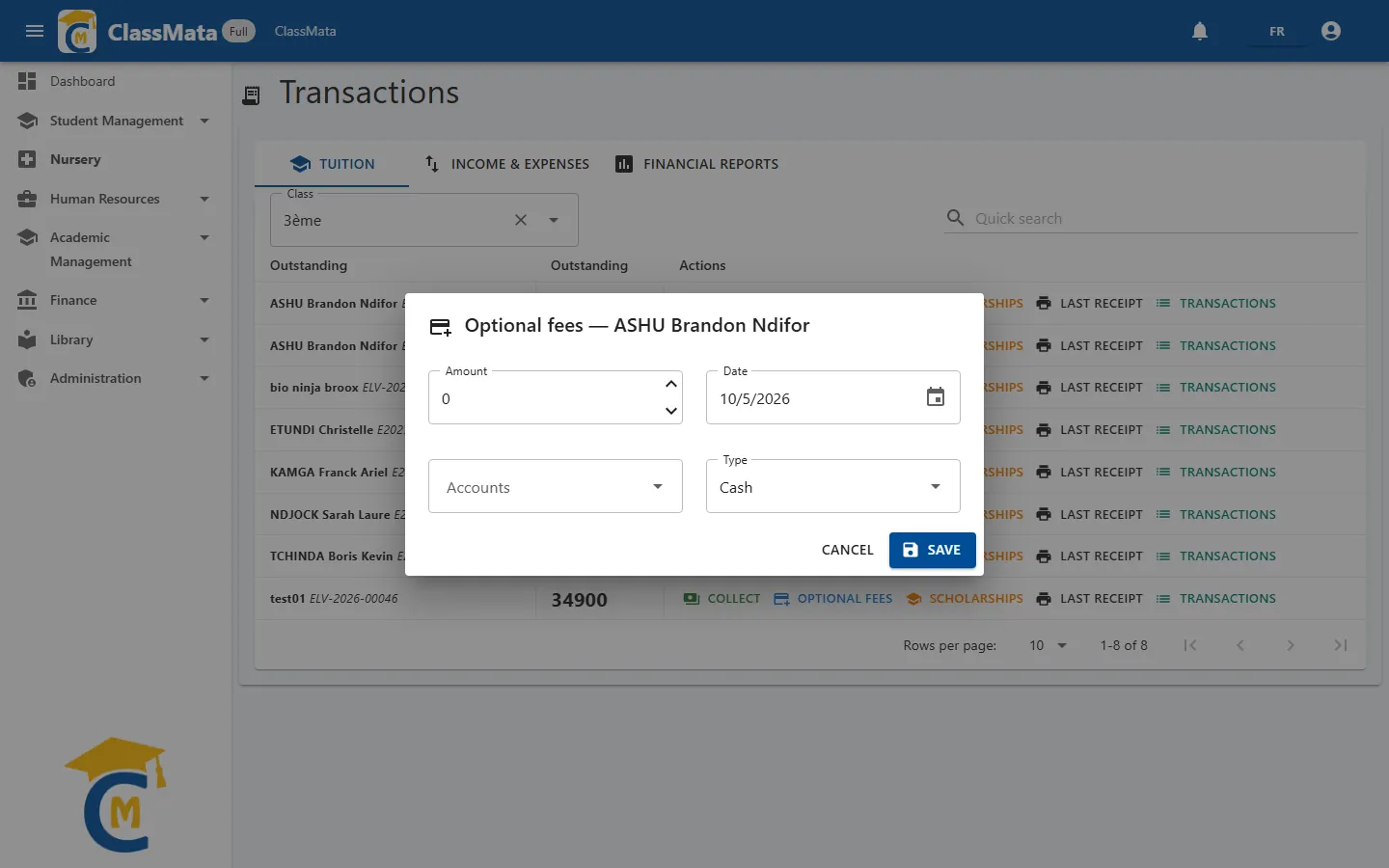
Optional fees collects the "Optional fees" lines of the student's fee structure. Choose the account (the fee line), the amount, the date and the payment type. Every optional fee has its own receipt. A fee that is not flagged Fore pay can only be paid in one go, for its exact remaining amount: any other amount is refused.
Scholarships
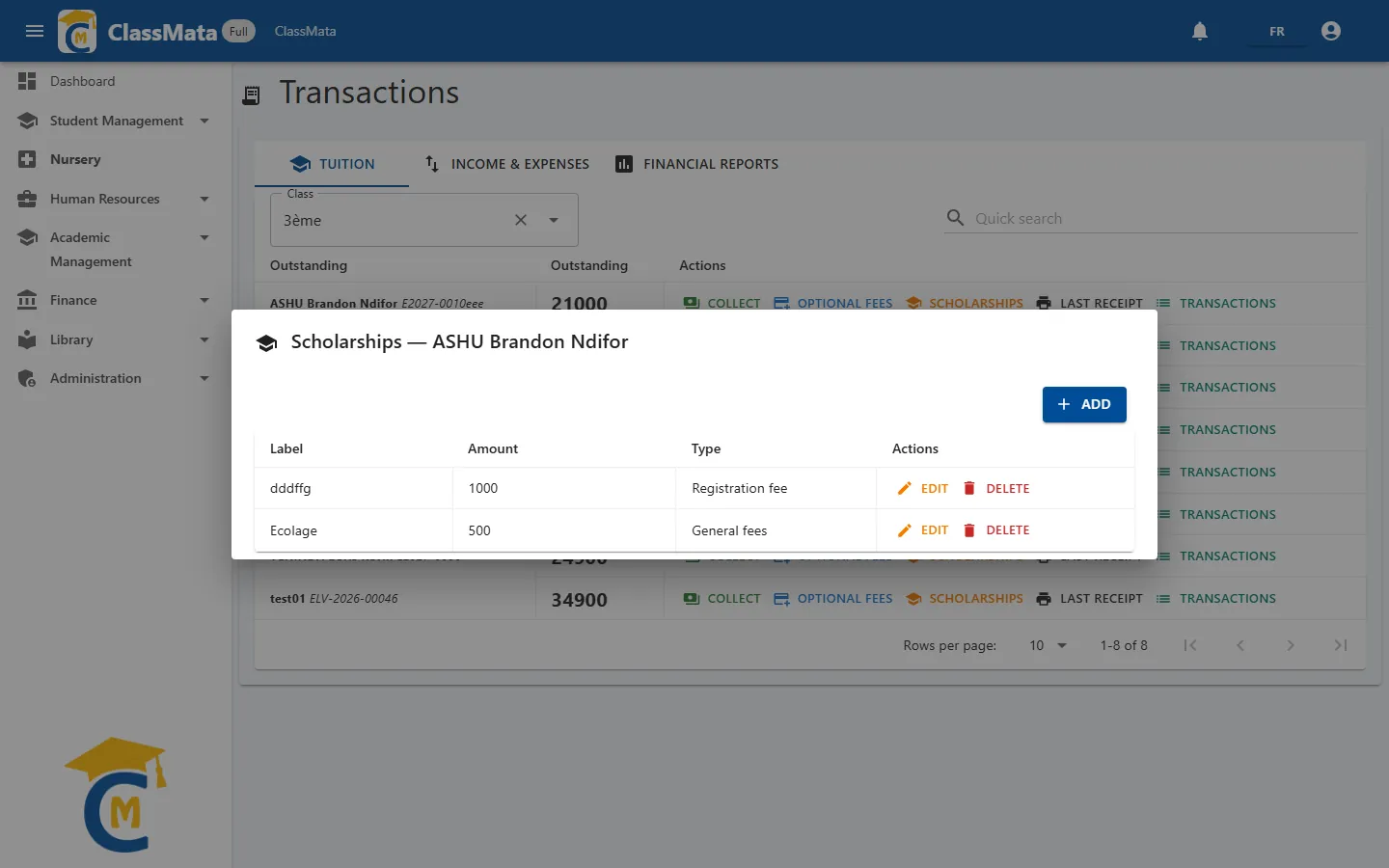
Scholarships (only for users with the "Scholarship" permission) lists the student's scholarships: Label, Amount and Type. A scholarship lowers what the student has to pay.
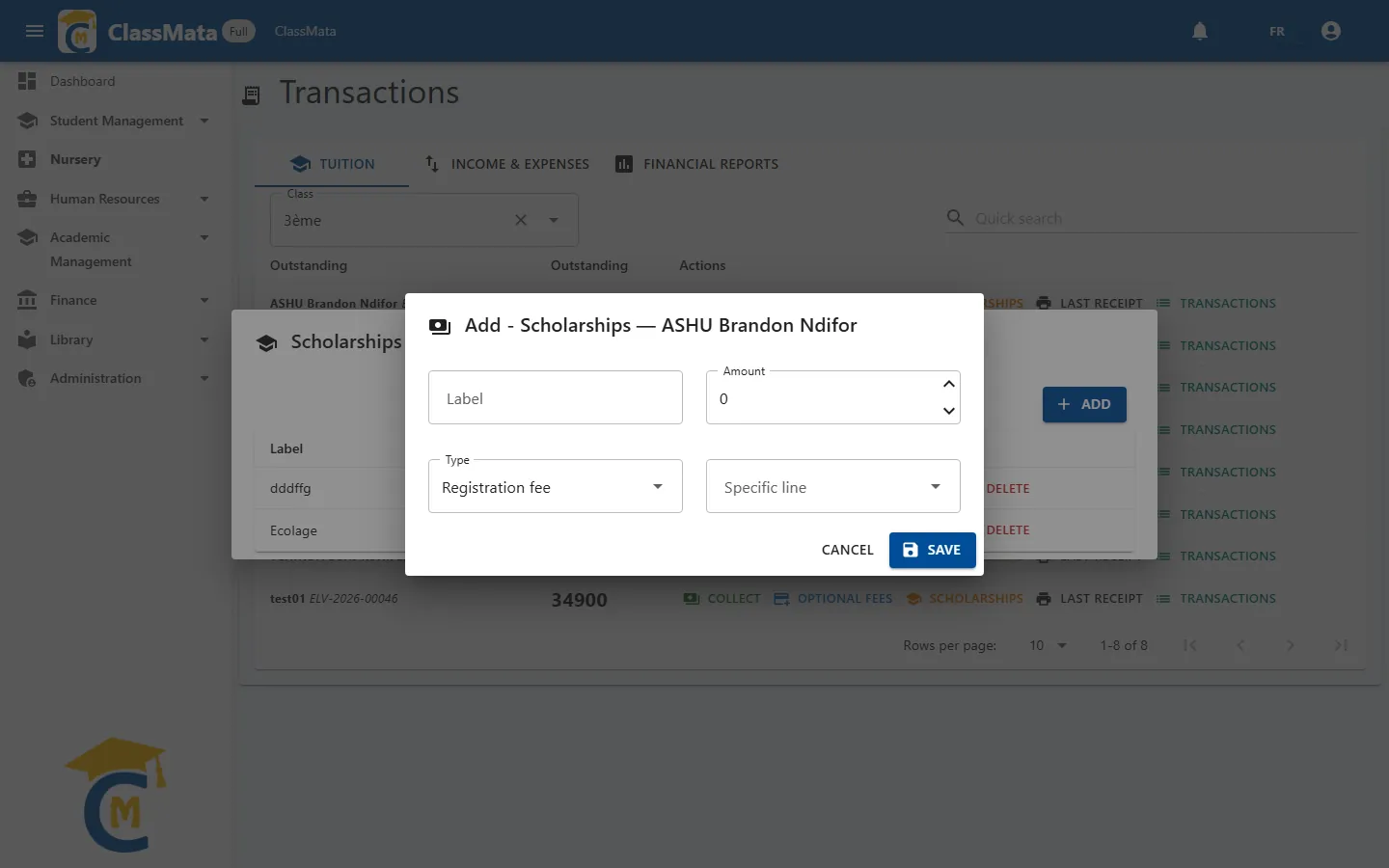
Add (or Edit) asks for:
| Field | Content |
|---|---|
| Label | Free title (the type is used if left empty) |
| Amount | Scholarship amount, greater than zero |
| Type | Registration fee or Tuition: the scholarship is applied to the lines of that type |
| Specific line | Optional: attaches the scholarship to one particular fee line. Otherwise it is spread over the lines of the type, in order |
A scholarship cannot exceed what the student still owes on the chosen type (or on the specific line chosen), and the student's class must have a fee structure. Delete removes the scholarship after confirmation.
Refusal without explanation. In the online version, when ClassMata refuses an operation for one of these reasons (optional fee paid partially, scholarship too high, class without a fee structure…), the reason is not always shown: you may only see "Error while connecting to the server". Check the rules above in that case.
Last receipt and history
Last receipt opens the student's latest receipt, ready to print. If they have none, the "No receipt" message appears.
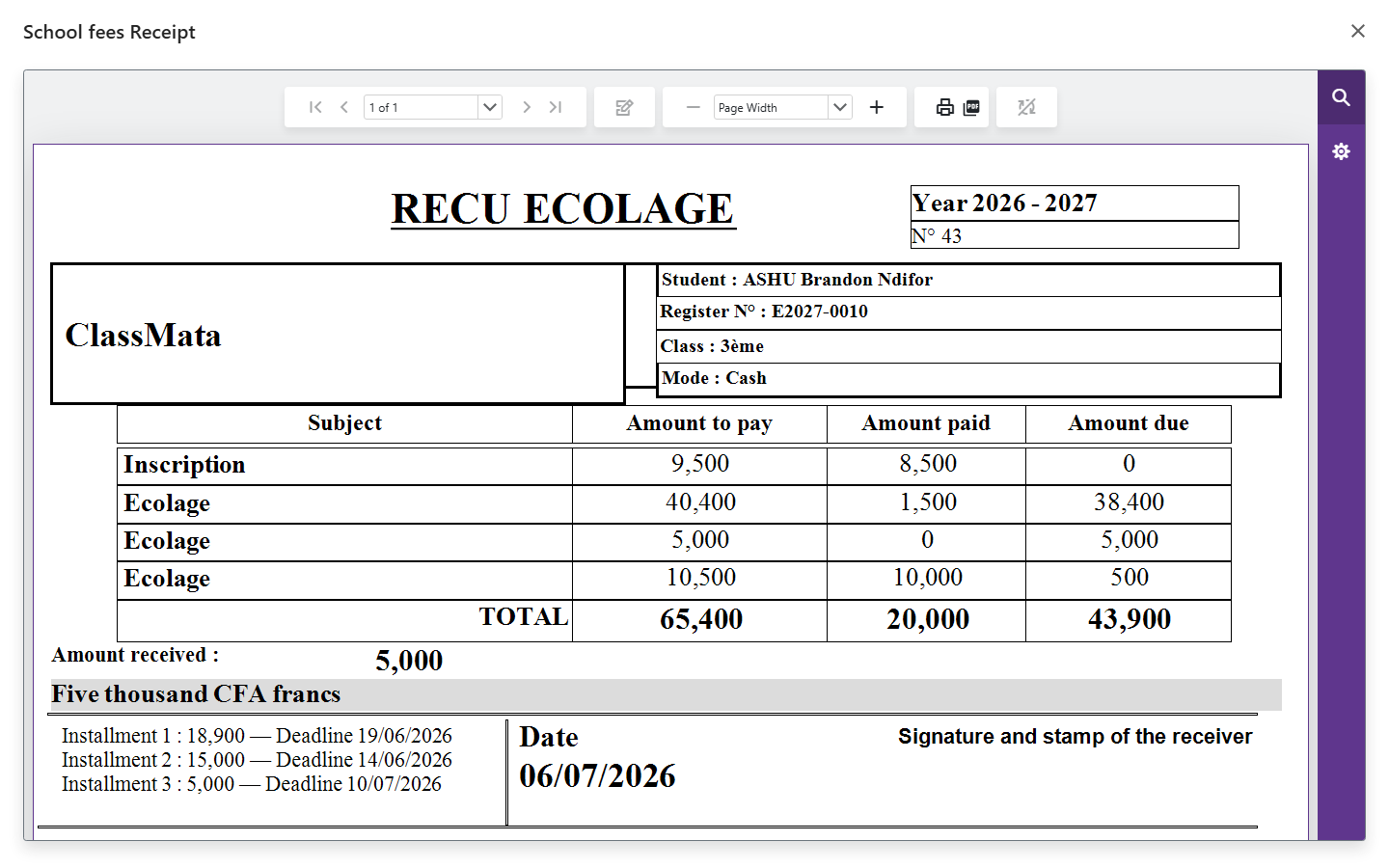
The viewer offers page navigation, zoom, printing and export. The receipt template used is the one that is activated (star) in Settings.
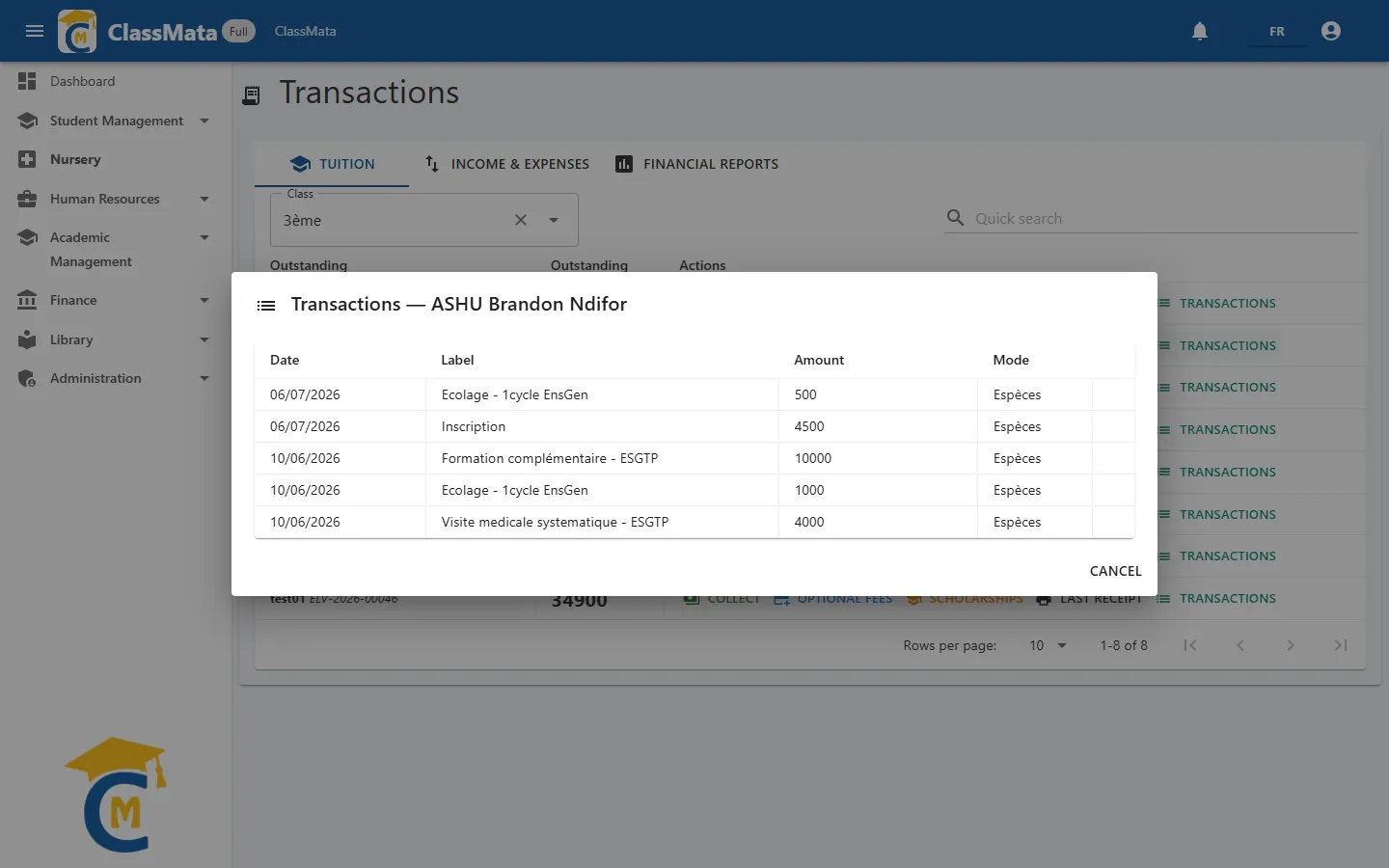
Transactions lists all the student's payments: date, label, amount and payment mode.
Income & Expenses
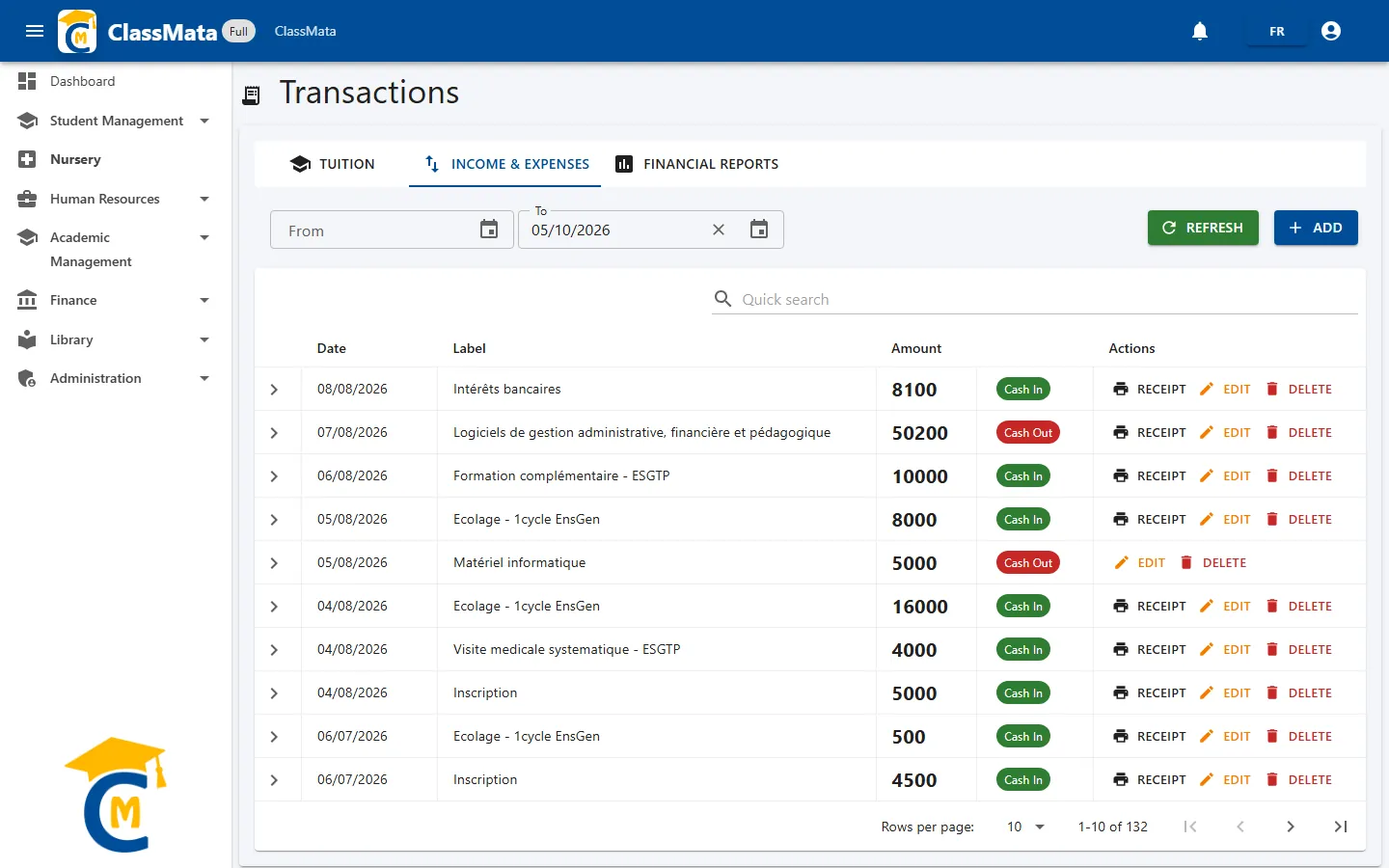
This tab is the cash journal: each line is one operation (a line of a tuition payment, or an income or expense of the school), the most recent first.
| Element | Role |
|---|---|
| From / To | Limit the list to a period. The filter applies when the calendar closes; clearing From removes the start bound |
| Refresh | Reloads the list and resets the dates (no start, up to today) |
| Add | Records an income or an expense (see below) |
| Quick search | Filters on the label, or the student's name or ID |
The columns are the Date, the Label, the Amount and a Cash In (green) or Cash Out (red) chip. The arrow at the start of a row reveals the Account (name and code), the Payment Mean and the Operator who entered the operation:
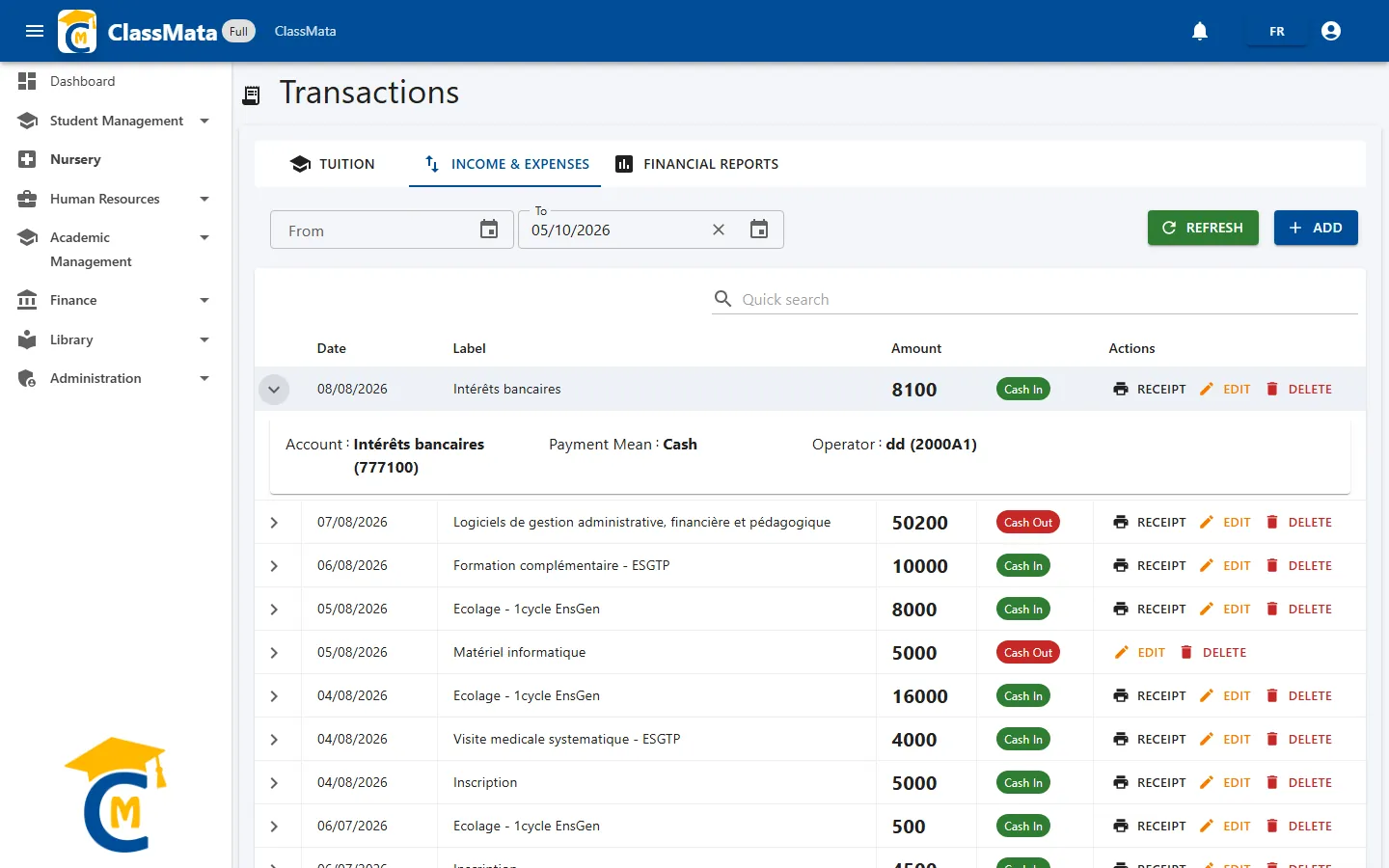
The row's buttons:
- Receipt: prints the receipt. For a tuition payment, opens the student's latest receipt;
- Edit: changes the label, date, amount, account, payment mode and observations;
- Delete: removes the operation after confirmation. Careful: if the operation is a tuition payment, the sum becomes due again from the student.
Record an income or an expense
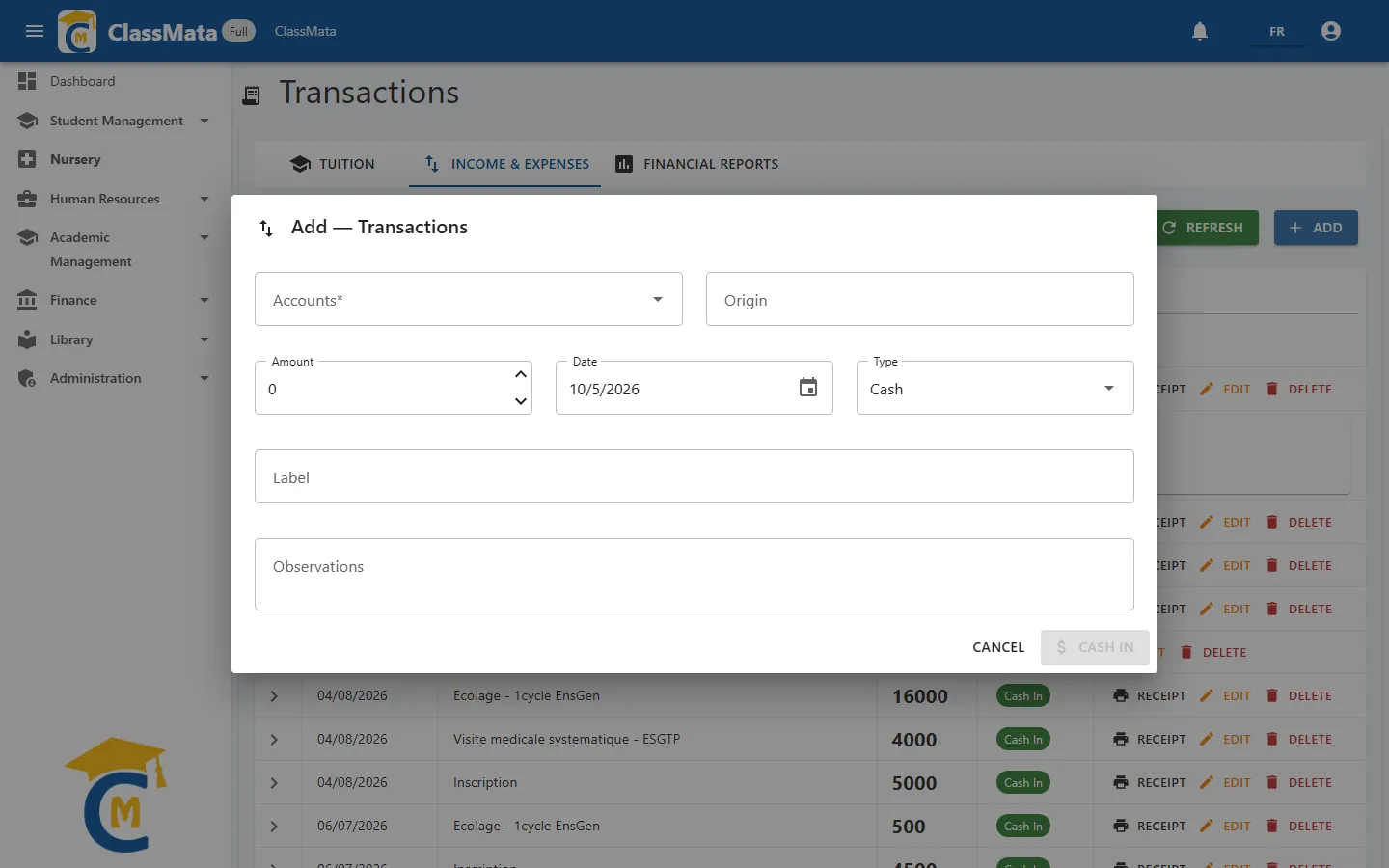
Add opens the form. Start with the Account: it decides whether this is an income or an expense.
| Field | Content |
|---|---|
| Accounts | The account concerned (required): type the code or a few letters of the name |
| Origin / Beneficiary | Who paid the money in (income) or who received it (expense): the label changes with the account type |
| Amount, Date, Type | As for a collection (cash or bank, with reference and bank) |
| Label | What the operation is for (required). Pre-filled with the account name when empty |
| Observations | Free remark |
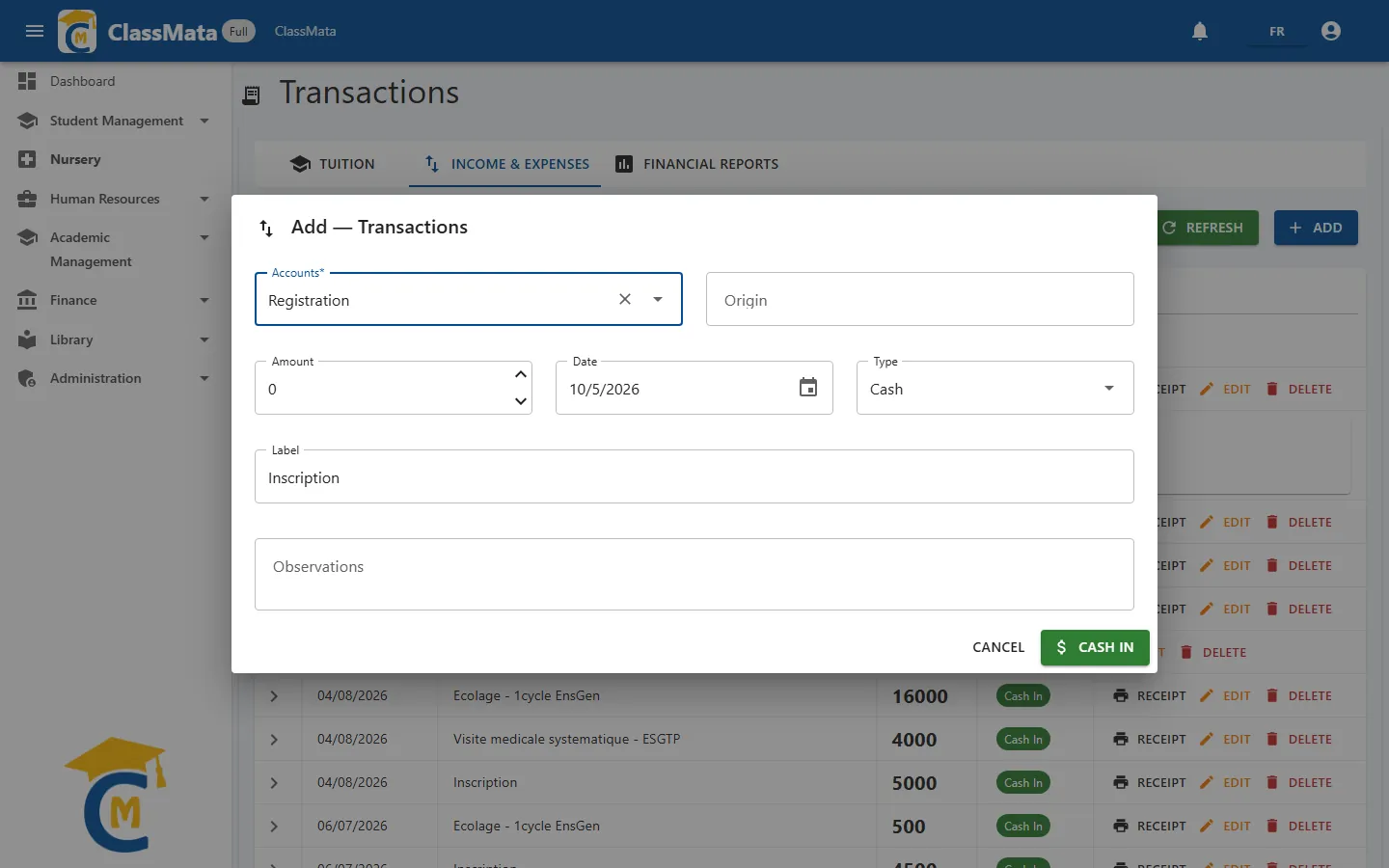
With an income account, the save button is green and reads Cash In. With an expense account, it is red and reads Cash Out:
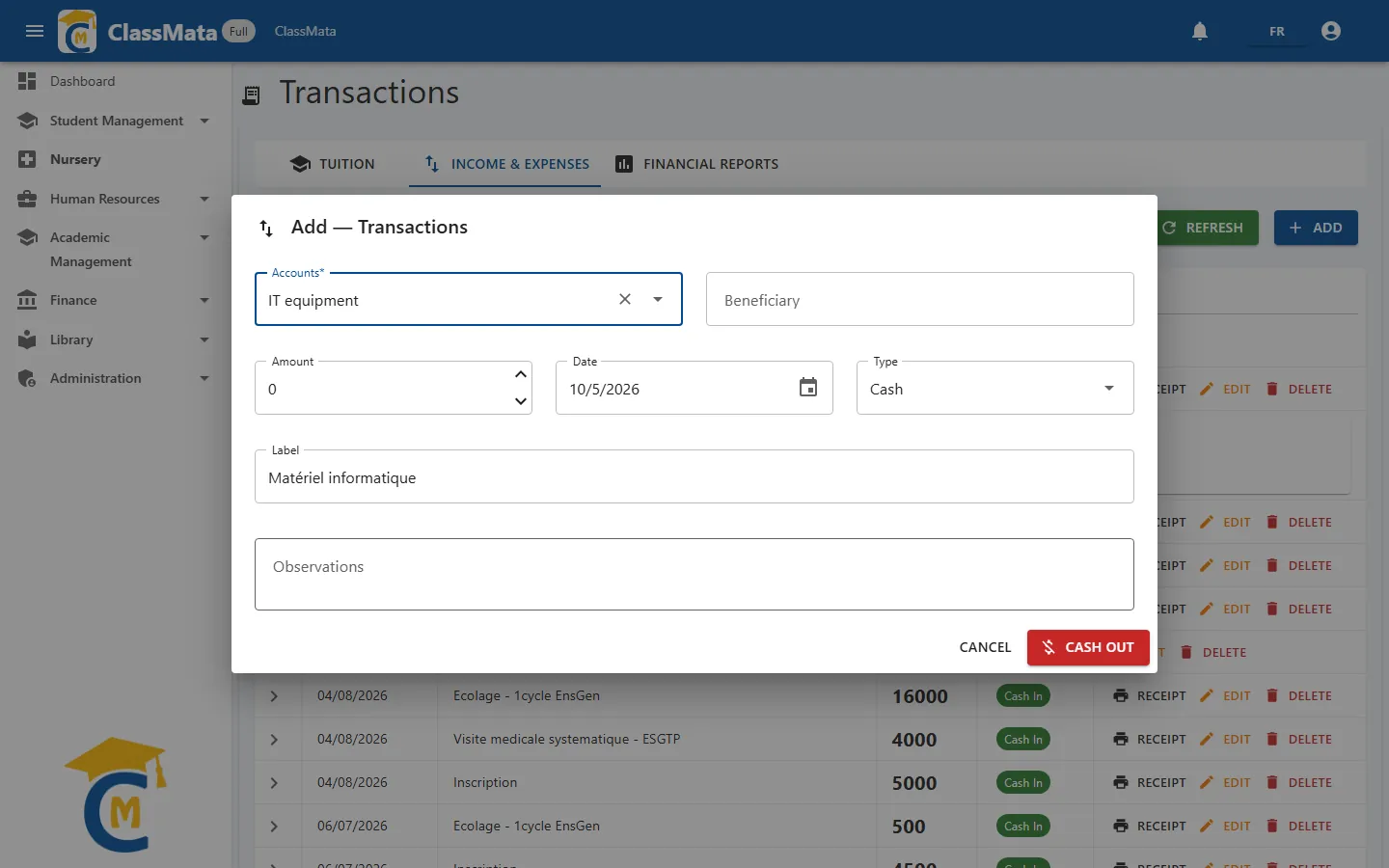
The button stays greyed out until an account is chosen. Once the operation is saved, the voucher or receipt is displayed for printing.
Financial reports
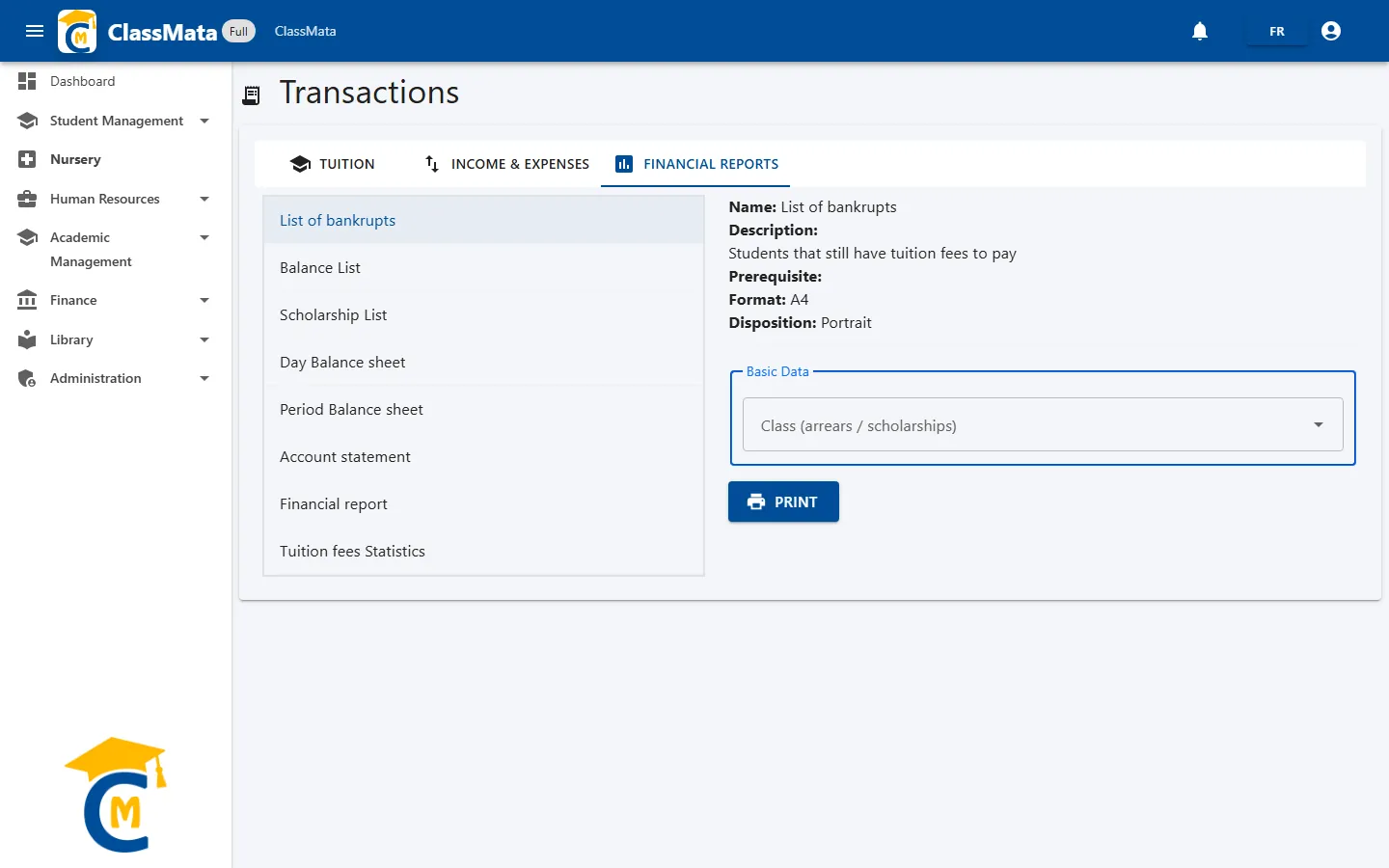
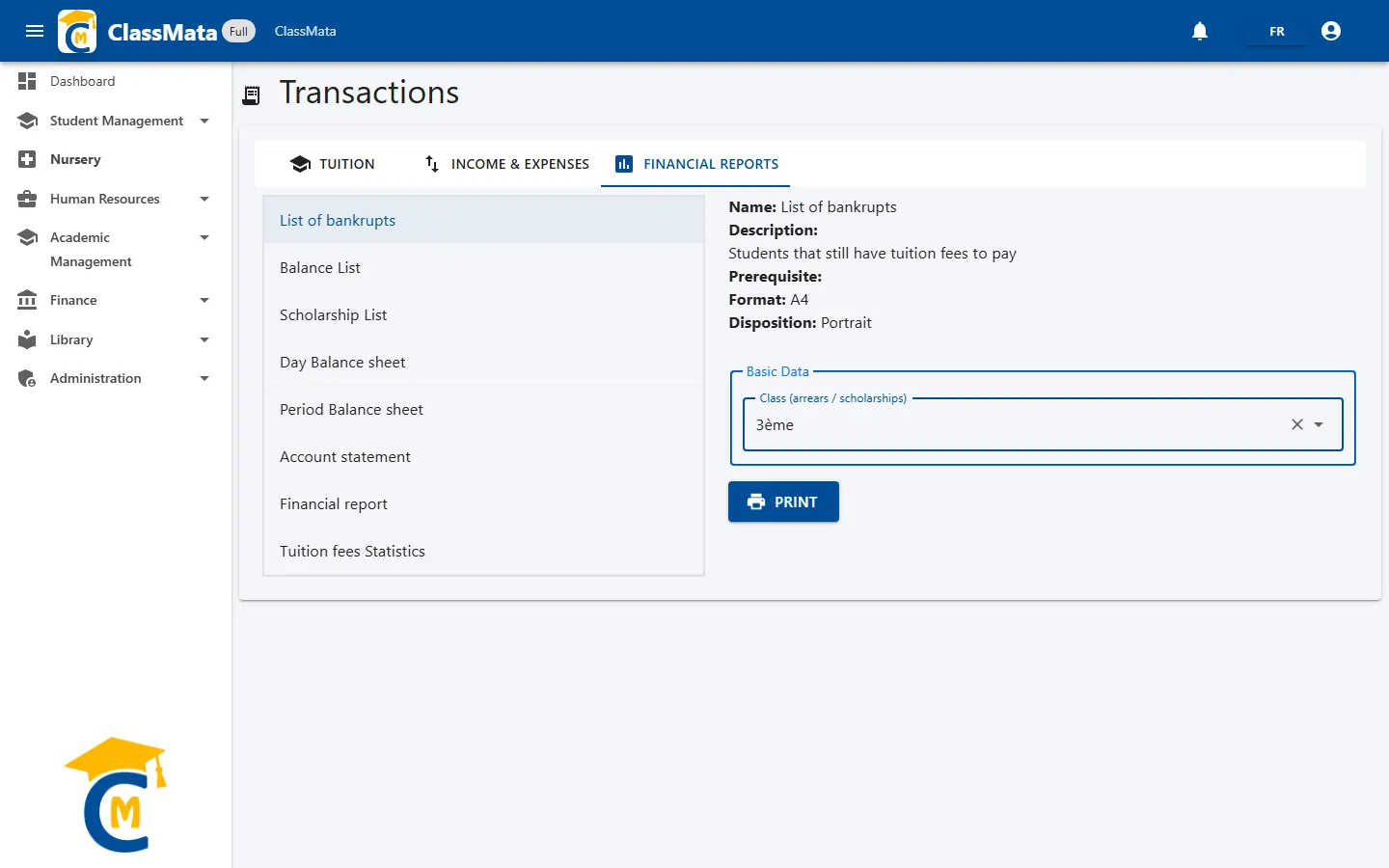
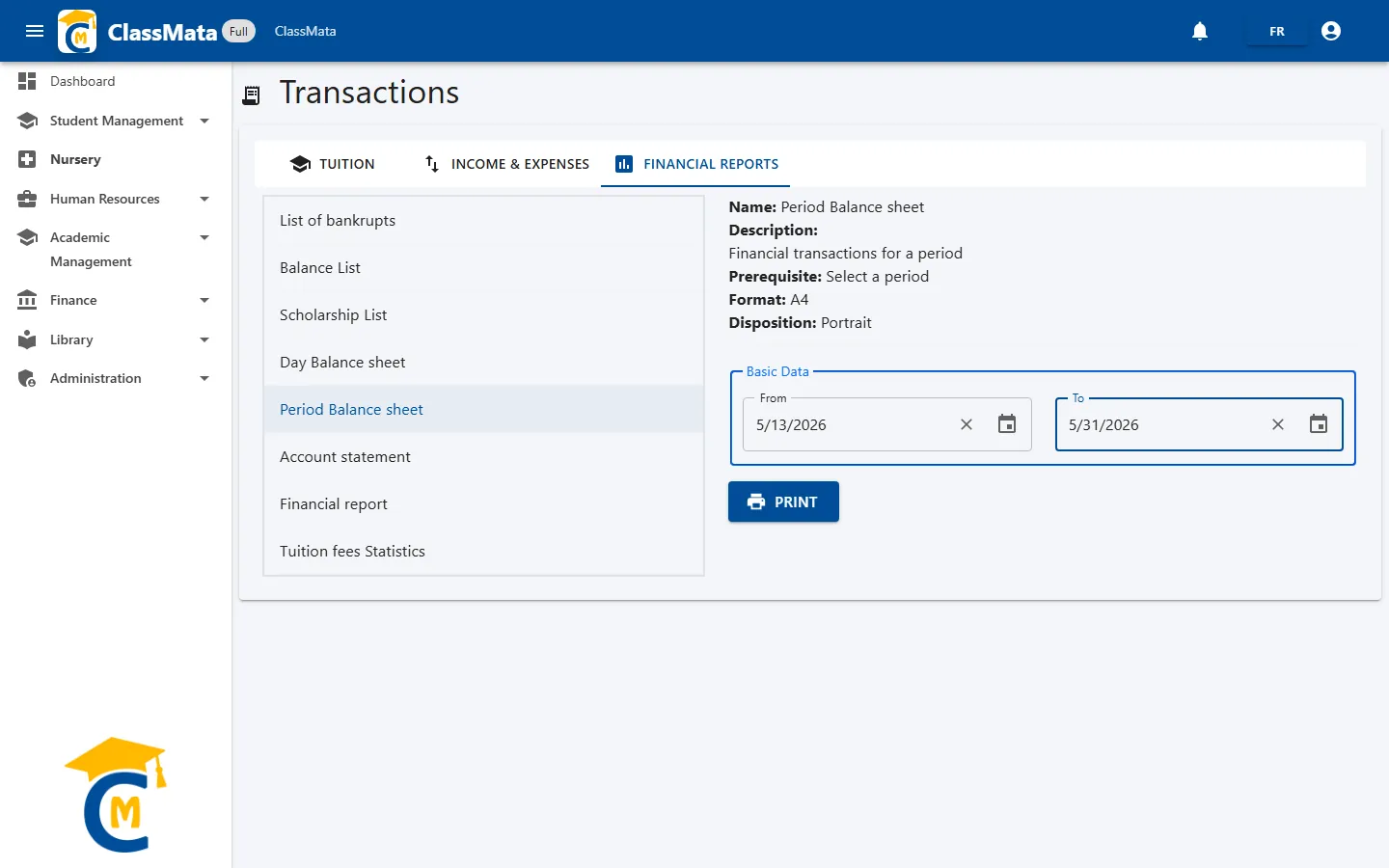
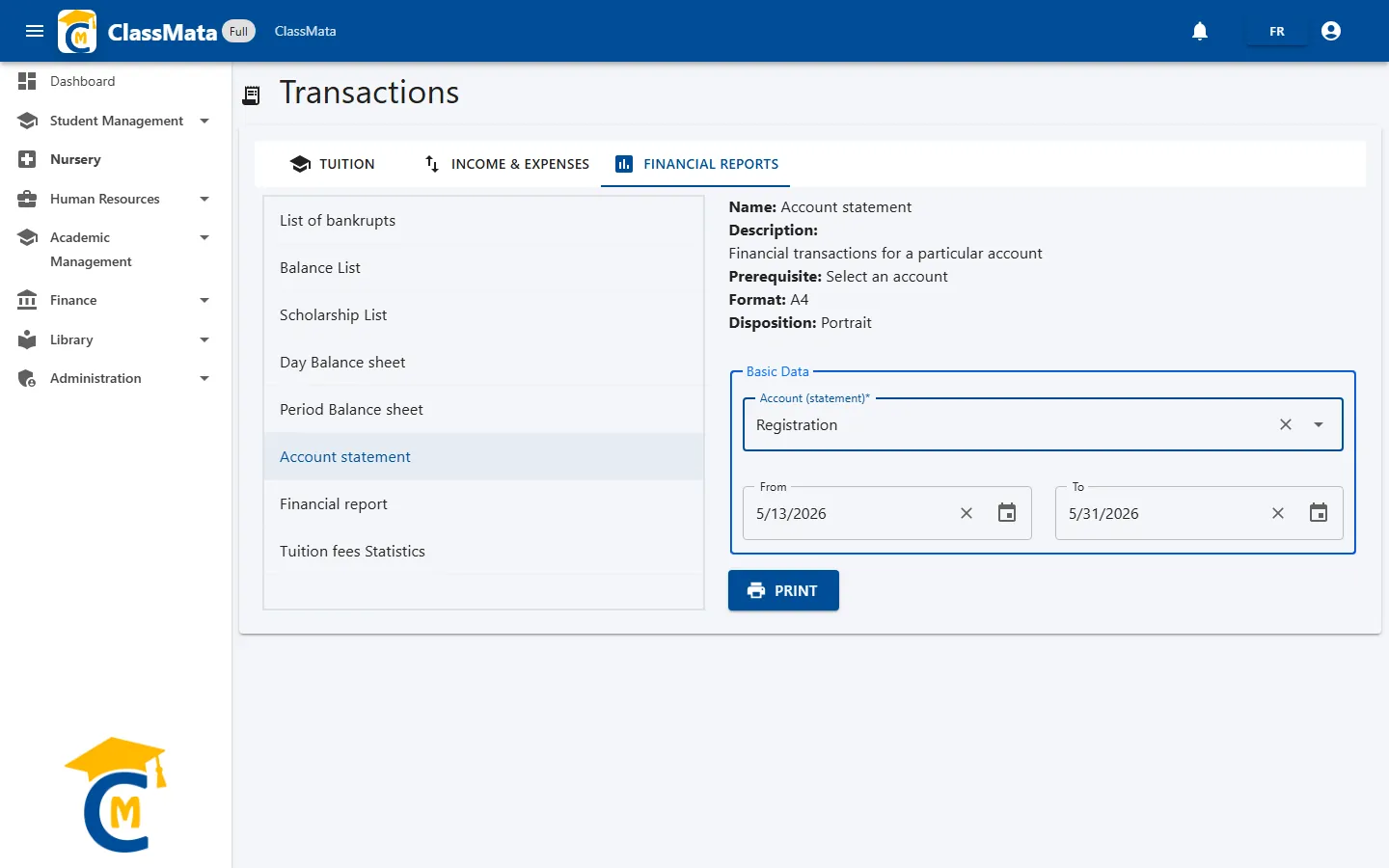
The Financial Reports tab lists eight reports on the left. Click a report: its name, description, prerequisite and format (A4, portrait) appear on the right, with the filters it needs in the Basic Data frame. The Print button opens the report in the viewer, from where it can be printed or exported.
| Report | Filters | Content |
|---|---|---|
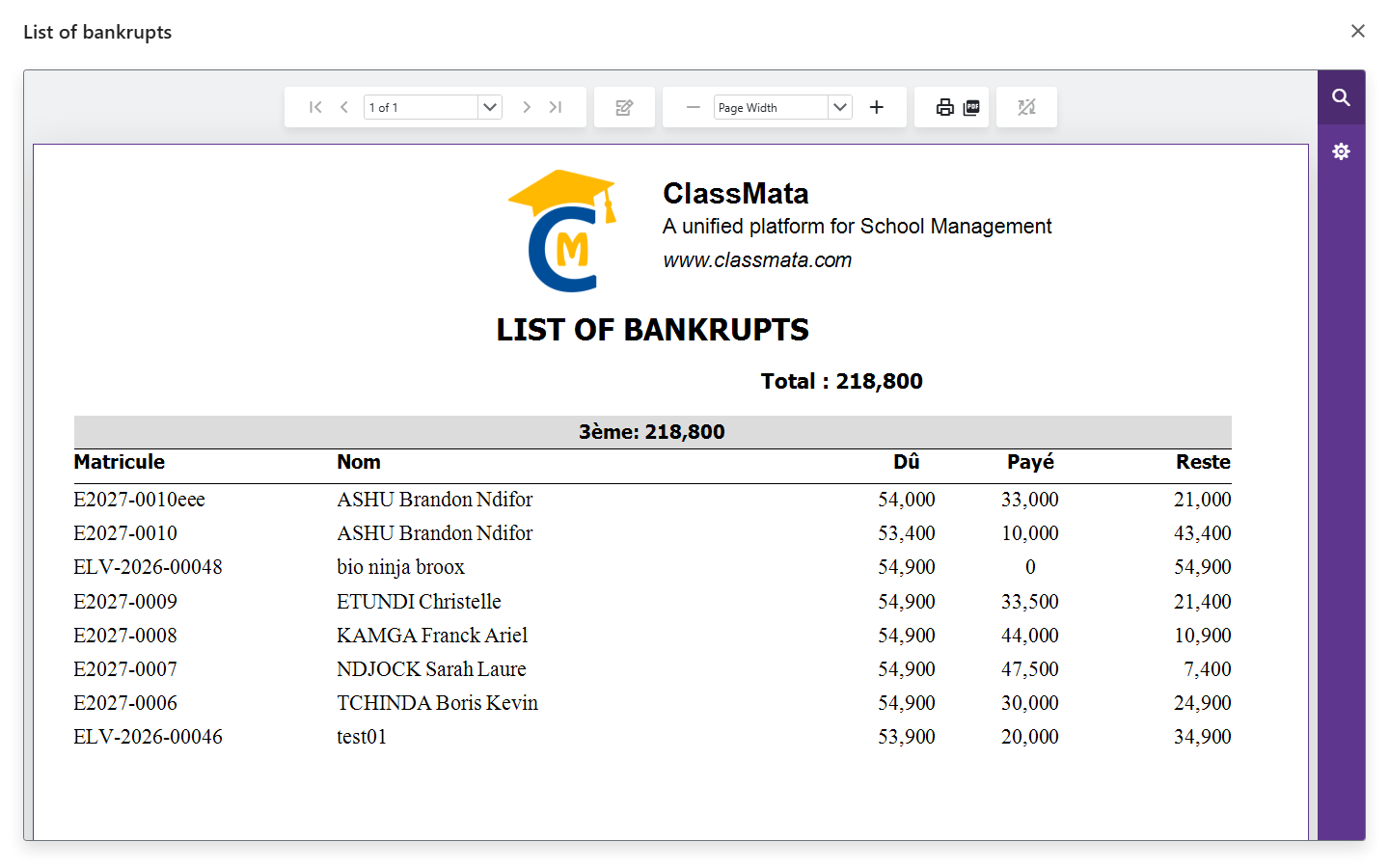
| List of bankrupts | Class(es) | Students who still have fees to pay: Due, Paid and Remaining, with the total per class |
| Balance List | Class(es) | Announced as "all the students with their payment status", but in this version it opens the same arrears list |
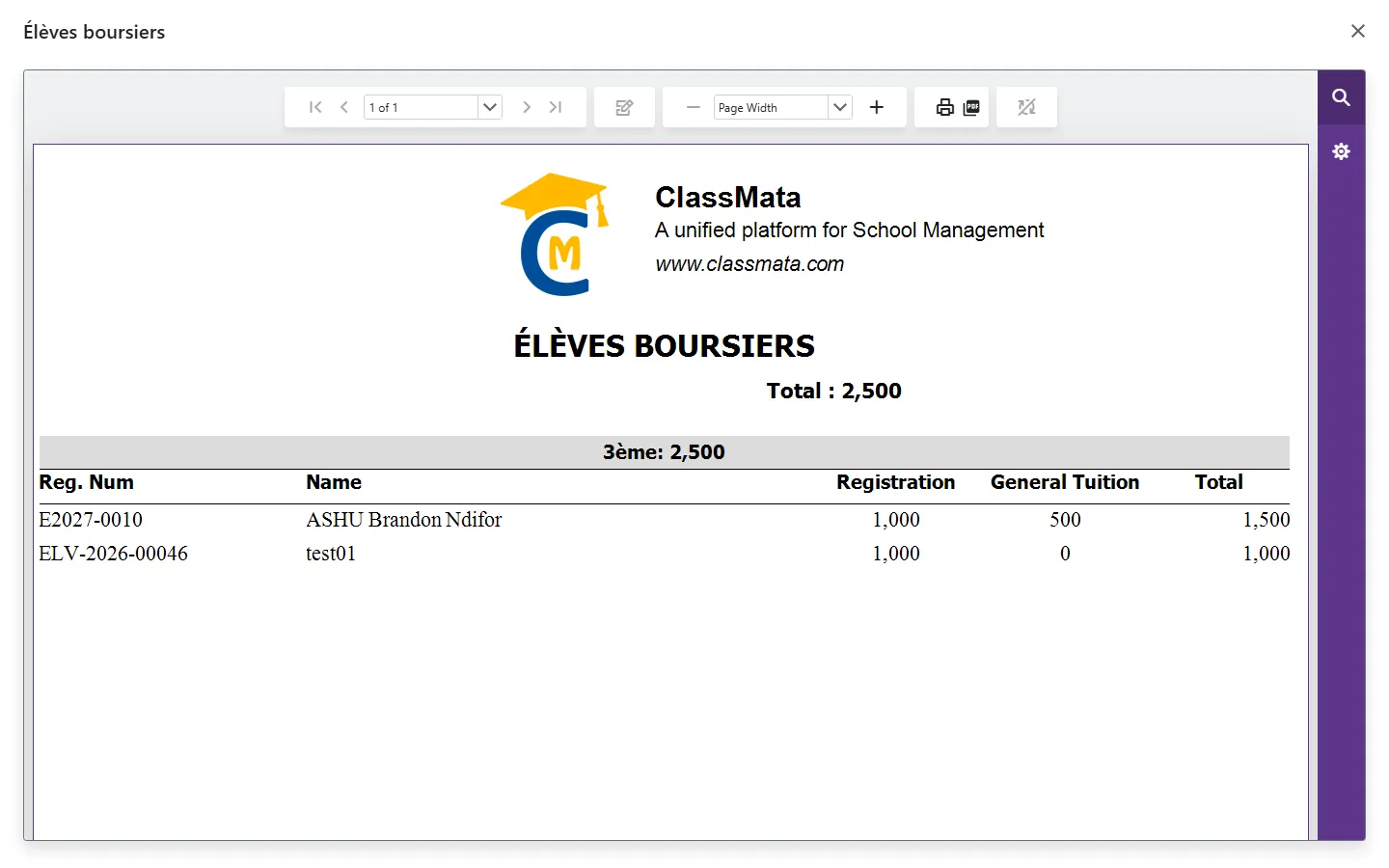
| Scholarship List | Class(es) | Students with scholarships and the amount of their scholarships (registration, tuition, total) |
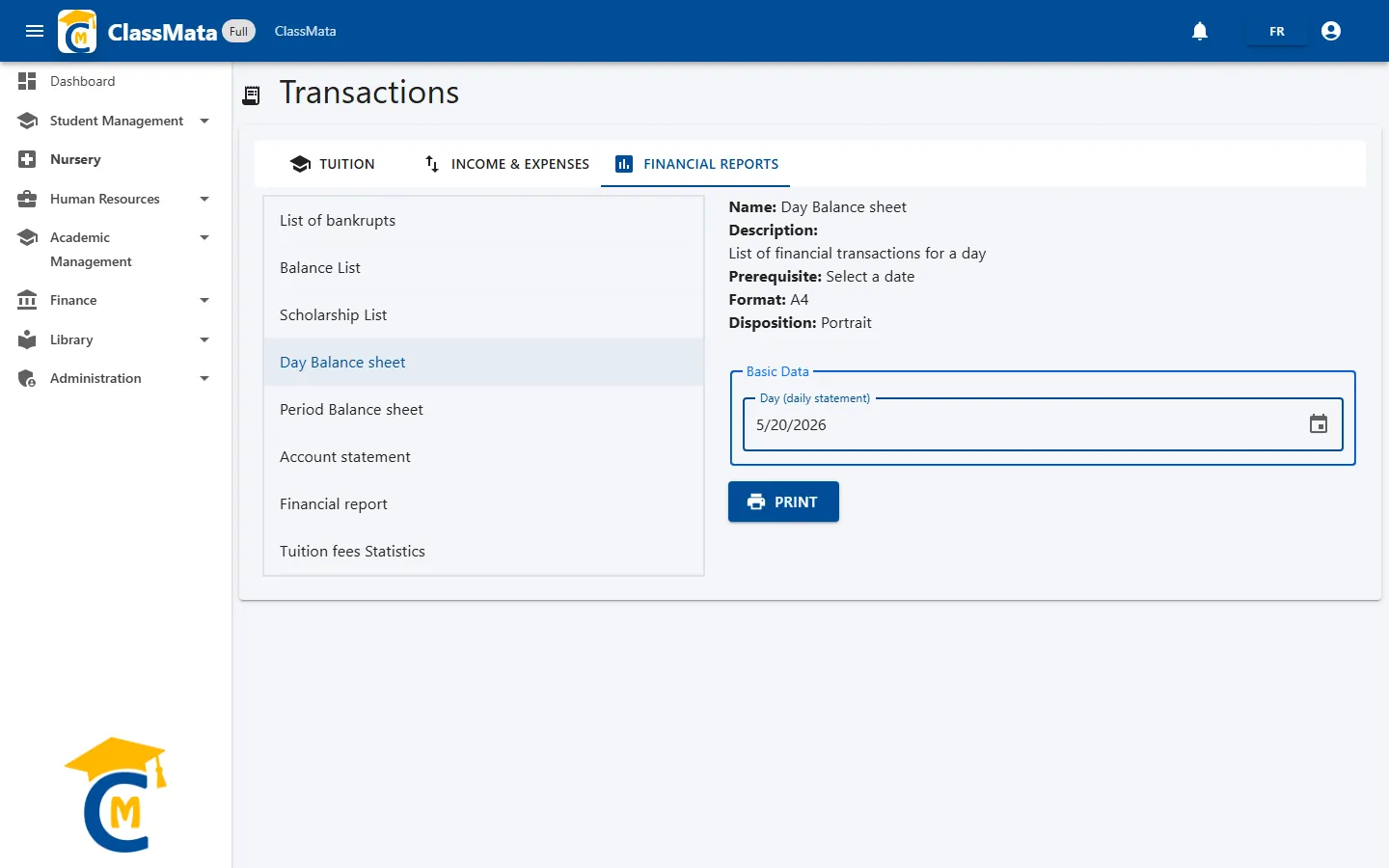
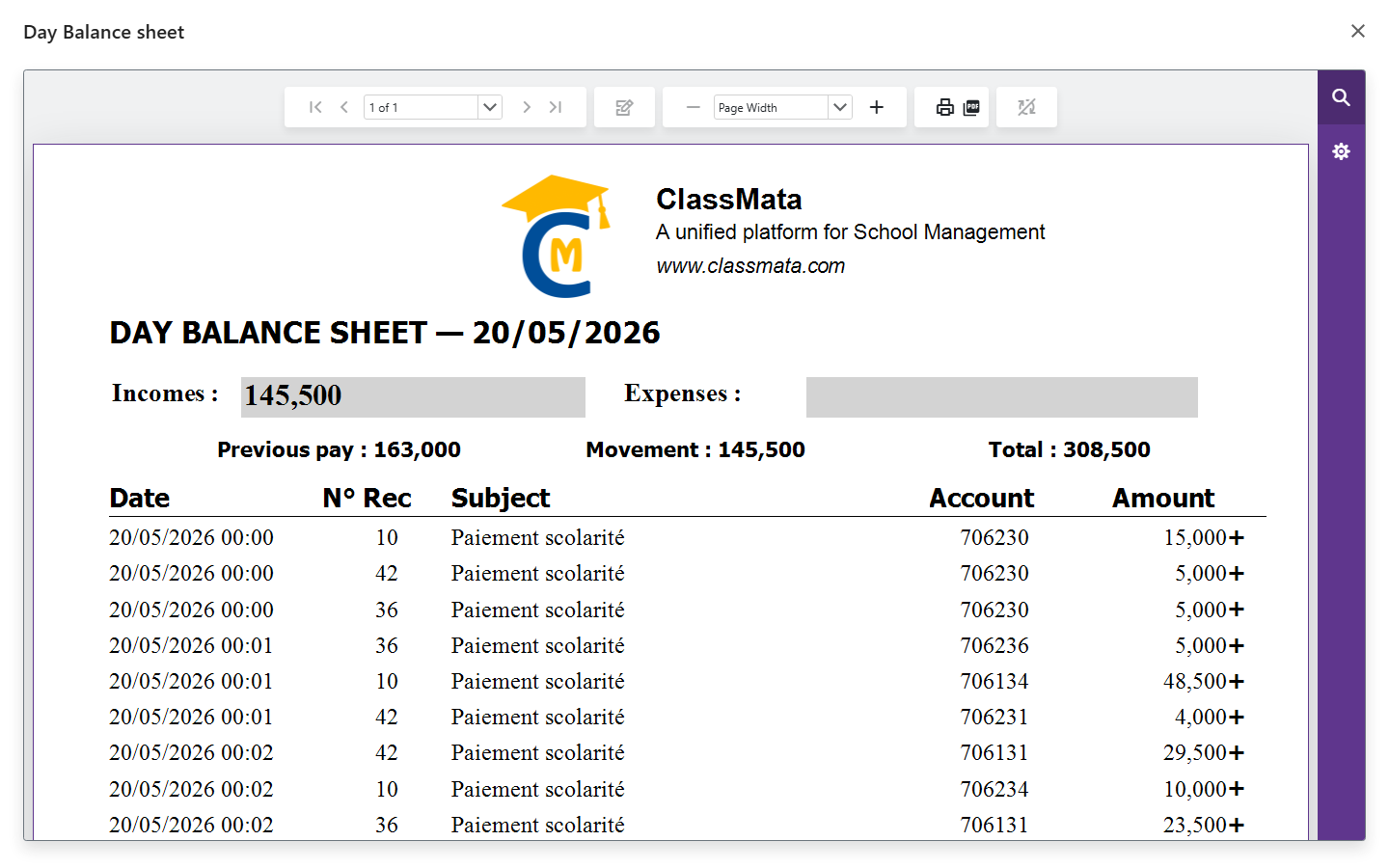
| Day Balance sheet | Day | The operations of one day, with the previous balance, the day's movement and the total |
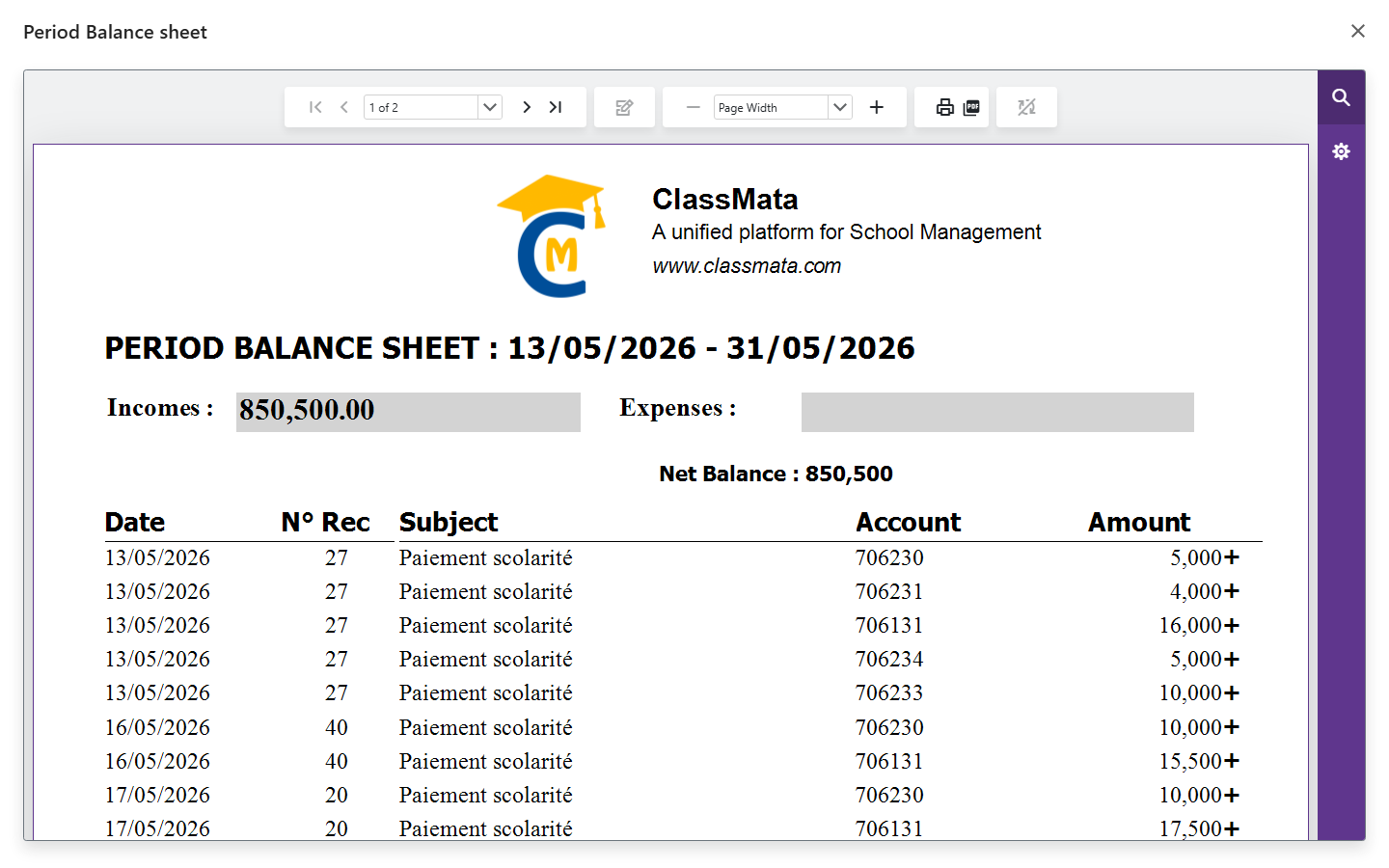
| Period Balance sheet | From / To | The operations of a period, with income, expenses and net balance |
| Account statement | Account, From / To | The movements of a single account: money in, money out and net balance |
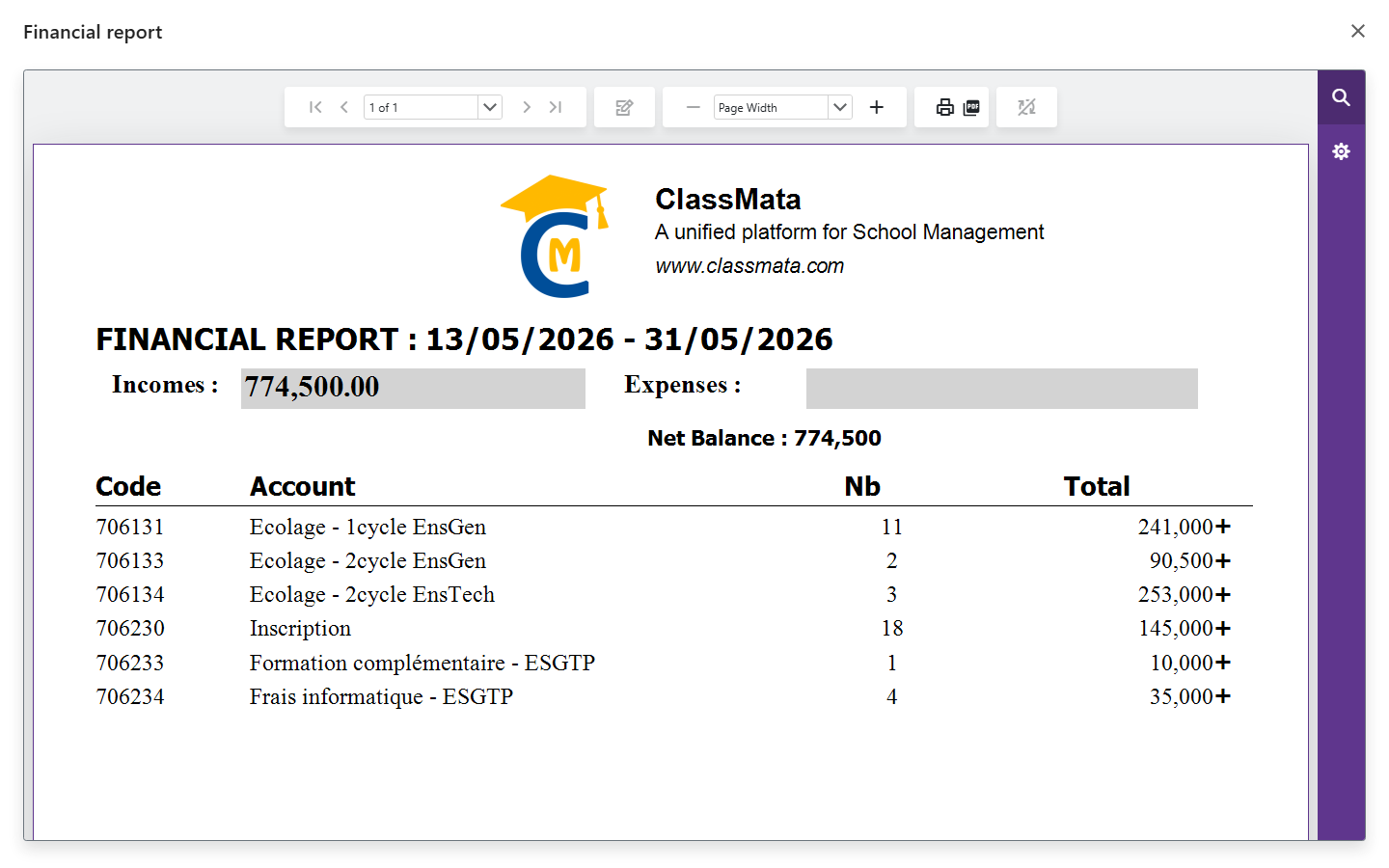
| Financial report | From / To | The number of operations and the total per account, for the accounts included in the reports |
| Tuition fees Statistics | From / To | The period's collections, with the student's name |
The student lists are driven by Class (arrears / scholarships): with no choice, all classes are included. For the Period Balance sheet, the Account statement and the Tuition fees Statistics, From may stay empty: the report then starts from the beginning. The Financial report needs both dates.
The Day Balance sheet asks for a Day:
The period reports ask for a period:
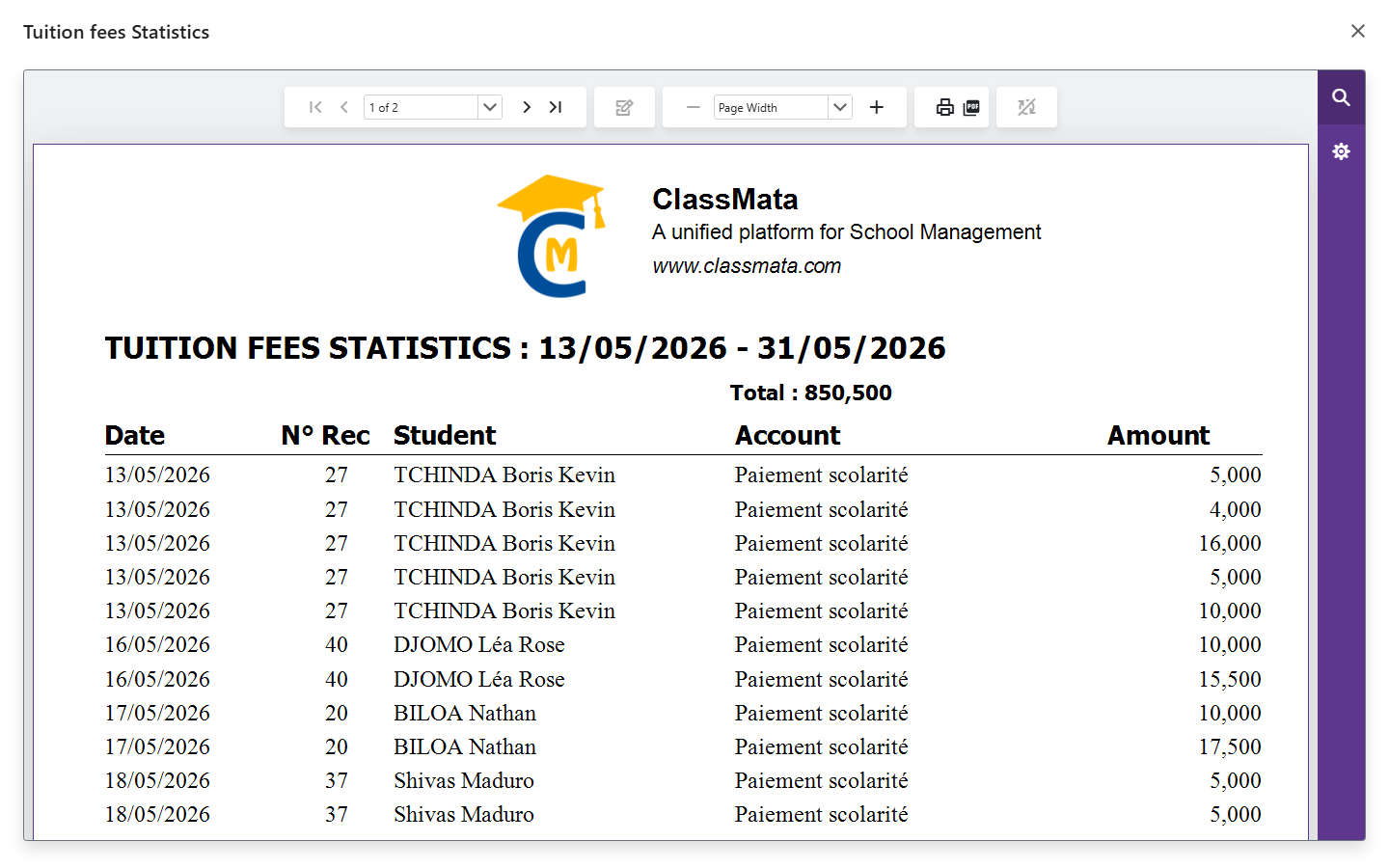
For the Account statement, first choose the account (otherwise: "Select an account").
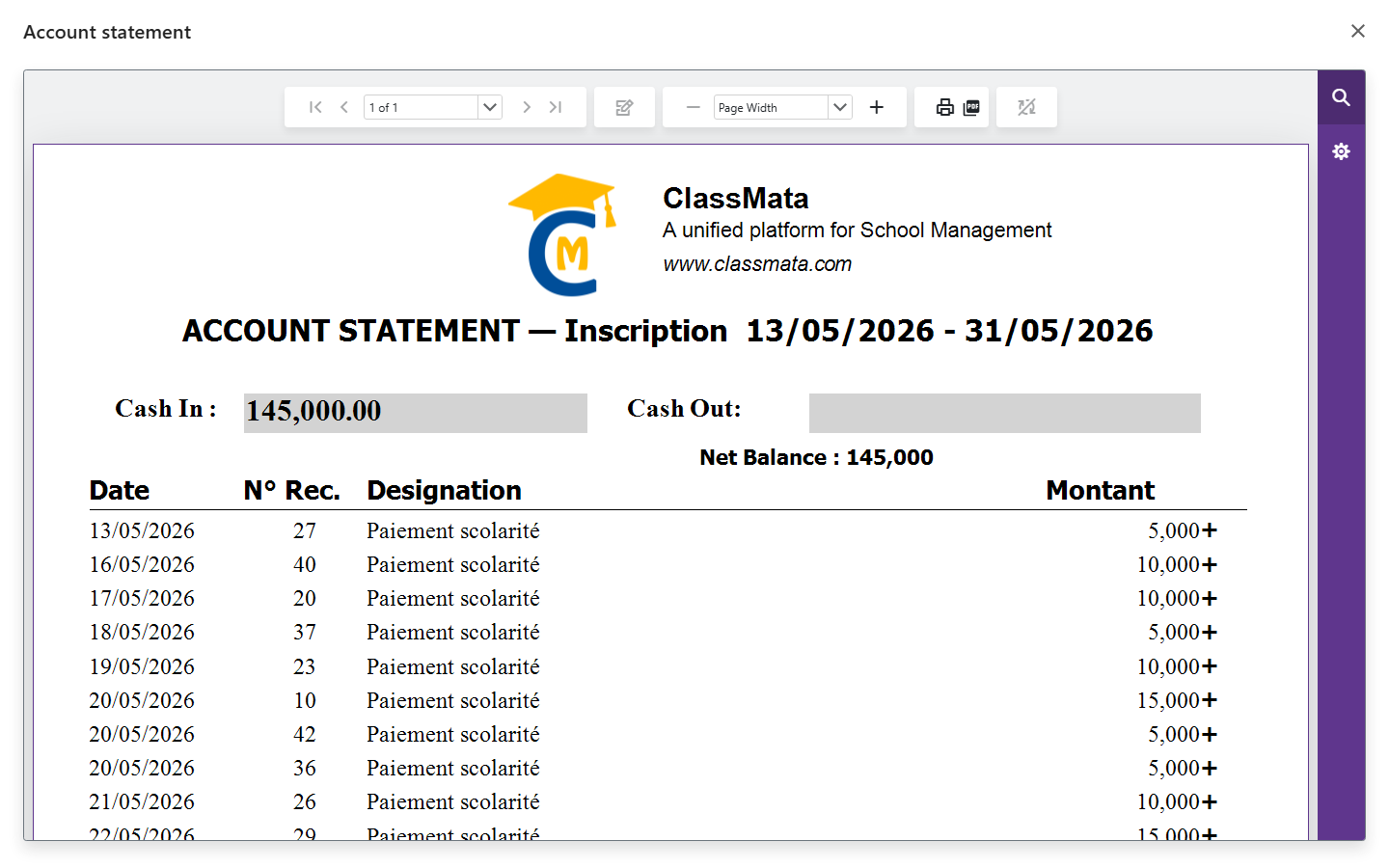
The Day Balance sheet, Period Balance sheet, Account statement, Financial report and Tuition fees Statistics reports need the Stock sheet permission; the Scholarship List needs the School fees Deposit permission.
Last updated: