Accounting Plan
The accounting plan is the list of accounts the school uses to file everything it collects or pays out: registration fees, tuition, rent, supplies, salaries… Accounts are grouped into categories. The fee structures and the transactions are all built on these accounts. Accessible from Finance → Accounting Plan.
Permissions. The page requires access to the Finance module and the permission to view the accounting plan. The Add, Edit and Delete buttons only appear for users who are allowed to modify it. Finance is one of the modules activated by subscription: if your school does not have it, the Finance menu entries carry a padlock and lead to the upgrade page.
Accounts
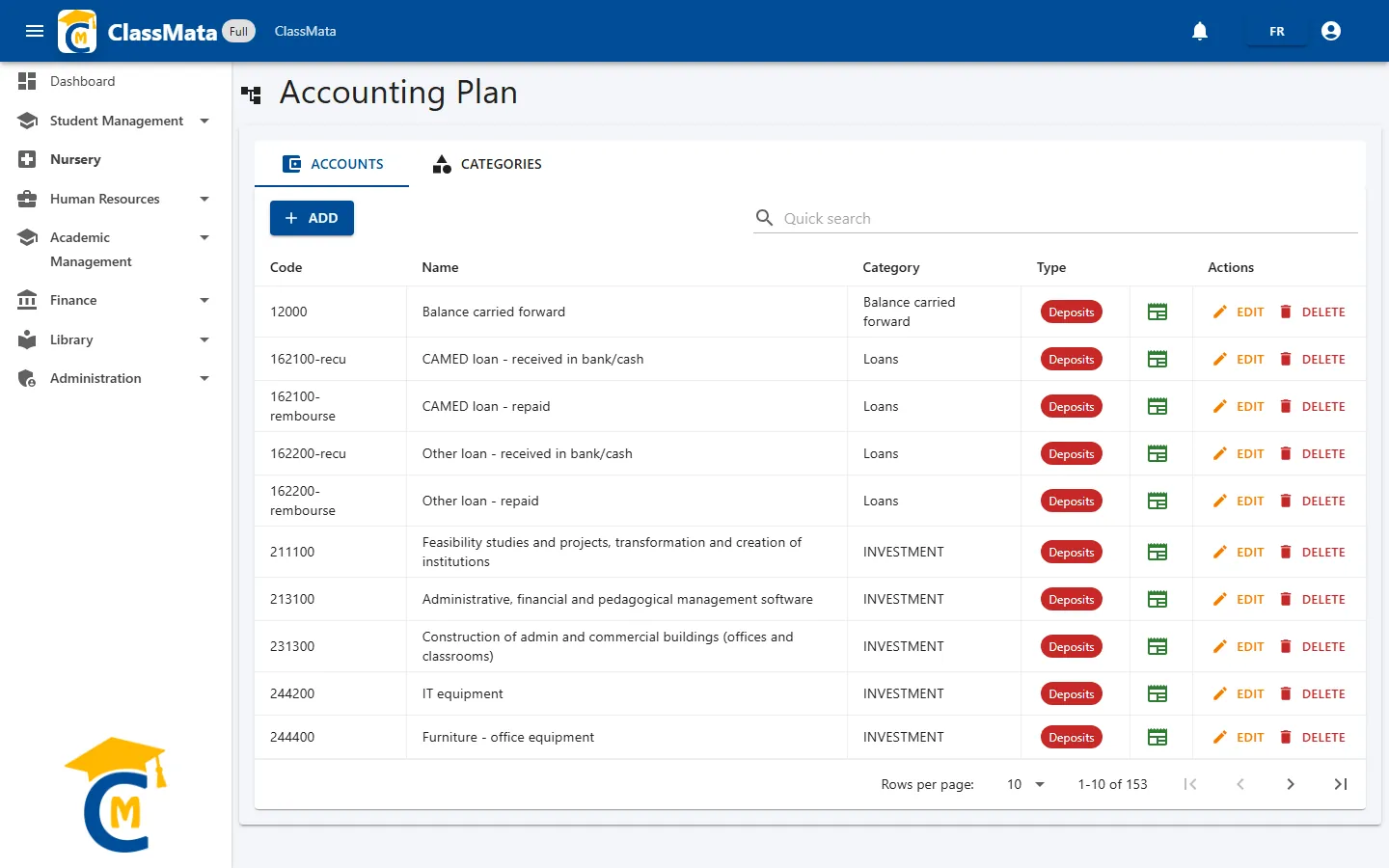
The Accounts tab lists every account, sorted by code:
| Column | Content |
|---|---|
| Code | Account code (for example 706230) |
| Name | Account name, in the application's language |
| Category | Category the account is filed under |
| Type | Green Cash In chip (money coming in) or red Deposits chip (money going out) |
| (icons) | Graduation cap: account linked to students · silhouettes: linked to staff · journal: included in the reports |
| Actions | Edit and Delete |
The Quick search filters the list on the account name or code:
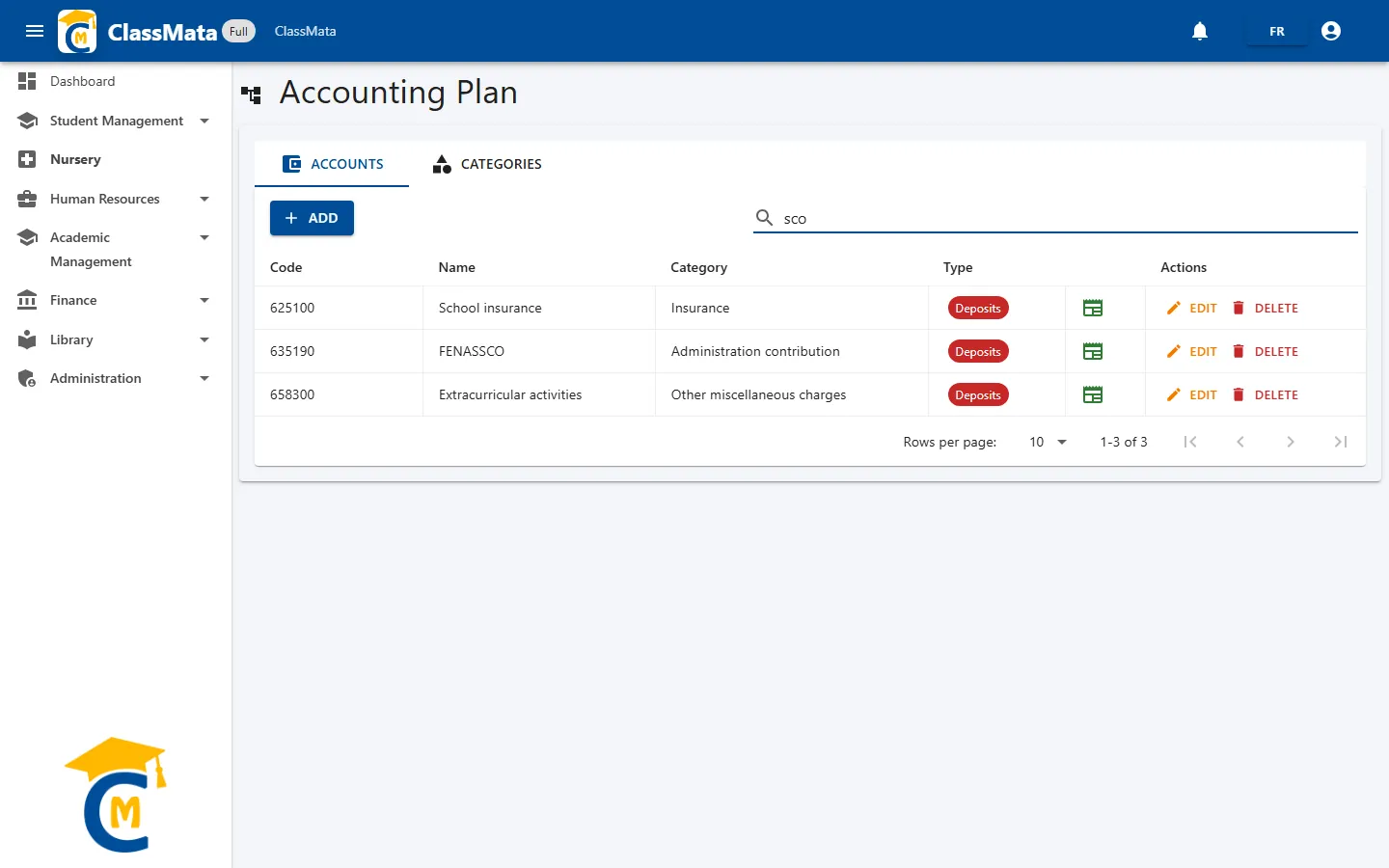
The table shows 10 accounts per page.
Create an account
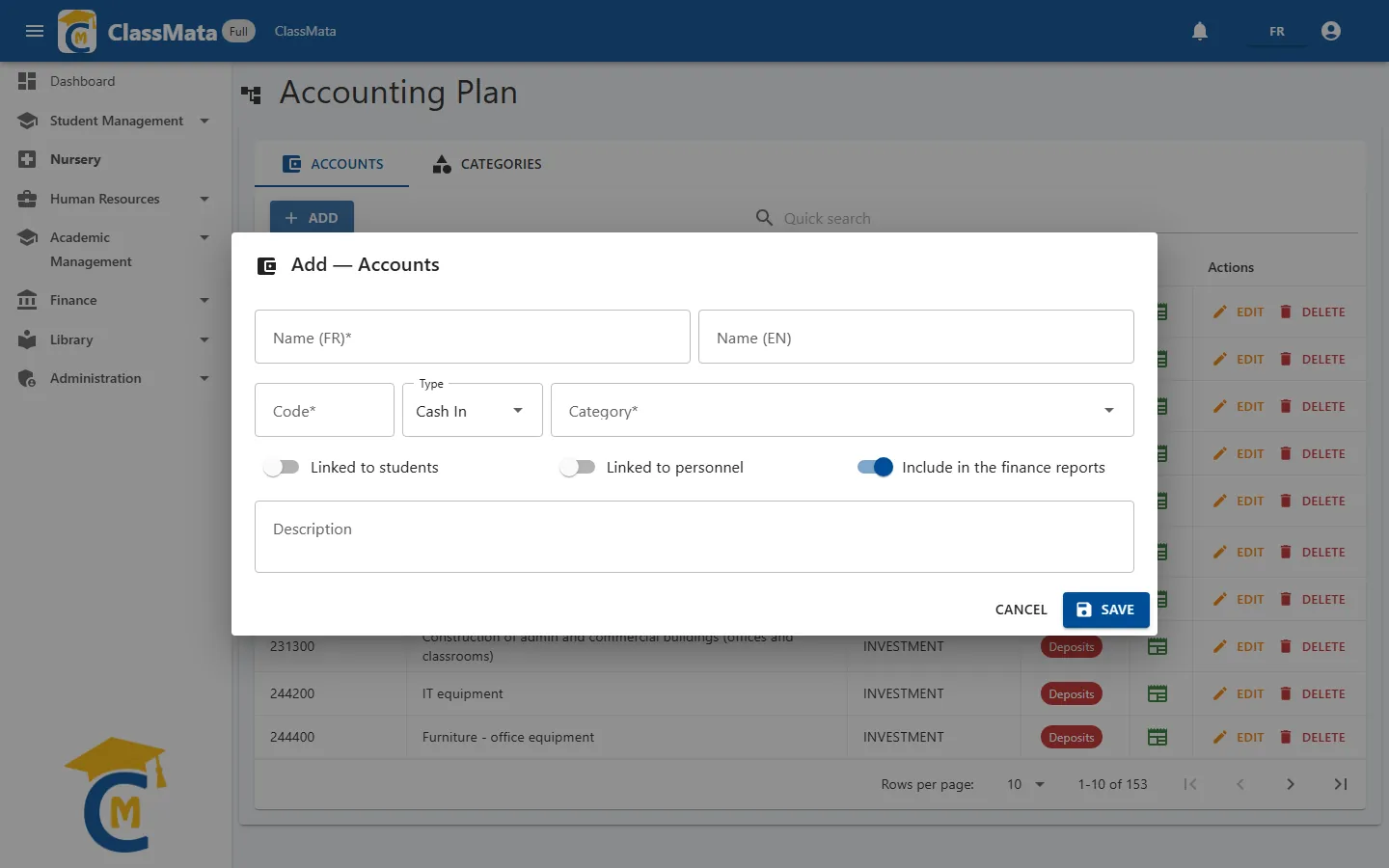
Click Add:
| Field | Content |
|---|---|
| Name (FR) | Name shown in French (required) |
| Name (EN) | Name shown when the application is used in English |
| Code | Account code (required) |
| Type | Cash In for an account that receives money, Deposits for an account the school pays out of |
| Category | The account's category: type a few letters (French or English) and choose |
| Linked to students | Turn on for an account used to bill students (registration, tuition, optional fees). Only these accounts can be chosen in a fee structure line. |
| Linked to personnel | Flags the accounts that concern staff (salaries, advances…) |
| Include in the finance reports | On by default. The account is counted in the Financial report (totals per account), see Transactions |
| Description | Free remark |
Which type? The account type drives the entry screen. In the Income & Expenses tab of Transactions, a Cash In account is collected (green Cash In button) and a Deposits account is paid out (red Cash Out button).
Edit or delete an account
Edit reopens the same form, pre-filled.
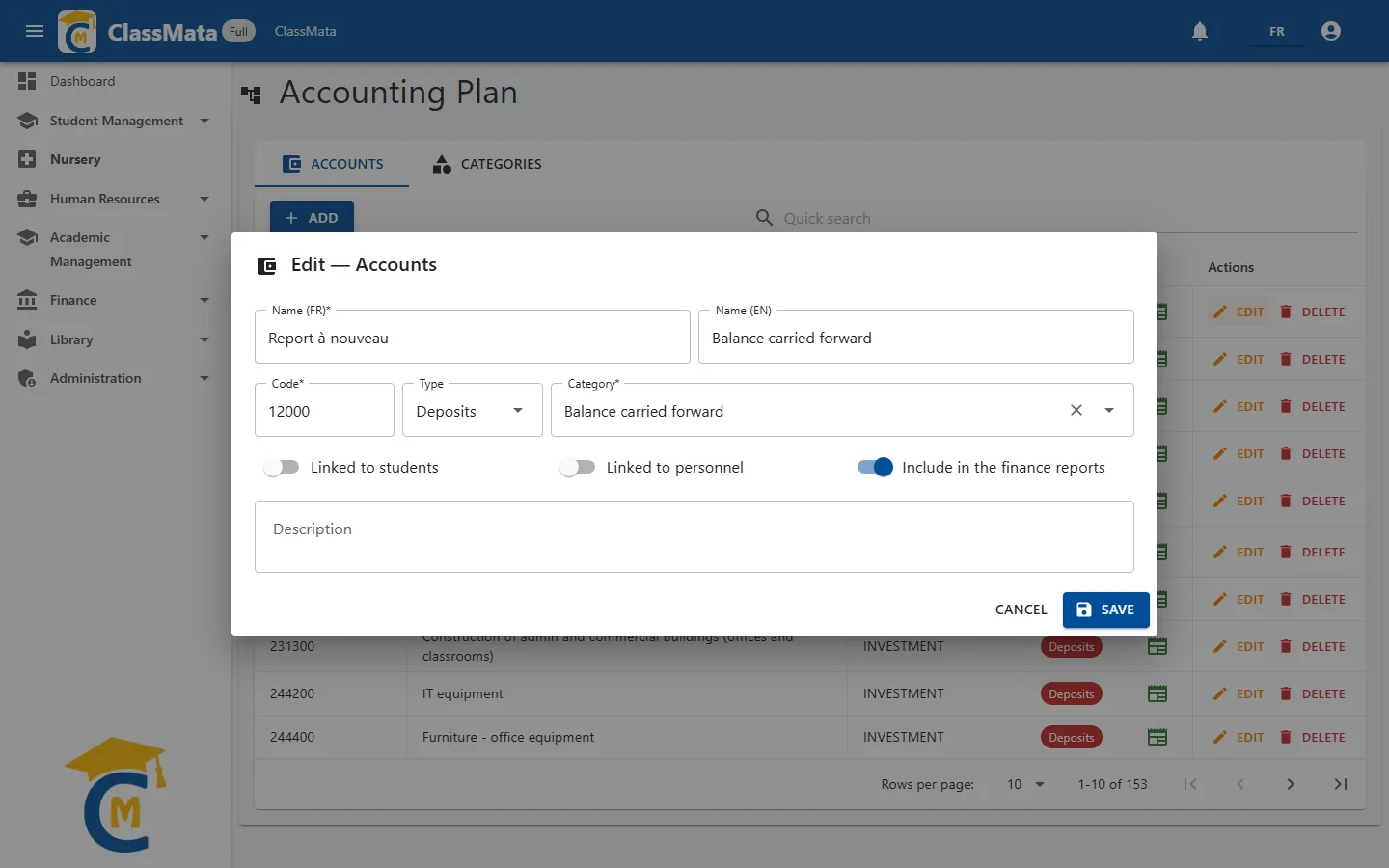
Delete asks for confirmation. An account cannot be deleted while it is in use:
- it is used in a fee structure line: first remove the matching line;
- it is linked to transactions: an account that has already been used to record an operation stays in the plan.
In both cases you can simply edit the account (its name, its category…) instead of deleting it.
Error message. When ClassMata refuses a deletion, the online version does not always show the reason: you may only see the generic message "Error while connecting to the server". In that case, check the two points above.
Categories
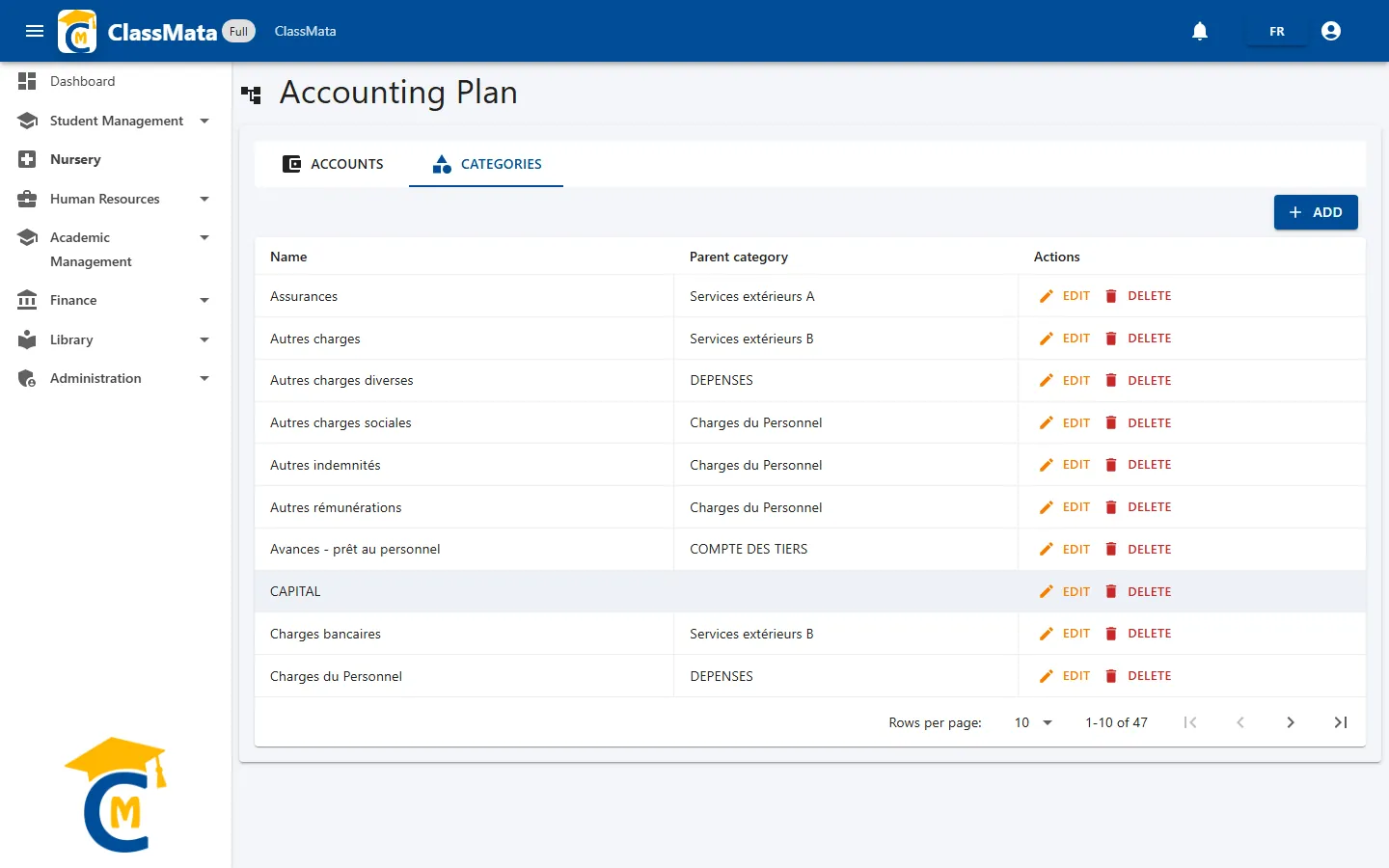
The Categories tab organizes the accounts as a tree: each category can have a Parent category (for example "Insurance" under "External services A"). Top-level categories, such as "CAPITAL", have no parent. Categories are sorted alphabetically.
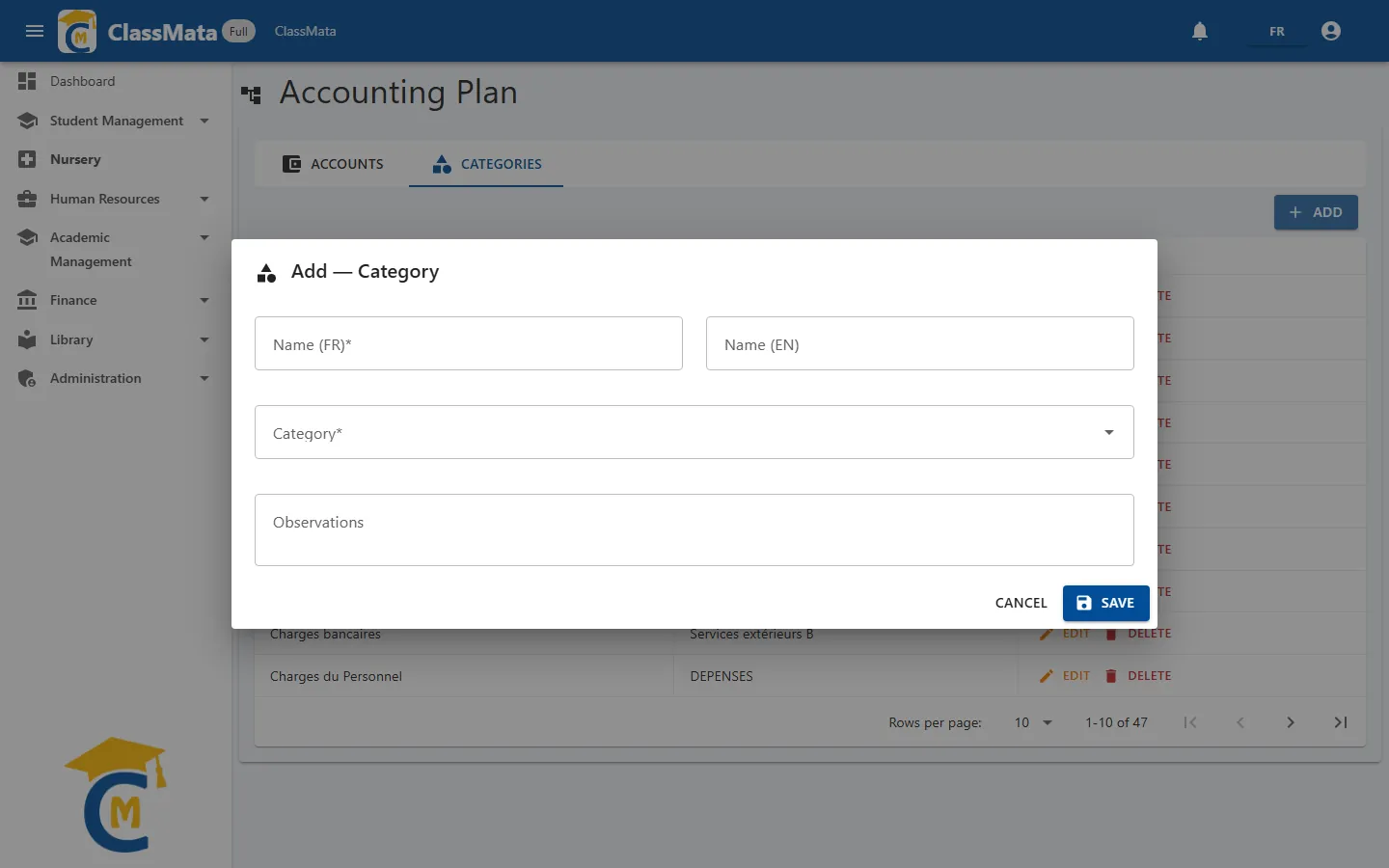
The Add button asks for:
| Field | Content |
|---|---|
| Name (FR) / Name (EN) | The category name in each language (the French name is required) |
| Category | Parent category. Leave empty to create a top-level category |
| Observations | Free remark |
A category cannot be its own parent.
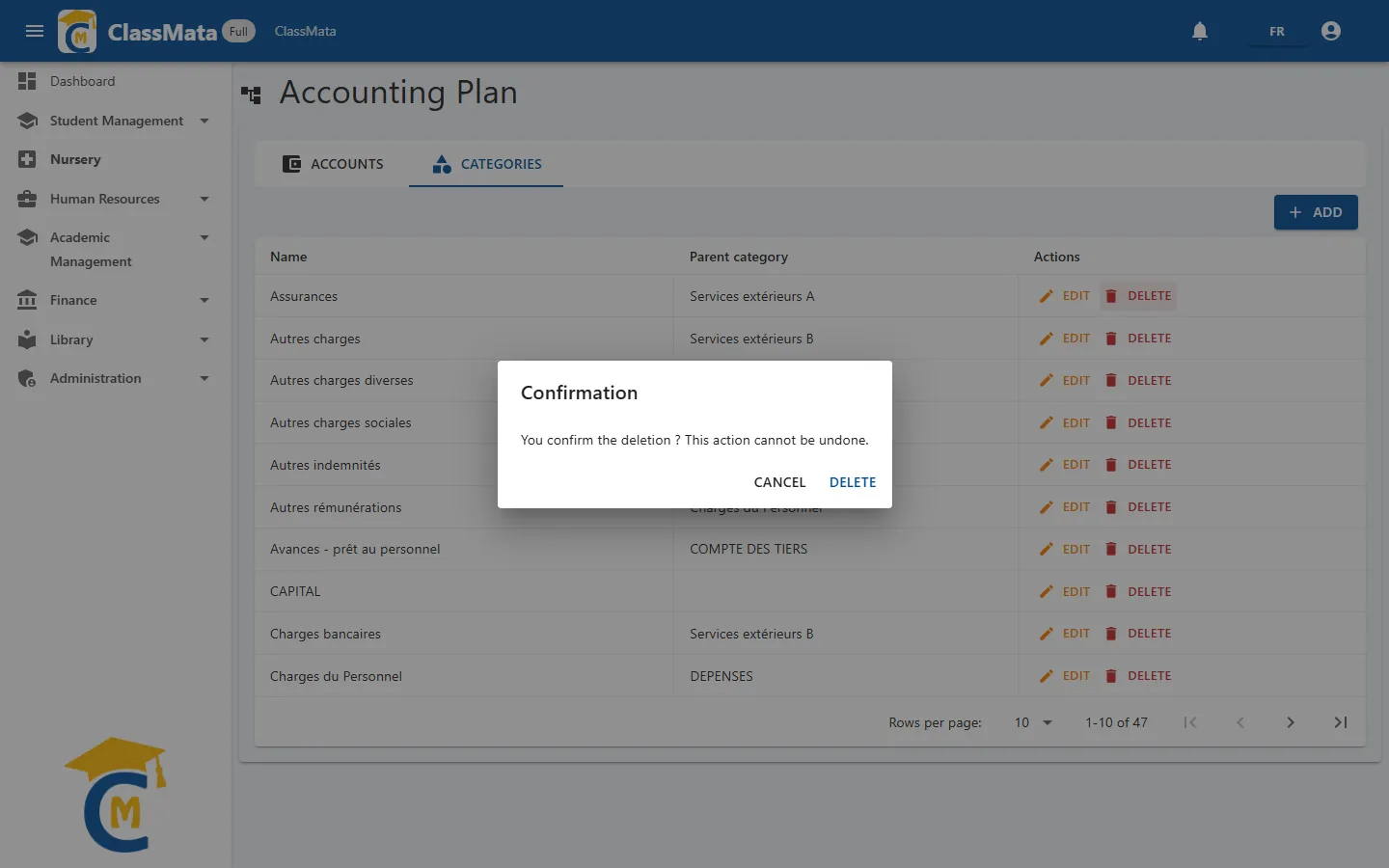
Deleting a category is refused while it still contains sub-categories or accounts. Move or delete their content first (same remark as above about the error message).
Last updated: