Periods
Periods split the school year (terms, semesters, months…). Almost everything else in the academic module hangs off them: assessments, marks, the timetable, lesson coverage, discipline and report cards are each filed under a period. Accessible from Academic Management → Periods.
Permissions. The page requires the permission to manage periods and timetables.
Period list
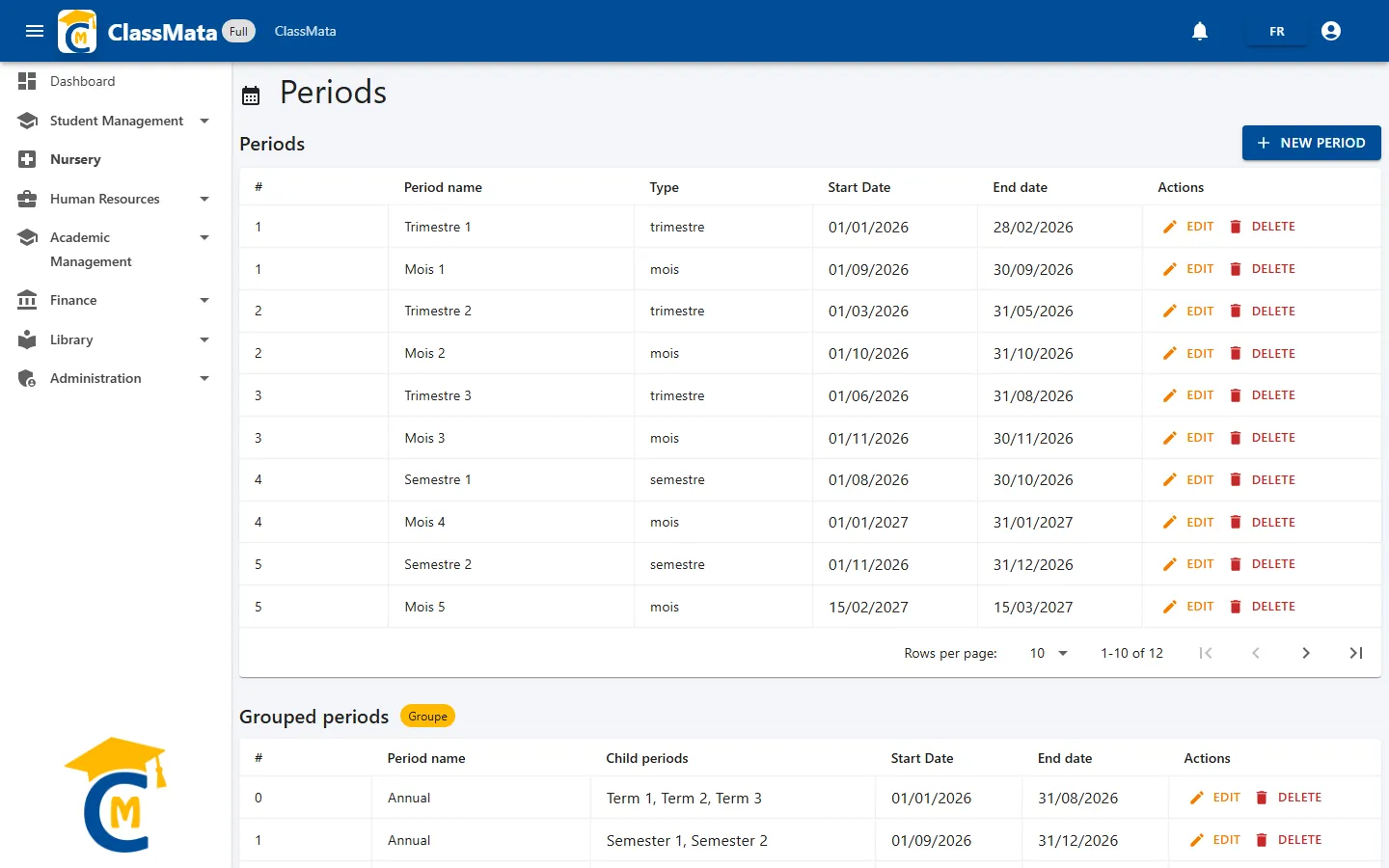
Each row shows the order number (#), the Period name, its Type, the Start Date and the End date. The Edit and Delete buttons act on the row. The table shows 10 periods per page.
Create a period
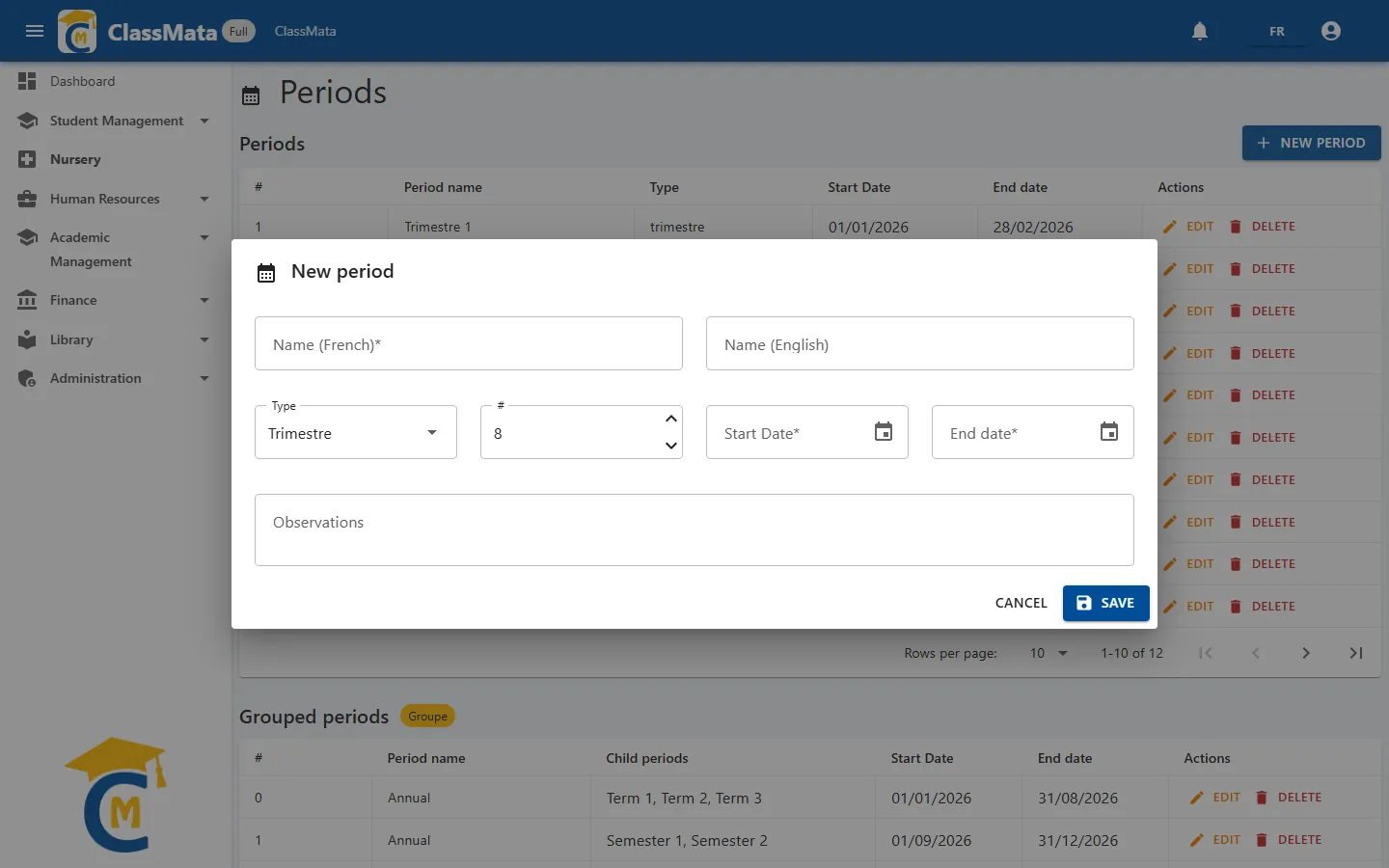
Click New period and fill in:
| Field | Content |
|---|---|
| Name (French) | Name shown in French (required), for example "Trimestre 1" |
| Name (English) | Name shown when the application is used in English ("Term 1") |
| Type | Trimestre, Semestre, Mois or Autre (term, semester, month, other) |
| # | Period order number (suggested automatically: the next one) |
| Start Date / End date | Period boundaries (required) |
| Observations | Free remark |
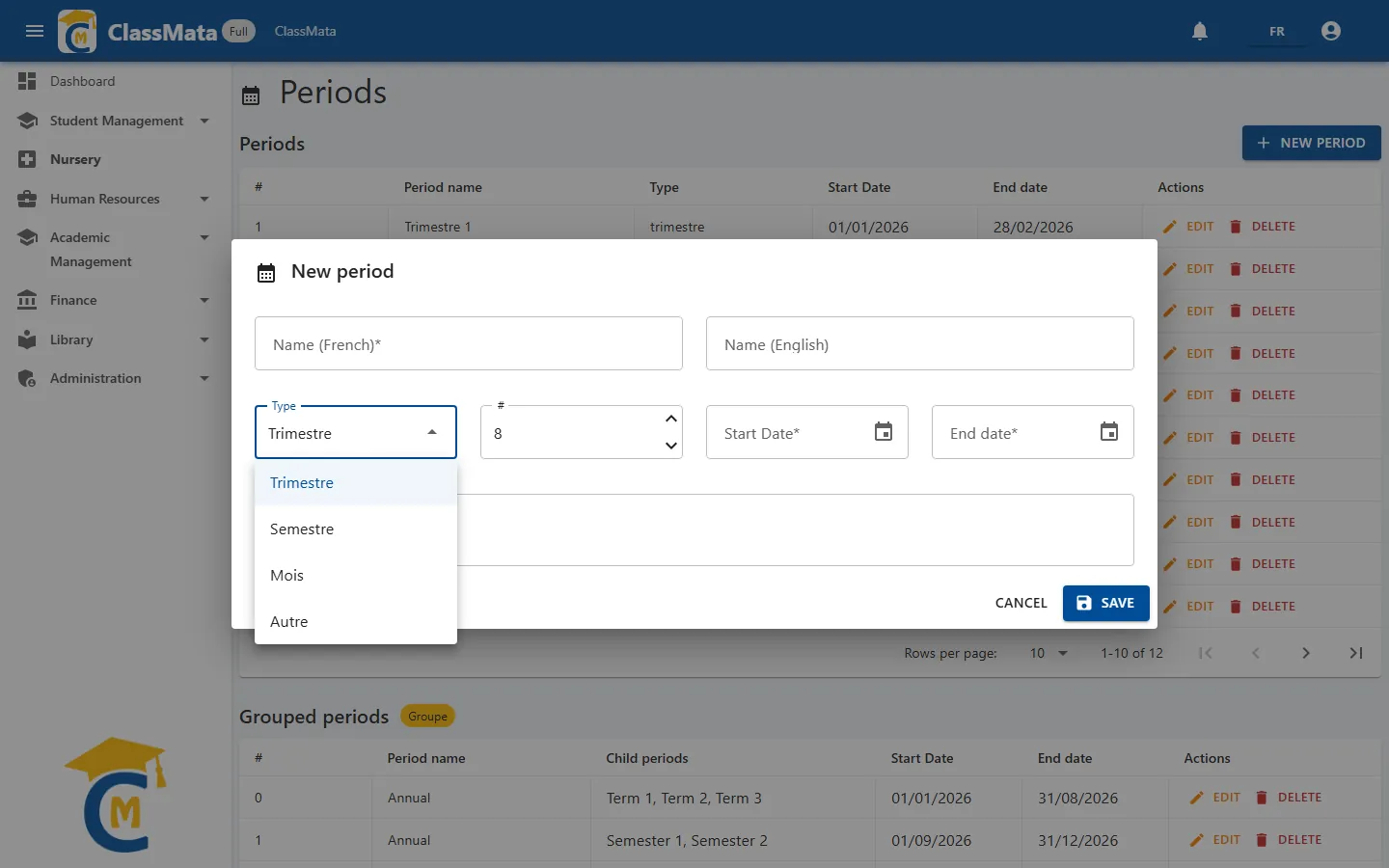
The two names let each period appear in the user's own language: a teacher working in English sees "Term 1", francophone colleagues see "Trimestre 1".
Dates matter. A period's dates decide which timetable lessons belong to it (see Timetable) and which period a day of absence falls into (see Attendance & Discipline). Make sure periods of the same type do not overlap.
Edit or delete a period
Edit reopens the same form, pre-filled.
Delete asks for confirmation, because the operation has heavy consequences:
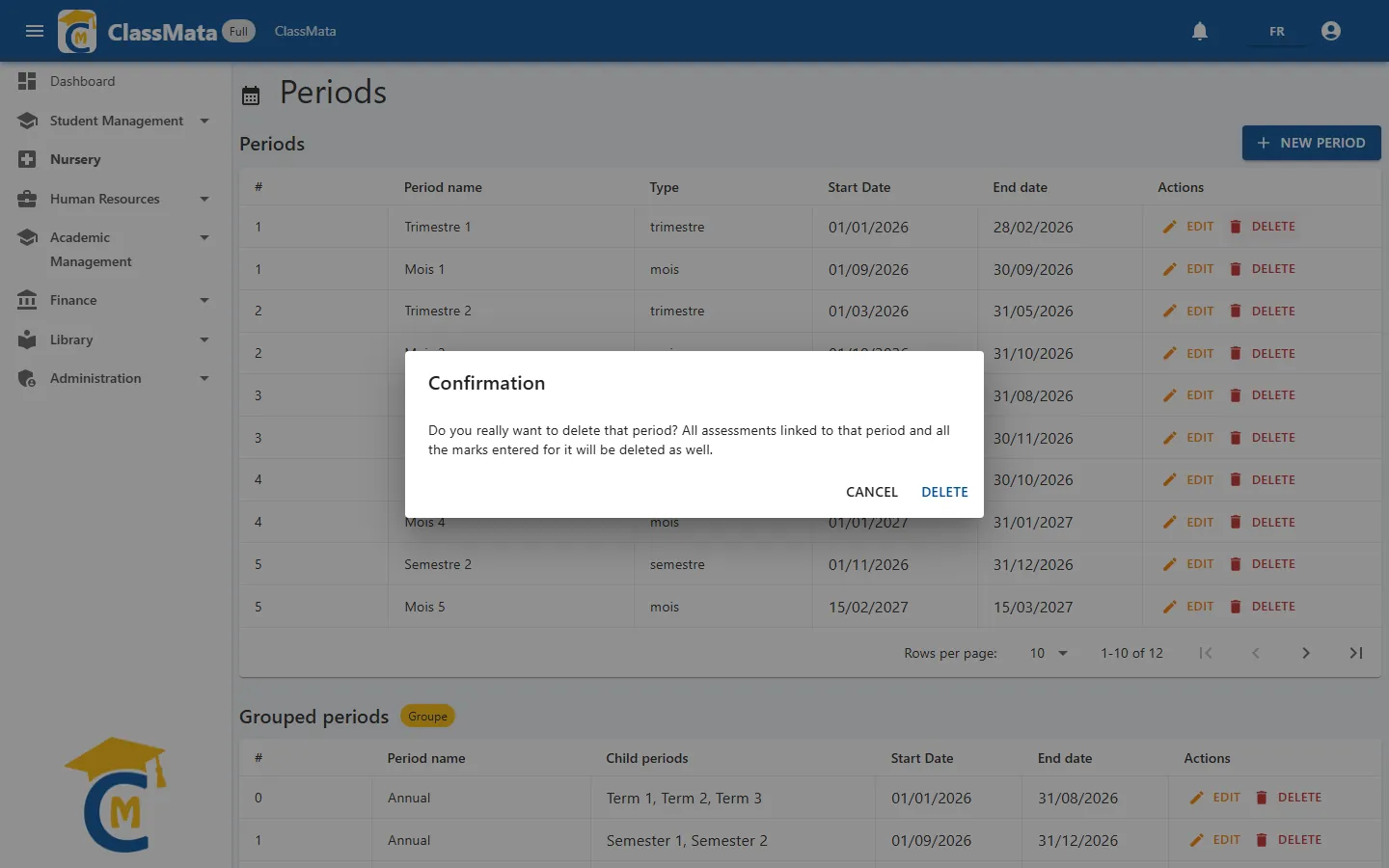
"Do you really want to delete that period? All assessments linked to that period and all the marks entered for it will be deleted as well."
If the period is already used by other modules (assessments, timetable, discipline, lesson coverage), deletion is refused with the message "Cannot delete: period is referenced by other modules". In that case, just edit the period instead of deleting it.
Last updated: