Login & Dashboard
This guide covers the first two screens any ClassMata user sees: the login screen and the home dashboard.
Video transcript
- Your school has just created your ClassMata account.
- Here is how to sign in for the first time, and choose your own password.
- You need three things: your school code, your username, which is your number, and a temporary password.
- The temporary password is typed exactly as it is written: uppercase and lowercase letters matter.
- It never contains the digit zero or the digit one, nor a capital i, a capital o or a lowercase l.
- So an o is always the letter, and a two is always a digit.
- Open the web browser of your phone, and type the address: app dot classmata dot com.
- On the login page, type the school code, then your username, then the temporary password.
- Tap the eye to check what you typed.
- Then tap Login.
- ClassMata immediately asks you to change your password.
- This is normal: the temporary password is only meant to be used once.
- In Current Password, type the temporary password.
- Now choose your new password.
- The rules are shown at the top of the page: at least eight characters, an uppercase letter, a lowercase letter and a digit.
- It must also be different from the temporary password, and the same in both fields.
- A special character is not required.
- Let's try a password without a capital letter.
- The rules are not all ticked, and if we tap Save, a precise message tells us what is missing: here, an uppercase letter.
- Let's start again: the temporary password, then a new password that follows every rule.
- They are ticked as we go.
- We confirm it in the second field, and tap Save.
- You land directly on your dashboard, with no second sign-in.
- From now on, sign in with your new password.
- Keep it to yourself: nobody should ever ask you for it.
- Careful: after five incorrect attempts, the account is locked, and you see this message.
- Do not keep trying: ask your school's administration to give you a new temporary password.
- The lock also lifts by itself after fifteen minutes.
- If several people sign in at the same time from the same network, you may see this message.
- Wait one minute, then try again.
- And if you forget your password later?
- On the online site, the link Forgot password, under the Login button, opens this page.
- Type the school code and your username: a link is sent to the e-mail address on file for your account.
- It works only once.
- That's it!
- Find all these steps in the user manual, on classmata dot com, on the Login and Dashboard page.
- Enjoy using ClassMata.
Login
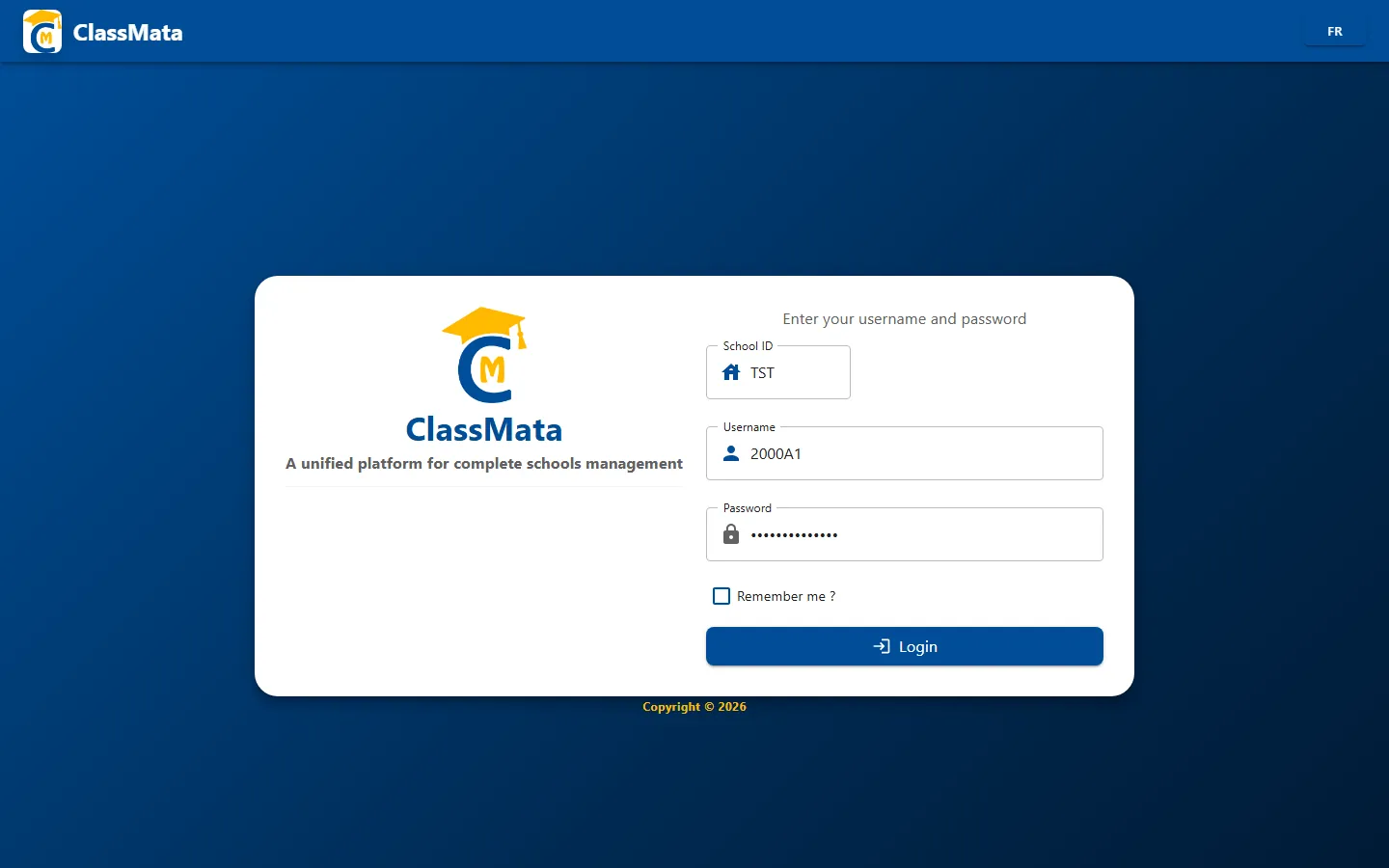
The login screen asks for three pieces of information:
- School ID — the school's short identifier (e.g. "TST")
- Username — the user's personal login
- Password
The Remember me? checkbox keeps the session alive on this device. The Sign in button validates the credentials and opens the Dashboard.
First sign-in and changing the password
When your school's administration creates your account, it gives you three things: the school code, your username (your staff or student number) and a temporary password, sent by e-mail or handed over in person.
- Open app.classmata.com in the browser of your phone or computer and type these three items. The temporary password has 12 characters and uppercase and lowercase letters matter. It never contains the digit 0 or 1, the capital letters O or I, or the lowercase letter l: an "o" is always the letter, and a "2" is always a digit.
- ClassMata immediately asks you to change your password, before anything else. Type the temporary password in Current Password, then choose your new password and confirm it.
- Tap Save: you land directly on the dashboard, with no second sign-in. From now on, sign in with your new password.
The new password rules
The page shows them before you type, and ticks them as you go:
- at least 8 characters;
- an uppercase letter (A-Z);
- a lowercase letter (a-z);
- a digit (0-9);
- different from the current password;
- the same in both fields (New Password and Confirm).
A special character is not required. The eye icon lets you see what you type.
If signing in does not work
| Message | What happened | What to do |
|---|---|---|
| Incorrect username and/or password | The code, username or temporary password was mistyped | Try again, respecting uppercase and lowercase. After 5 incorrect attempts the account is locked |
| For your security, your account is locked… | 5 incorrect attempts in a row | Ask your school's administration for a new temporary password (Reset or Password on the student or staff record). The lock also lifts by itself after 15 minutes |
| Too many sign-in attempts in a short time from this network | Several people are signing in at the same time from the same network | Wait one minute, then try again |
| The password must contain… (after Save) | A rule of the new password is not met | Fix it using the rules list, then try again |
| The confirmation does not match… | The two fields are different | Retype the new password in both fields |
When the administration generates a new temporary password for you, the lock is lifted immediately: you can sign in with the new password right away.
Forgot your password
On the online sign-in screen, Forgot password? sends a link to the e-mail address on file for your account. The link works once and expires; it lets you choose a new password, with the same rules. With no e-mail address on file, ask the administration for a temporary password.
Dashboard
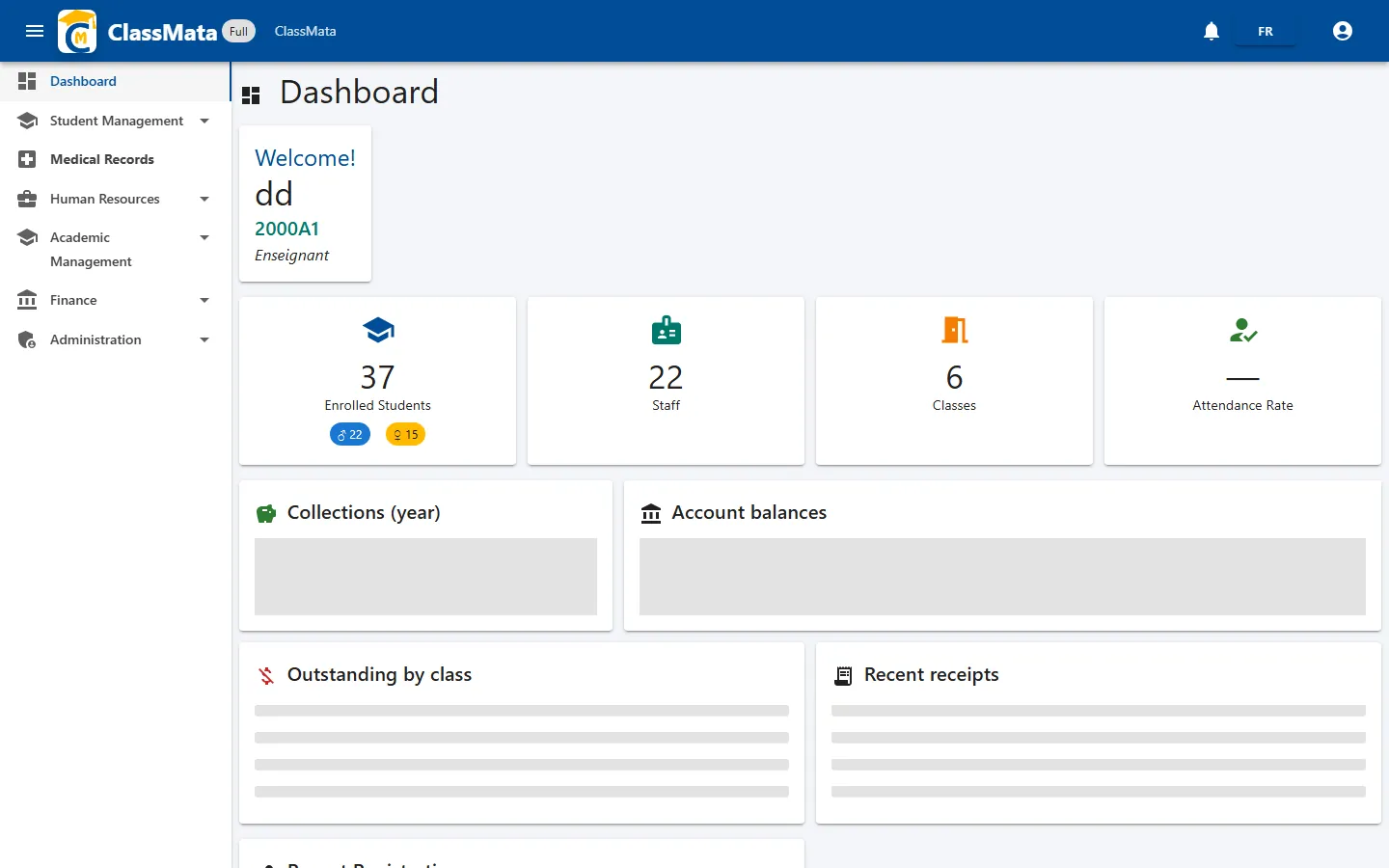
The welcome card shows the signed-in user's name, ID and role (e.g. Teacher).
Four key indicators summarize the school year's activity:
- Enrolled students (with a boy/girl breakdown)
- Staff
- Classes
- Attendance rate
Below that, the year's fee collection progress, balances by fee type, outstanding balances by class, and the latest receipts give a quick read on the school's financial health.
Last updated: