Mark Entry
This is where teachers and administration enter the marks of an assessment, student by student, or import them in bulk from Excel. Accessible from Academic Management → Mark entry.
Permissions. The page requires the permission to enter marks. Blocking a class, unblocking a class and unblocking an assessment are separate permissions: the matching buttons only appear for authorised users.
Choose the assessment
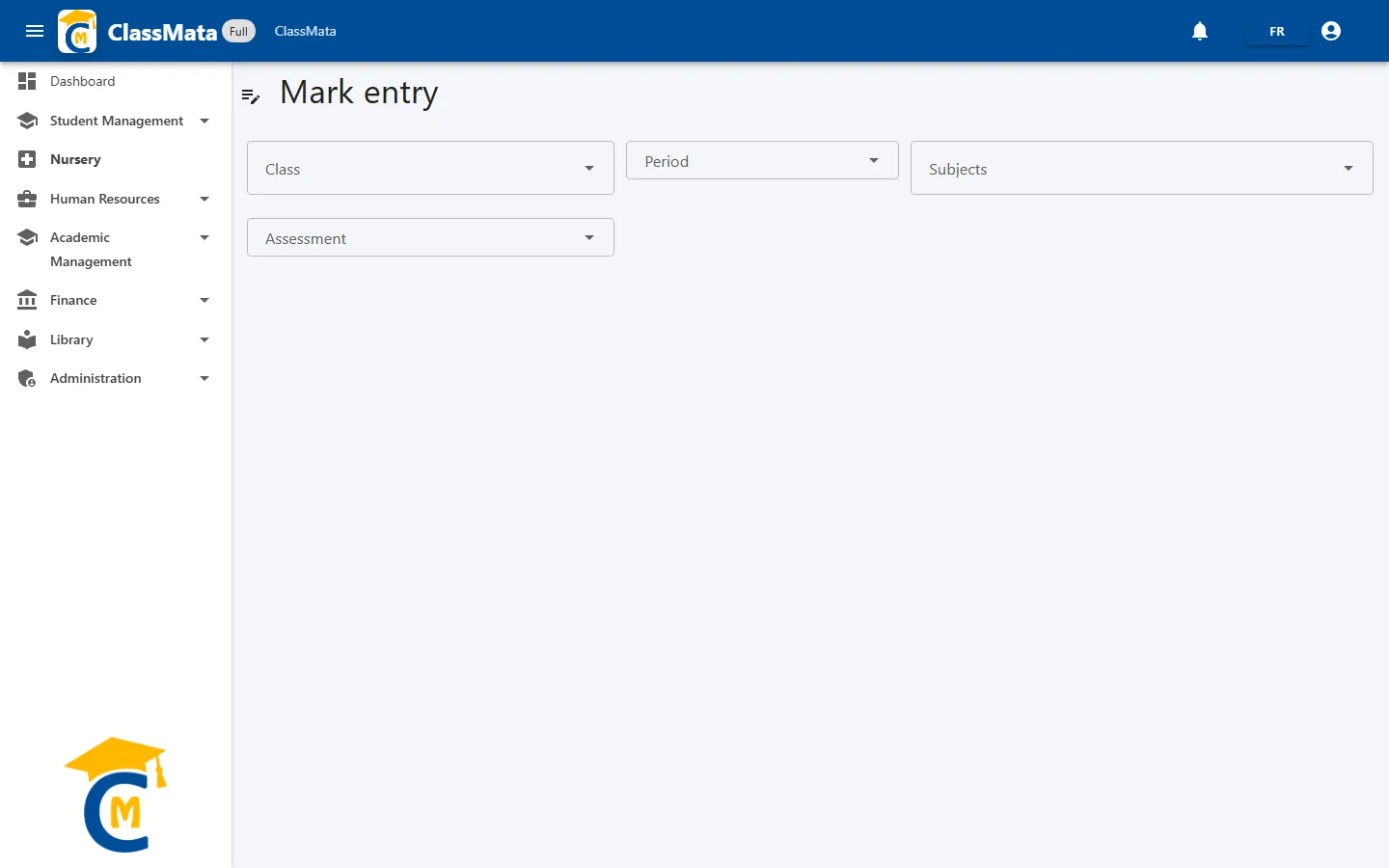
Four selections, from the most general to the most precise:
- Class — type a few letters then choose;
- Period;
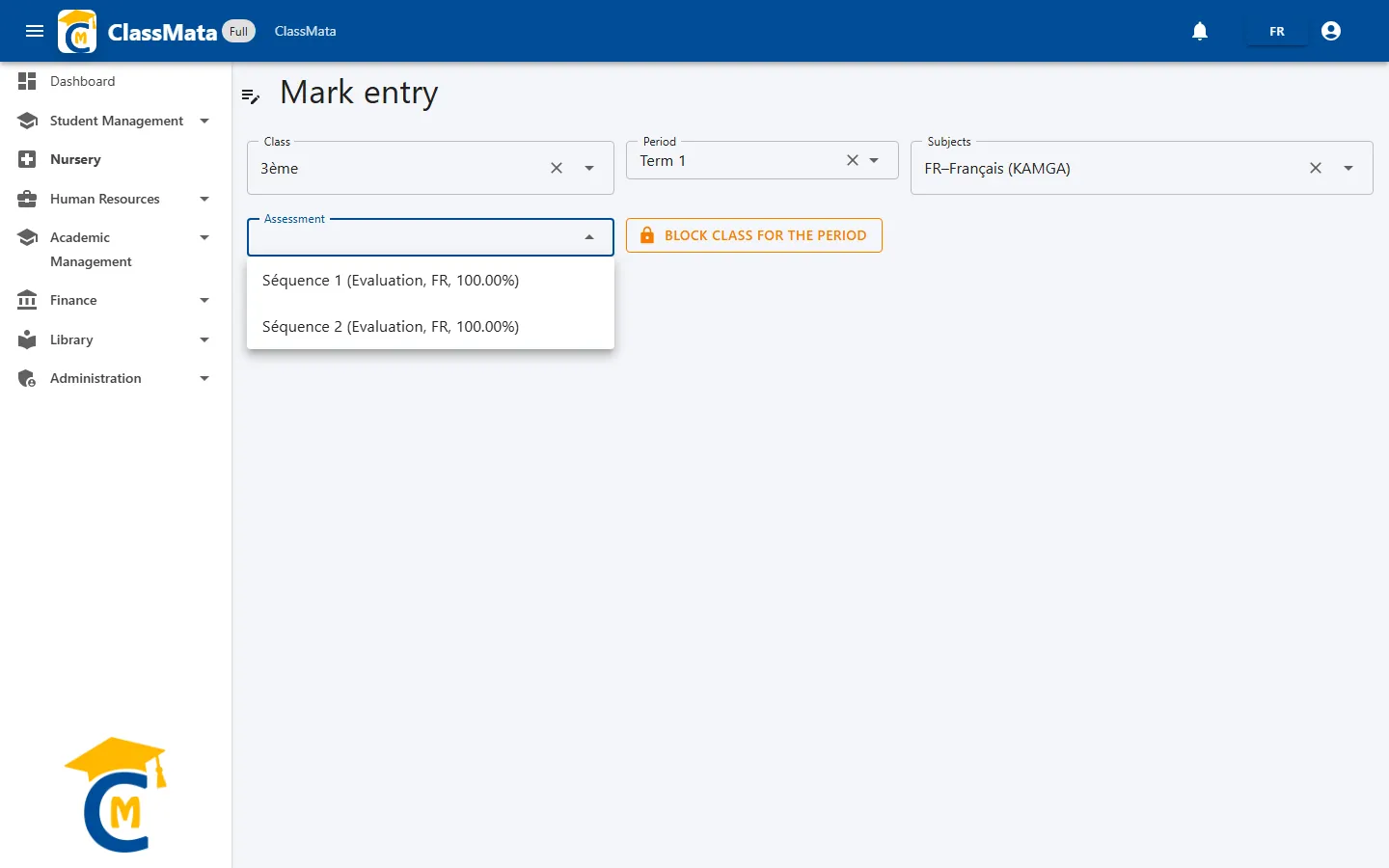
- Subjects — the list offers the class's subjects, with the teacher's name: "FR–Français (KAMGA)";
- Assessment — the assessments of that subject and period, shown as "Séquence 1 (Evaluation, FR, 100.00%)" (name, type, subject, weight). A padlock flags a blocked assessment.
The marks grid
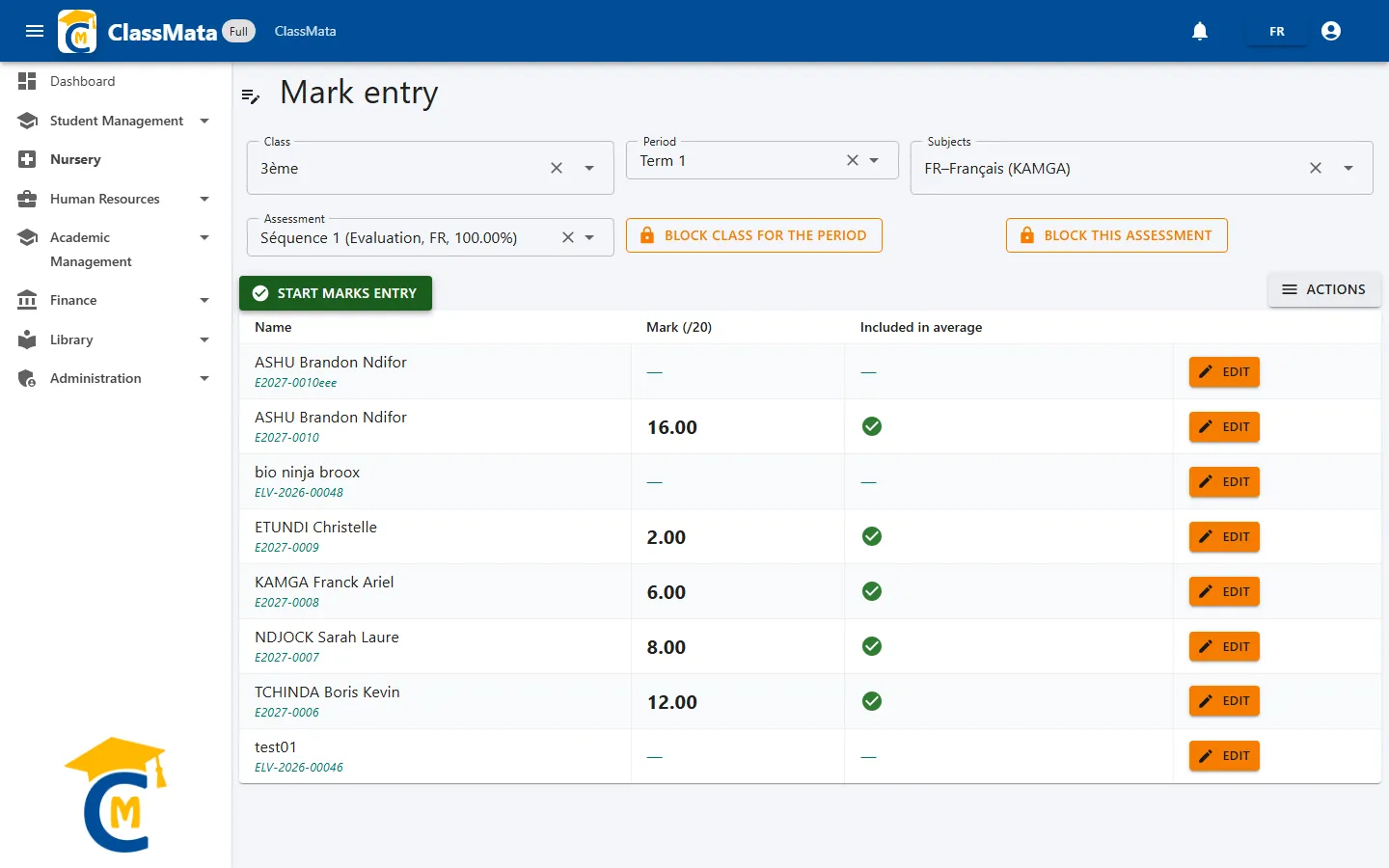
As soon as an assessment is chosen, the class's student list appears:
| Column | Content |
|---|---|
| Name | The student's name, with the reg. number underneath |
| Mark (/20) | The mark out of 20, or "—" if not yet entered |
| Included in average | Green ✔ if the mark counts in the average, grey ⊖ if it is excluded |
| (button) | Edit opens the entry of this mark |
Clicking a row also opens the mark entry.
Enter marks
The green Start marks entry button opens the entry on the first student; you can also click Edit for a specific student.
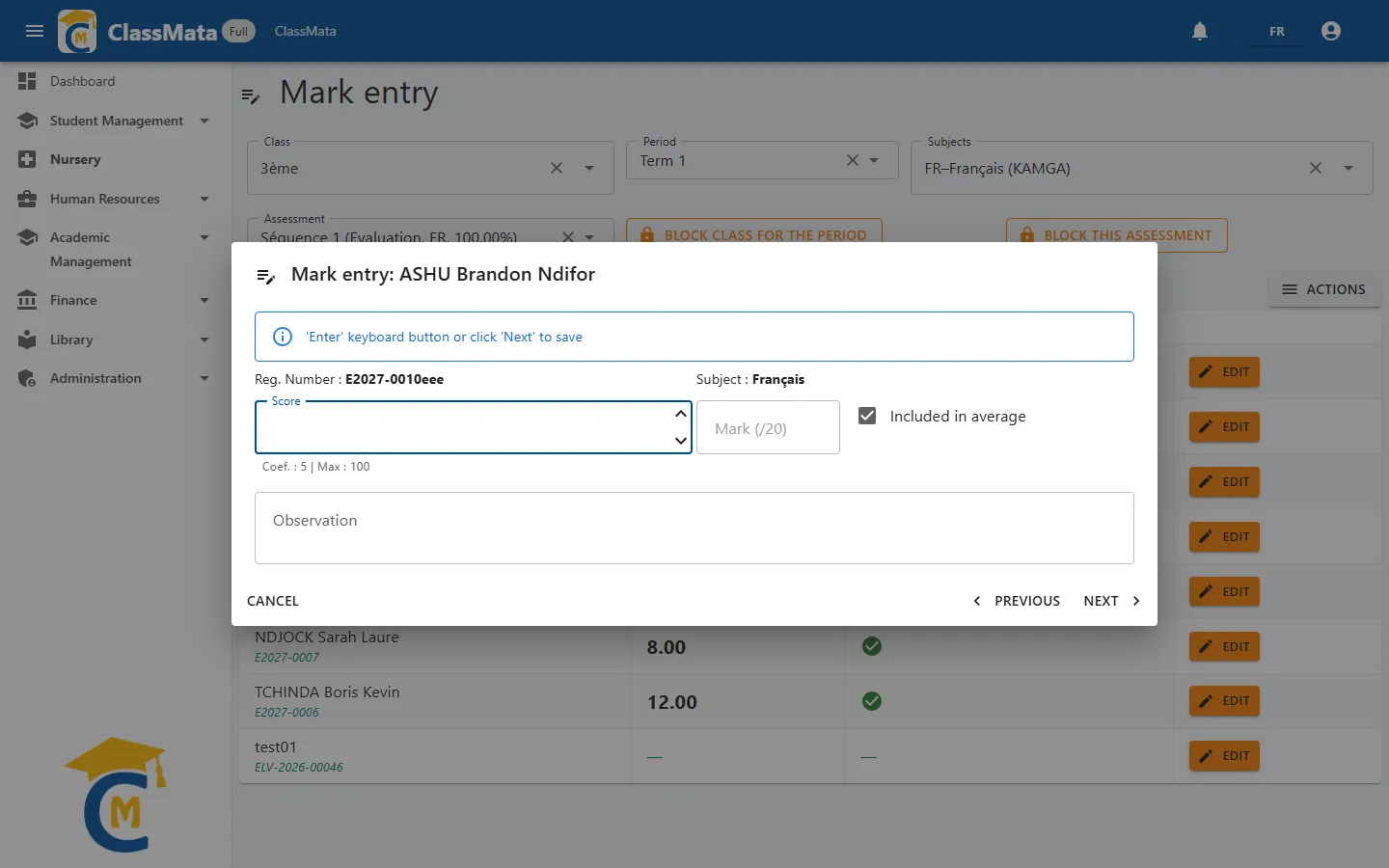
The window recalls the student, their reg. number and the subject, then asks for:
- Score — the mark obtained. The help text under the field gives the coefficient and the allowed maximum ("Coef. : 5 | Max : 100");
- Mark (/20) — computed automatically, read-only;
- Included in average — tick box;
- Observation — free remark.
Marks out of 20 or out of 20 × coefficient. Depending on the school's setting, the score is entered either directly out of 20, or out of 20 × the subject's coefficient (for example out of 100 for a coefficient of 5). In that second mode, ClassMata automatically divides the score by the coefficient to get the mark out of 20 (80 out of 100 with a coefficient of 5 gives 16/20). An out-of-range value is refused: "Value out of range. Must be between 0 and the maximum score."
To chain entries without the mouse, type the mark then press Enter (or click Next): the mark is saved and the next student appears; after the last student, the window closes. Previous goes back to the previous student without saving the current mark, and Cancel closes the window without saving either.
Mind the "Included in average" box. Ticking or unticking it resets the mark to 0: set the box before entering the score. Untick it for a mark that must not weigh on the average (a justified absence, for example).
The Actions menu
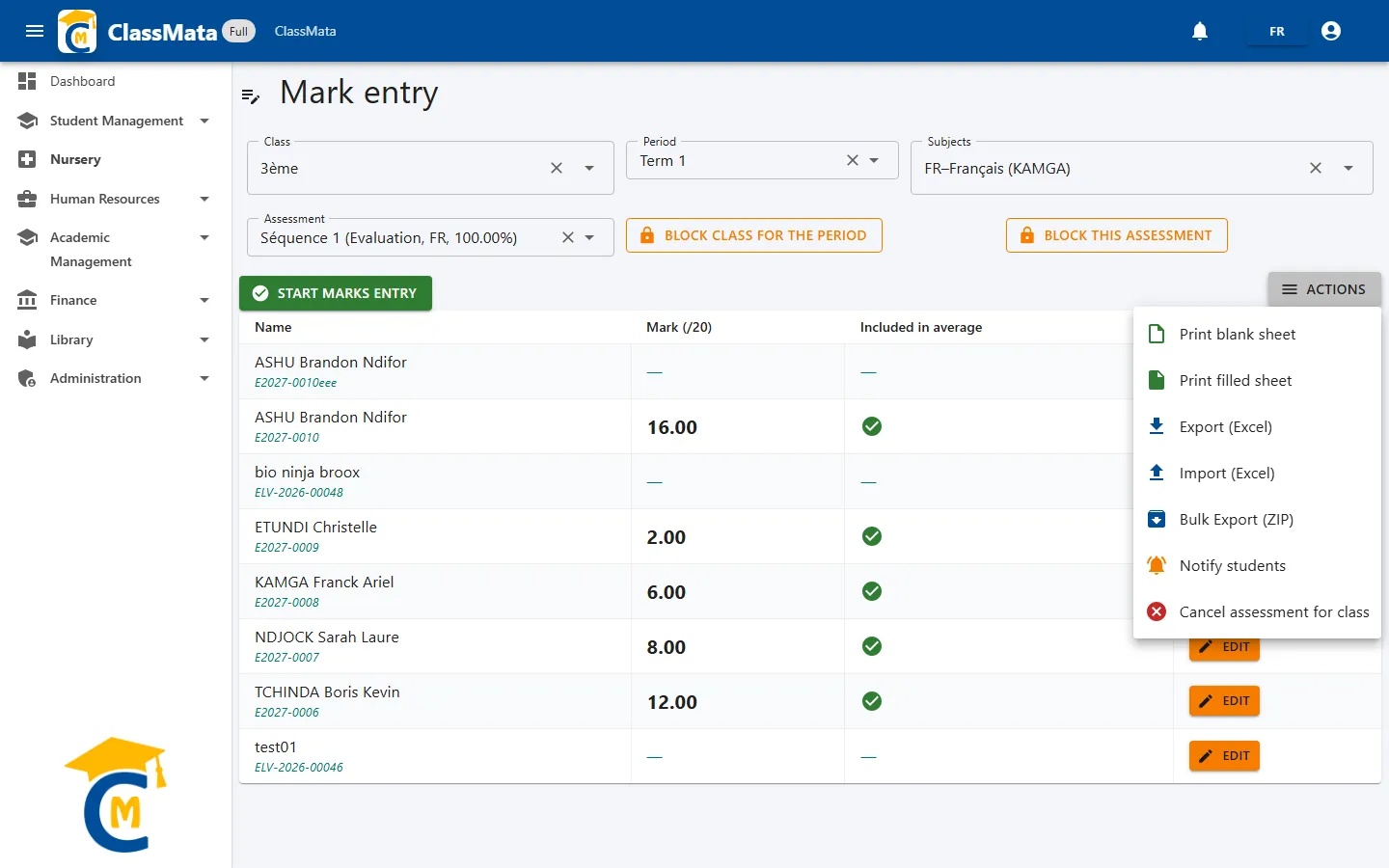
The Actions menu gathers the operations on the chosen assessment:
| Action | Effect |
|---|---|
| Print blank sheet | Mark sheet to fill in by hand |
| Print filled sheet | Sheet with the marks already entered |
| Export (Excel) | Downloads an Excel workbook of the class to enter marks offline |
| Import (Excel) | Loads a filled workbook (see below) |
| Bulk Export (ZIP) | Exports several assessments at once (see below) |
| Notify students | Tells the class's students their marks are available |
| Cancel assessment for class | Removes the assessment from the whole class's averages |
Enter marks through Excel
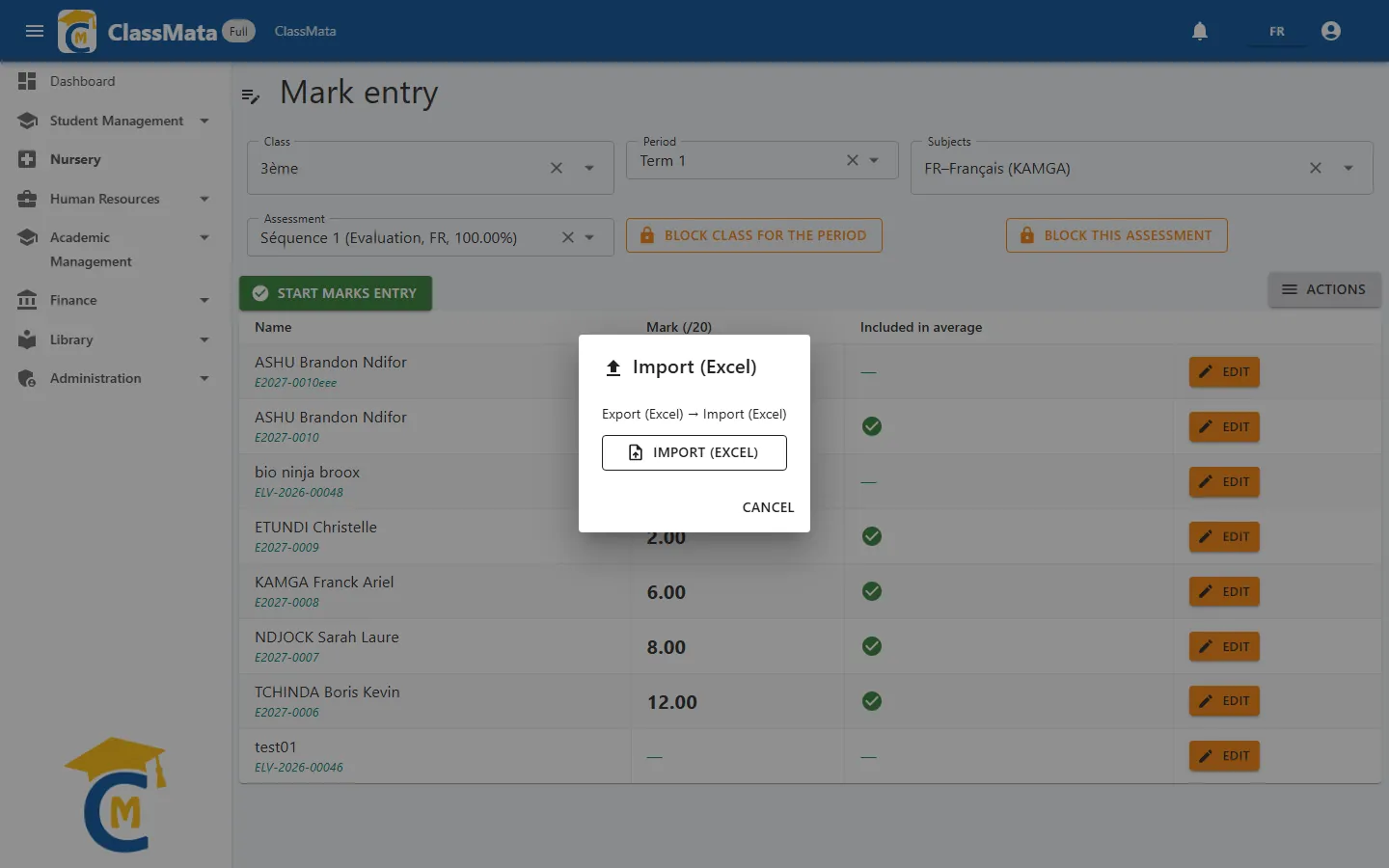
- Choose the assessment then Export (Excel): you get a workbook with the student list;
- Fill in the marks in the workbook, without editing the ID cell at the top of the file — otherwise the import fails;
- Import (Excel), then choose the file. The marks are loaded and the "Marks imported" message appears.
The import refuses a file larger than 5 MB or one that does not match the selected assessment.
Bulk export
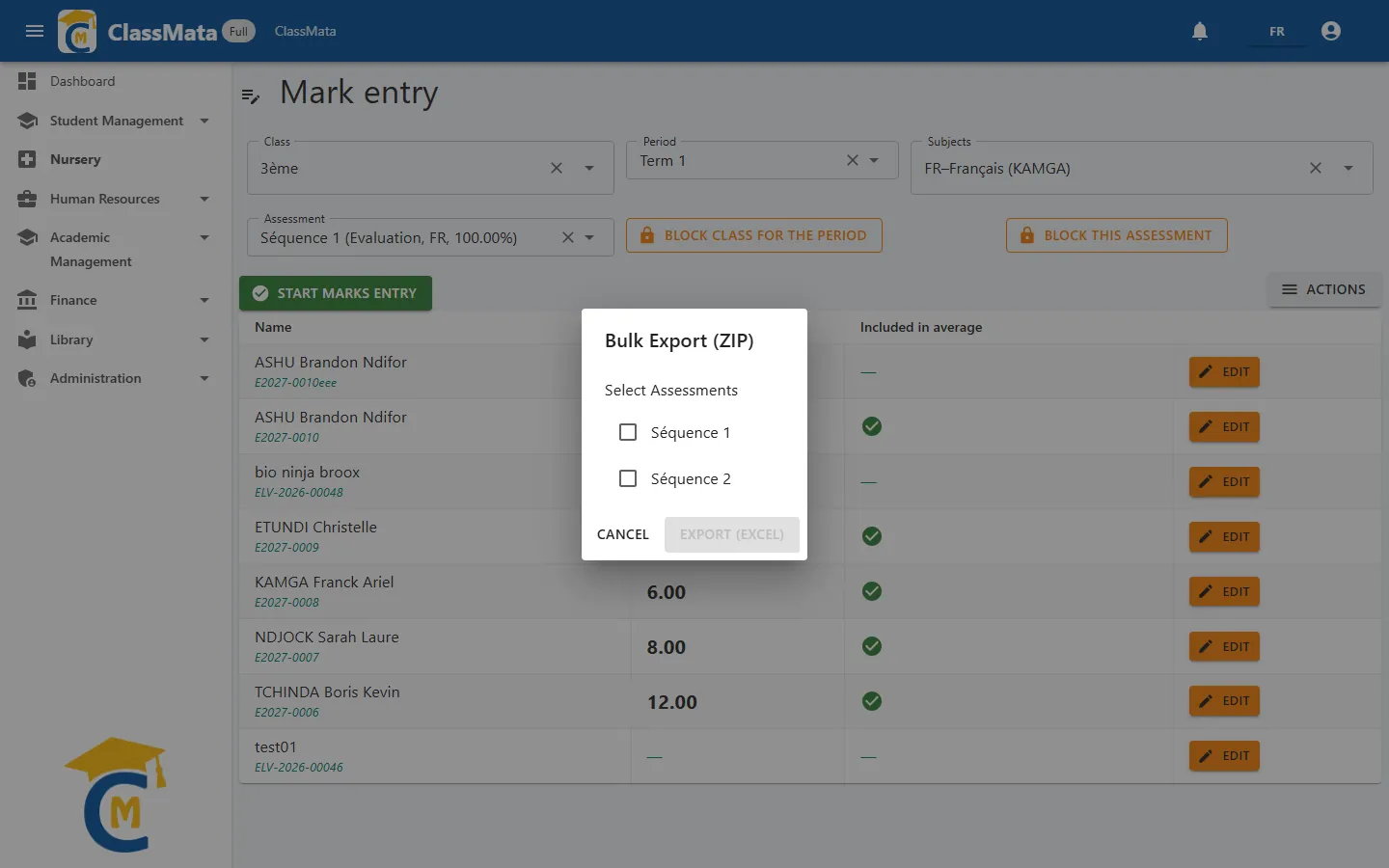
Bulk Export (ZIP) lists the assessments of the class and period: tick the ones you want, then Export (Excel) produces a ZIP archive. The button stays greyed out until an assessment is ticked.
Notify students
Notify students asks for confirmation ("Send a notification to the students of this class letting them know grades are available?"), then sends the notification; the "Notification sent to students." message confirms it. Do it once entry is finished.
Cancel assessment for class
After confirmation, Cancel assessment for class unticks Included in average for every student of the class: marks already entered are kept but no longer enter any average. Useful when a test is invalidated. The "Assessment cancelled for all students in the class" message confirms the operation.
Block to prevent changes
Once entry is finished, marks can be locked:
- Block this assessment locks a single assessment;
- Block class for the period locks all the class's assessments for the chosen period.
When locked, a padlock shows in the assessment list, the entry fields are greyed out and the entry window no longer allows changing the mark. The Unblock this assessment and Unblock class for the period buttons (reserved for users who have the permission) reopen entry; a class lock takes precedence over an assessment lock. The "Blocked !" or "Unblocked" message confirms each operation.
Last updated: