Role Management
This page decides who can do what in ClassMata. A role is a bundle of permissions (for example "Personnel": sign in, enter marks); you then assign one or more roles to each staff member. Students have a separate role, shared by all of them. Accessible from Administration → Role Management.
Permissions. The page requires access to Administration. Its menu entry and every change (roles, permissions, assignment to people) also require the Users Rights permission (Administration group).
The page has three tabs: Roles, Staff Permissions and Student Permissions.
Roles
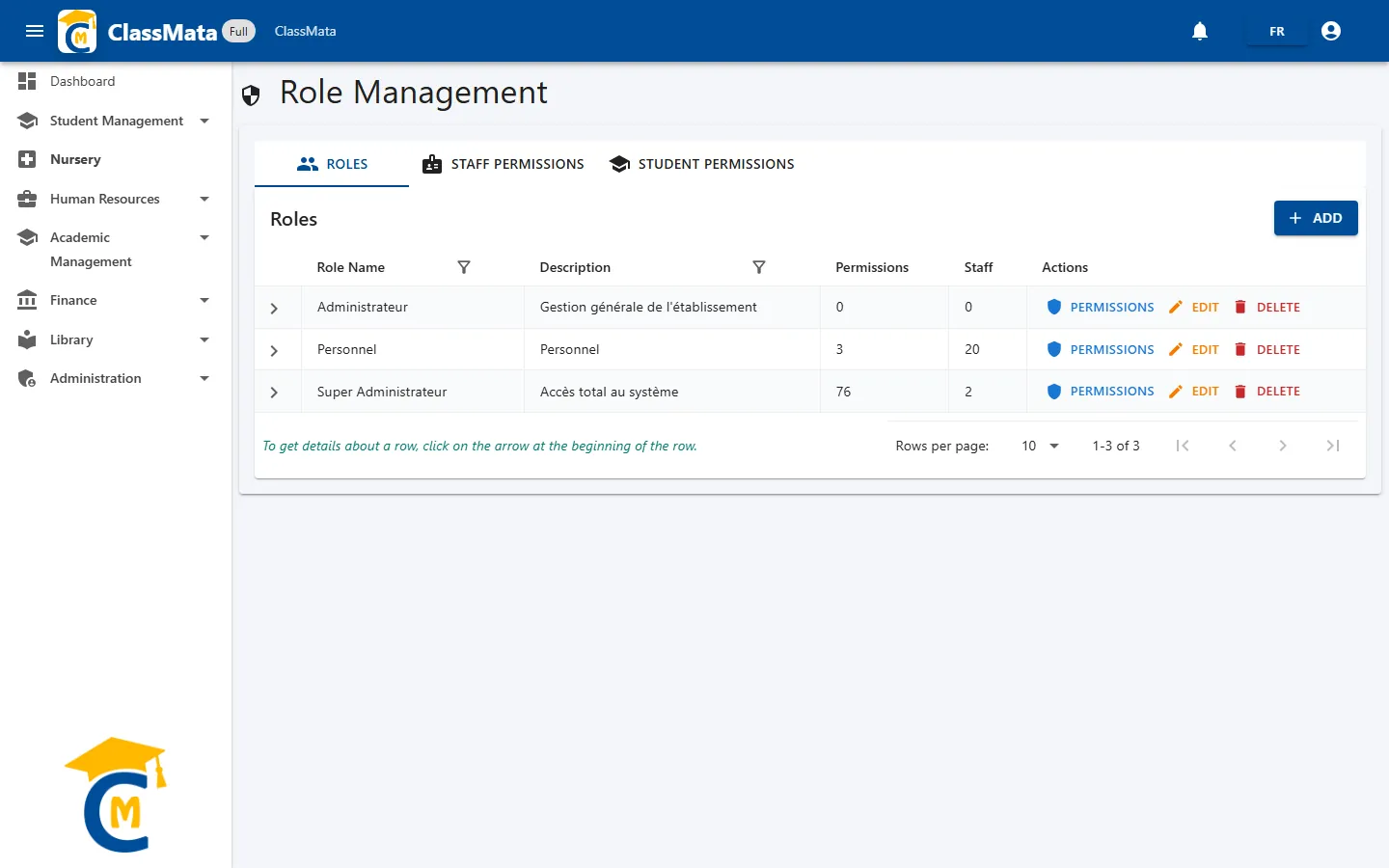
| Column | Content |
|---|---|
| Role Name | The role's name (for example "Super Administrateur", "Personnel") |
| Description | The role in a few words |
| Permissions | Number of permissions granted to the role |
| Staff | Number of staff members who hold the role |
| Actions | Permissions, Edit, Delete |
The filters (funnel) on the first two columns help find a role. The arrow at the start of a row unfolds Assigned To: the people who hold the role, shown as "NAME (ID)".
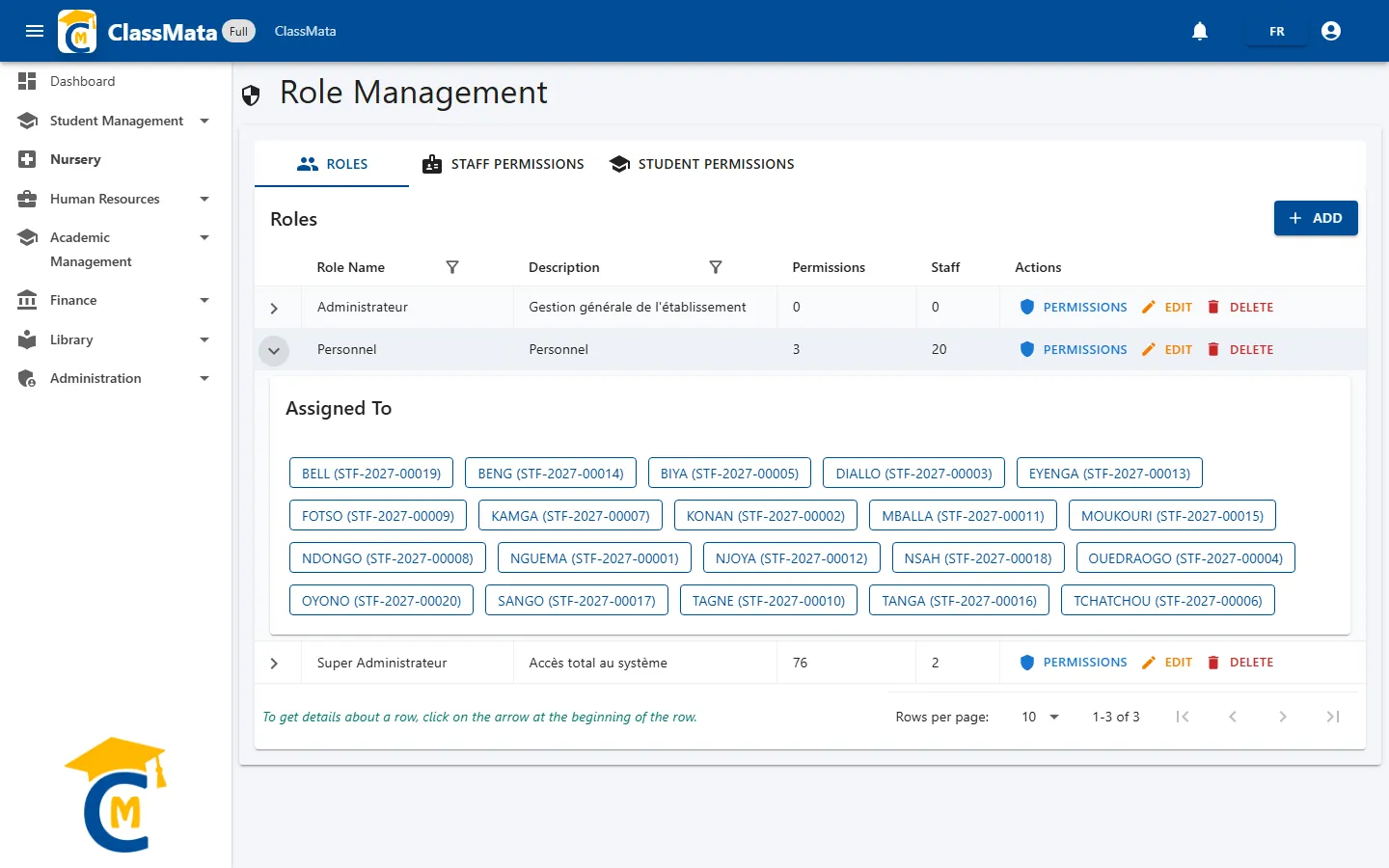
Create or rename a role
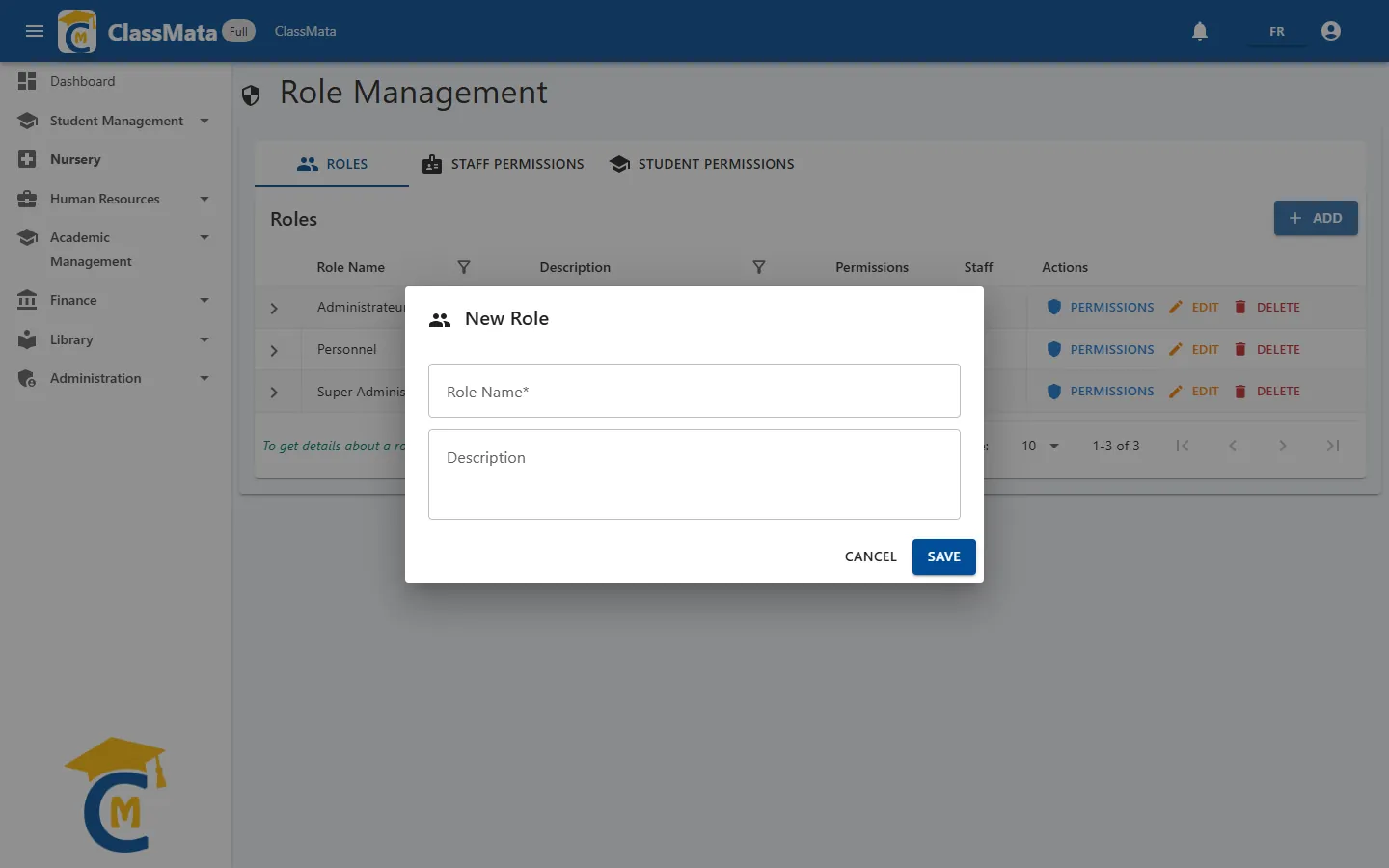
Add opens a small form: the Role Name (required) and a Description. Two roles cannot have the same name. Edit changes the name or description of an existing role.
Choose a role's permissions
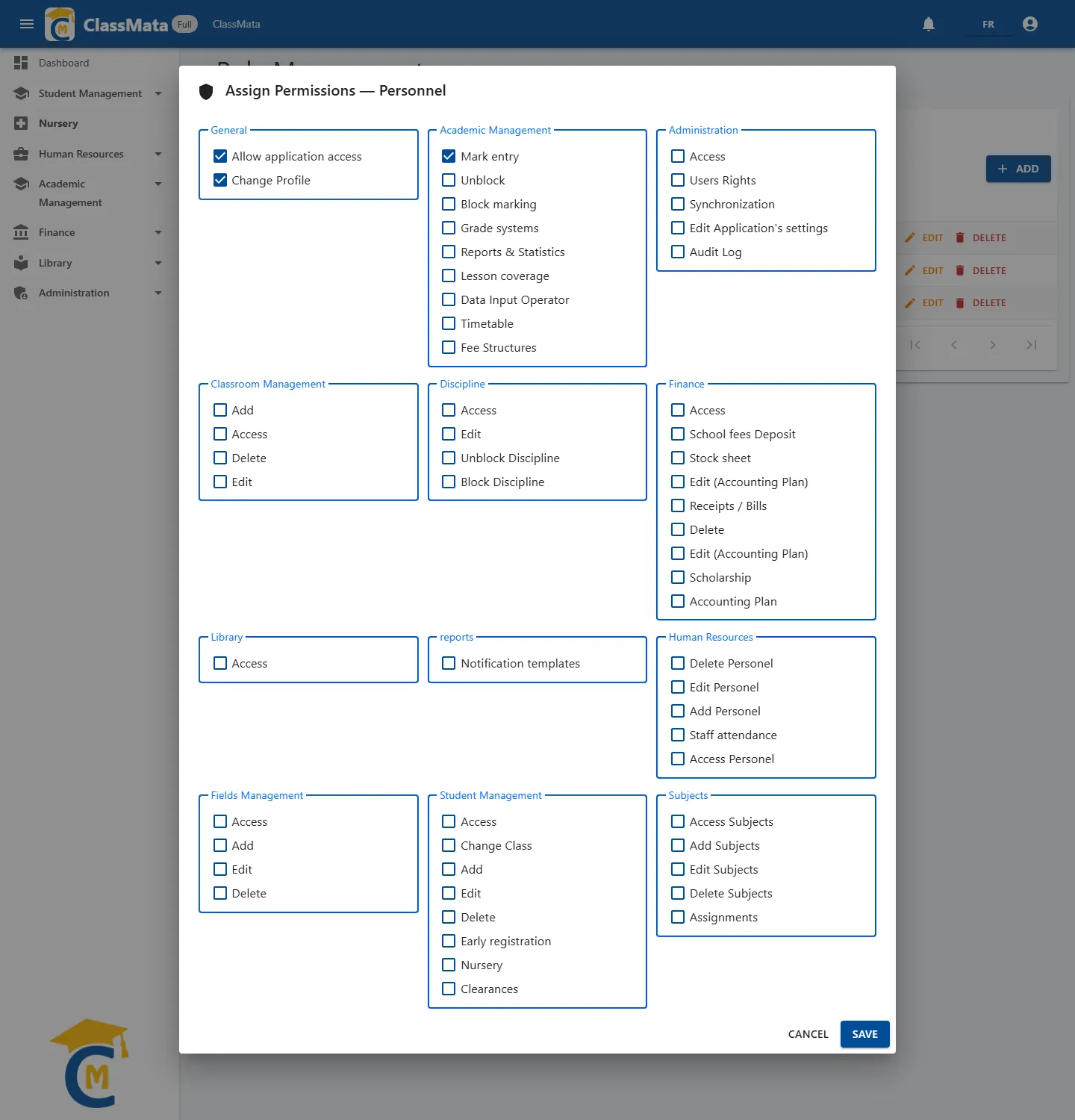
Permissions opens the list of every permission, grouped by area. Tick what the role should allow, then Save. The main groups:
| Group | Permissions offered |
|---|---|
| General | Allow application access · Change Profile |
| Student Management | Access · Change Class · Add · Edit · Delete · Early registration · Nursery · Clearances |
| Classroom Management | Access · Add · Edit · Delete |
| Fields Management | Access · Add · Edit · Delete |
| Subjects | Access Subjects · Add Subjects · Edit Subjects · Delete Subjects · Assignments |
| Academic Management | Mark entry · Unblock · Block marking · Grade systems · Reports & Statistics · Lesson coverage · Data Input Operator · Timetable · Fee Structures |
| Discipline | Access · Edit · Unblock Discipline · Block Discipline |
| Finance | Access · Accounting Plan · School fees Deposit · Stock sheet · Receipts / Bills · Scholarship · Delete · Edit (Accounting Plan) |
| Human Resources | Access Personnel · Add Personnel · Edit Personnel · Delete Personnel · Staff attendance |
| Library | Access |
| Administration | Access · Users Rights · Synchronization · Edit Application's settings · Audit Log |
| reports | Notification templates |
A few remarks:
- A group's Access opens the matching menu; the other boxes grant or remove specific functions (add, edit, delete, unblock…).
- In Finance, the label "Edit (Accounting Plan)" appears twice: one of the boxes allows editing the accounting plan, the other editing transactions. The School fees Deposit, Stock sheet, Receipts / Bills and Scholarship permissions govern the tabs and buttons of the Transactions page.
- The Fee Structures permission is in the Academic Management group.
- Modules are also subject to the school's subscription: ticking a permission does not open a module the school has not subscribed to.
Changes take effect at the next sign-in. As soon as you save a role's permissions, ClassMata closes the sessions of the people who hold that role: they have to sign in again for the new rights to apply.
Delete a role
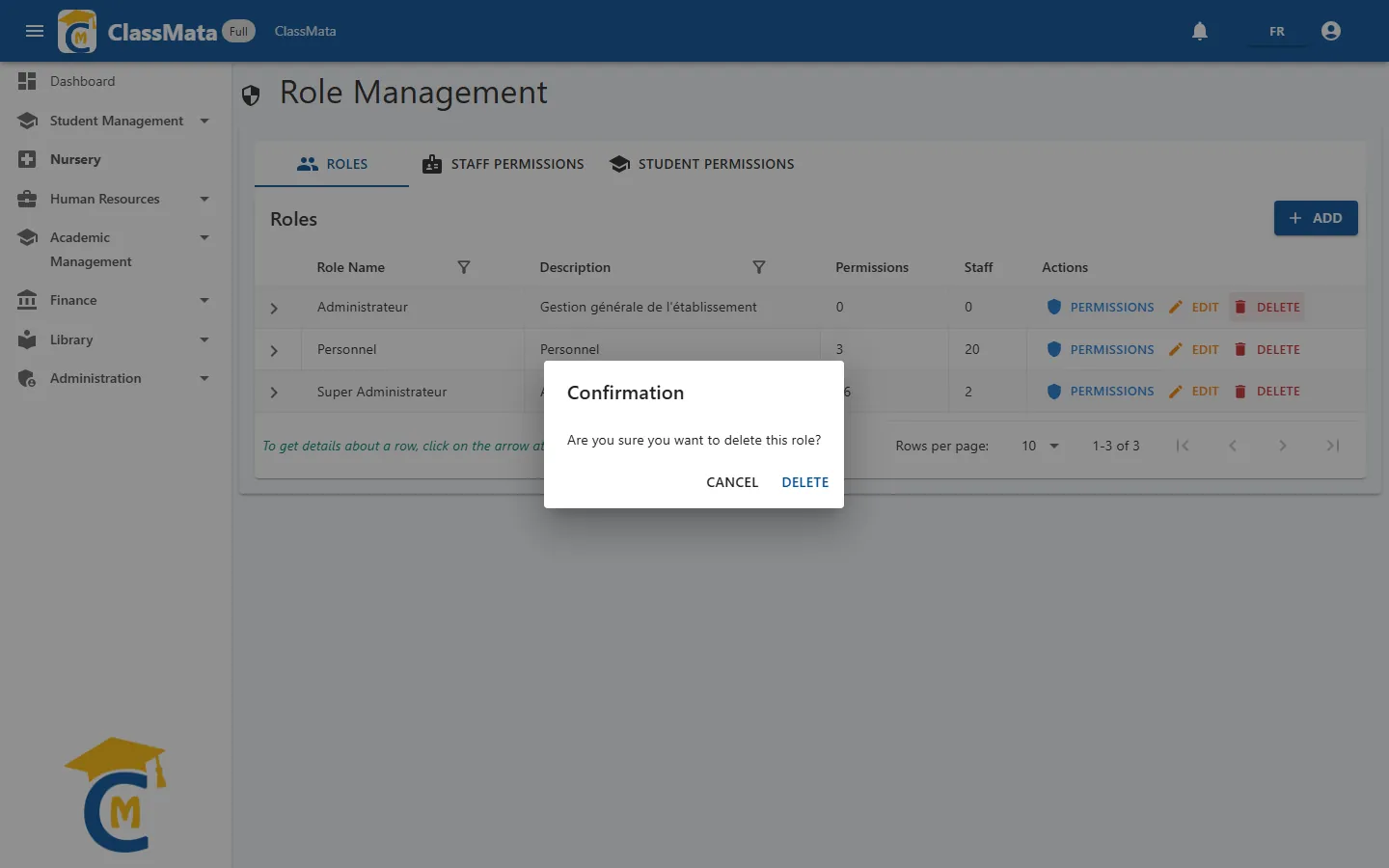
Delete asks "Are you sure you want to delete this role?". ClassMata does not check whether people still hold the role: look at the Assigned To list first, and take the role away from the people concerned if needed.
Assign roles to staff
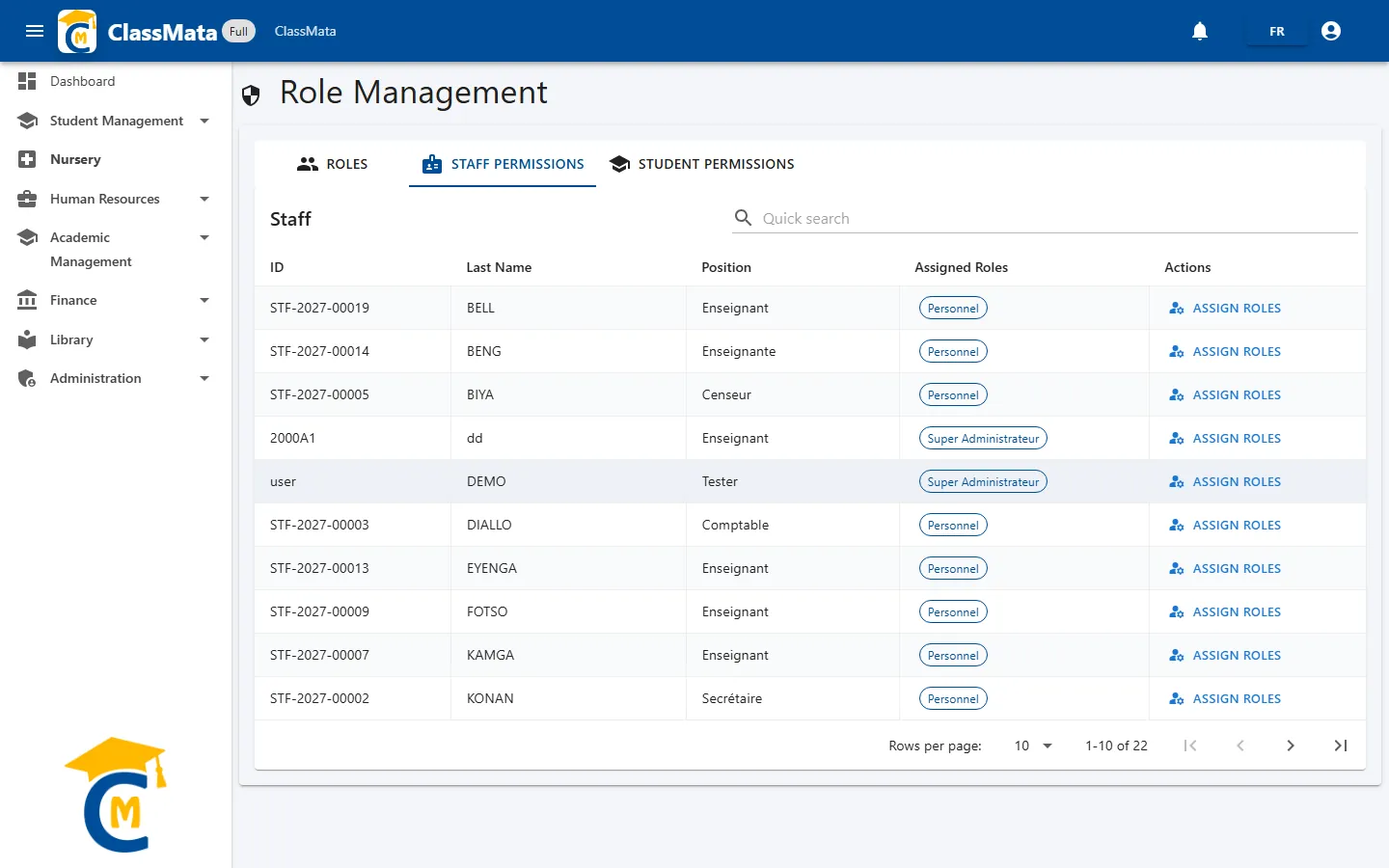
The Staff Permissions tab lists the staff with their ID, Last Name, Position and Assigned Roles (as chips). The Quick search filters on the name, first name or ID. Assign Roles opens the list of roles with one check-box each:
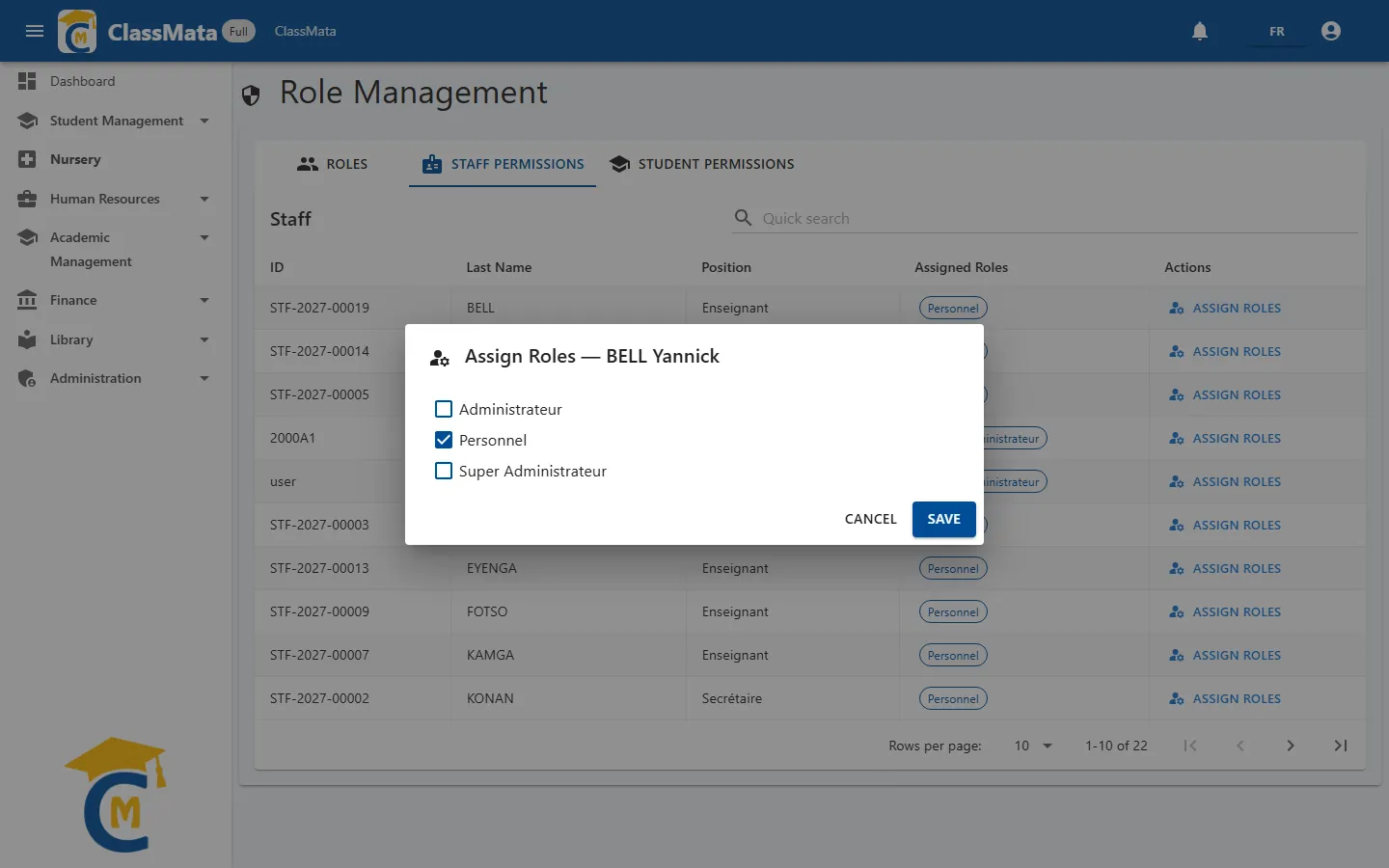
Tick or untick, then Save: the person's rights are the sum of the permissions of all their roles. As with a role's permissions, their session is closed so the new rights apply at their next sign-in.
Staff records and their login accounts are managed in the Staff page.
Student permissions
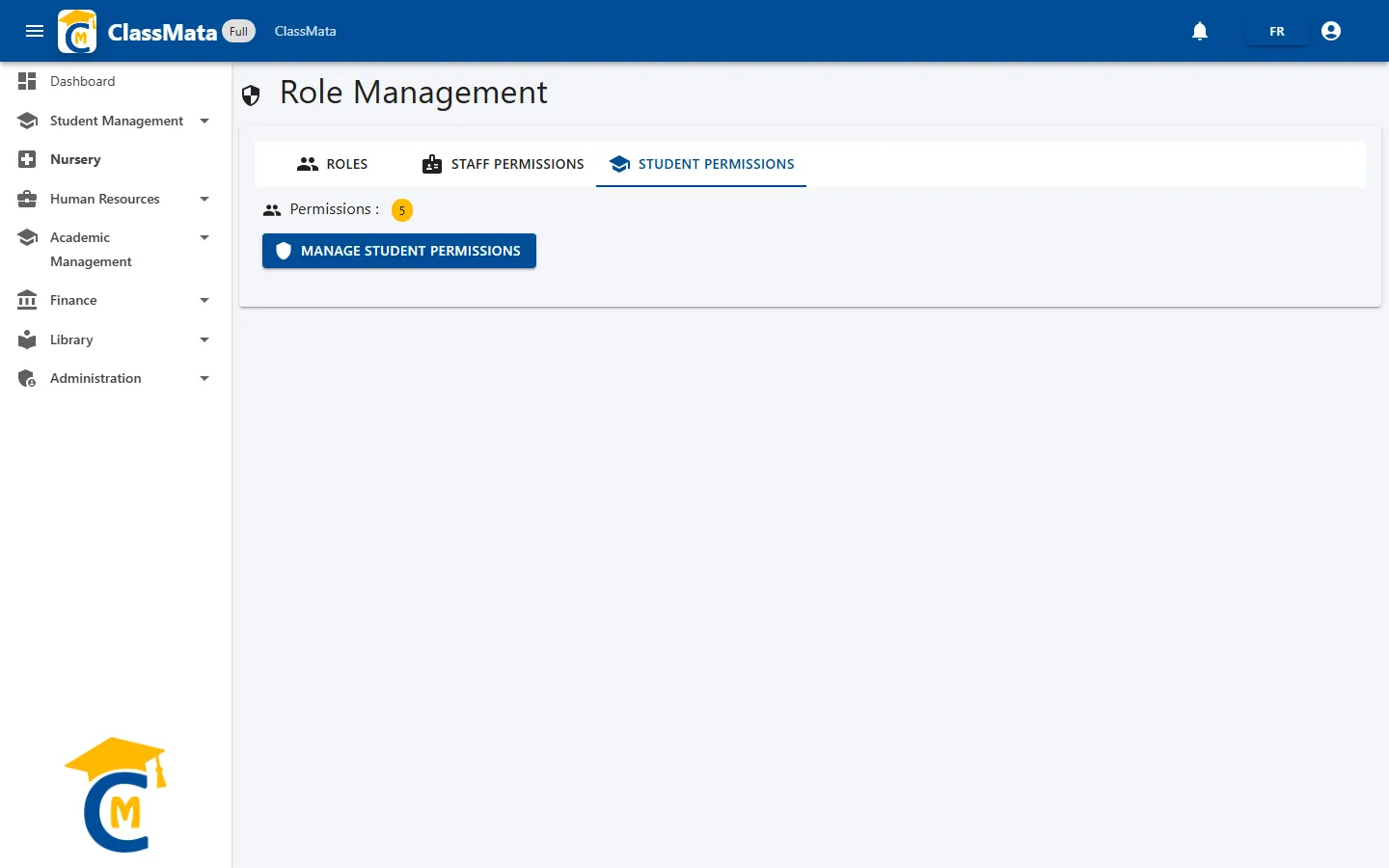
All students share one single role, created automatically the first time you click Manage Student Permissions. The tab shows how many permissions it contains.
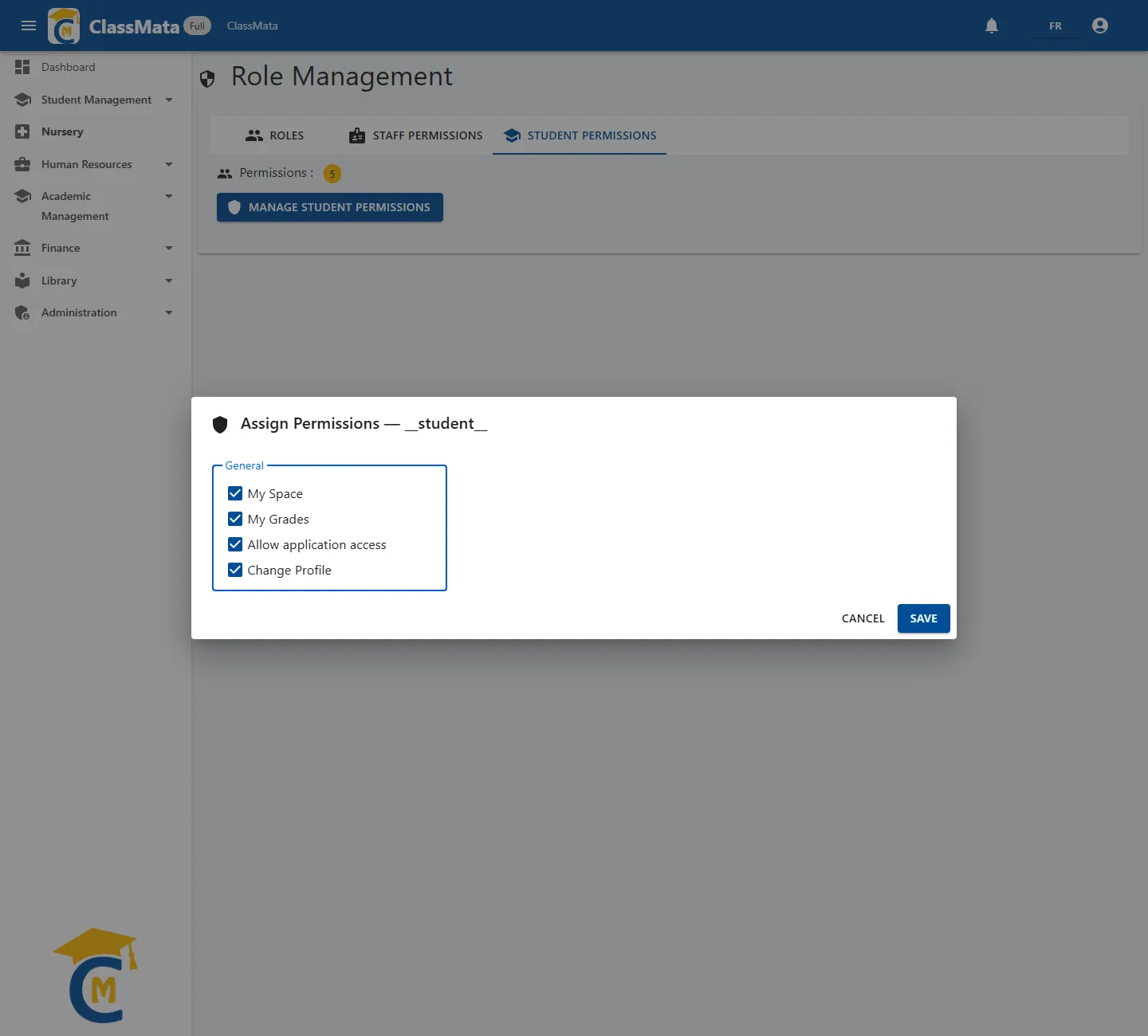
The General group offers four permissions: My Space (the student menu,
see My Grades), My Grades, Allow application
access and Change Profile. The window carries the student role's internal
name (__student__).
Last updated: