Step by step: track curriculum coverage and teacher attendance
This guide shows a weekly routine to know how far each subject has progressed compared with the plan, and which lessons were actually taught. It combines two pages: Staff Attendance (who taught what, each week) and Lesson Coverage (progress by class or by subject).
What you need. A saved timetable for the class, and subjects assigned with a teacher. Without them, Staff Attendance shows "No data for the moment" and Lesson Coverage has no hours to compare. Build them first with the guide Build the timetable without conflicts.
Step 1: Record each teacher's week
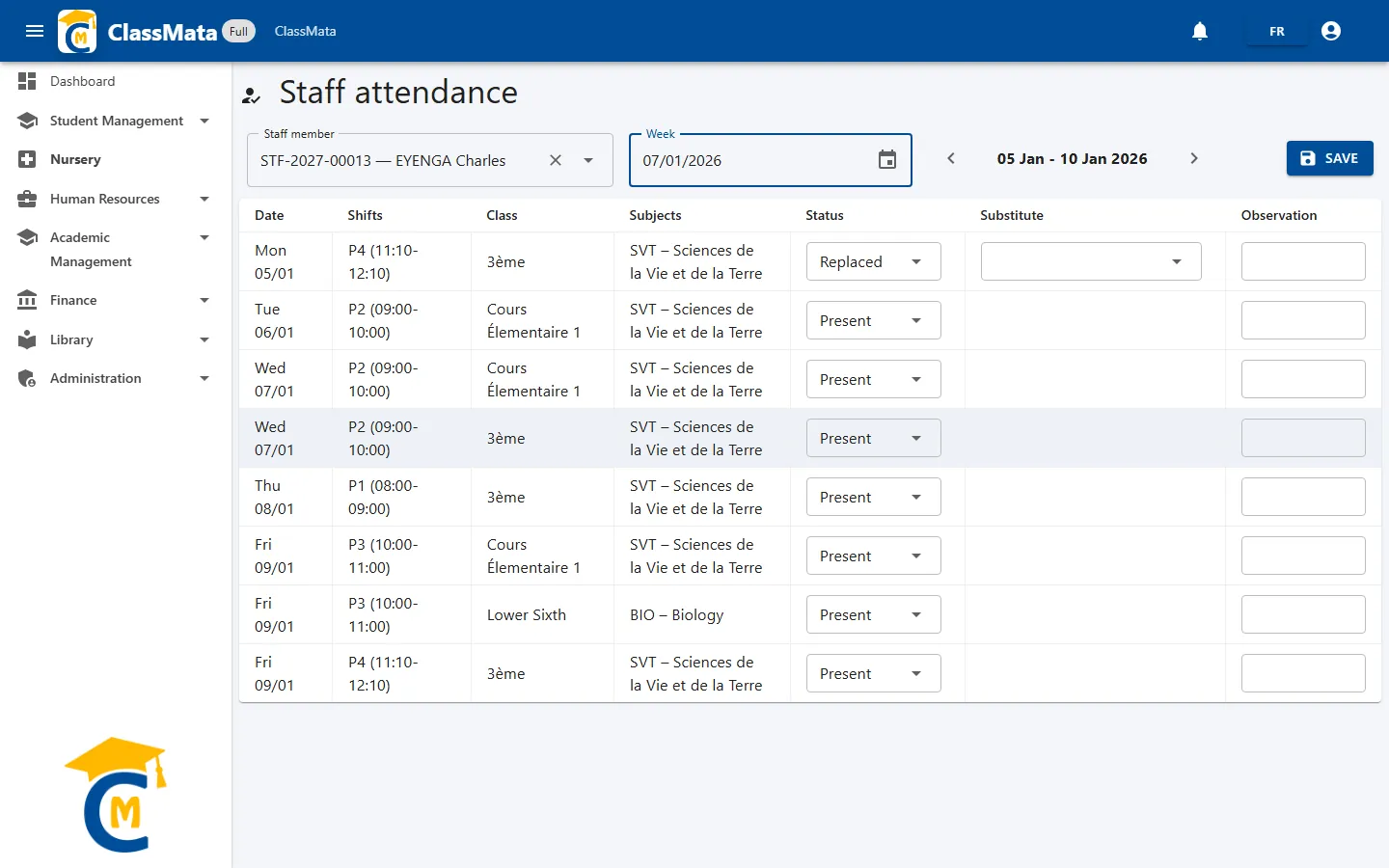
Open Human Resources → Staff attendance. Type a few letters of the teacher's name or registration number in Staff member, then choose the Week with the calendar or the ‹ and › arrows. The grid lists the teacher's lessons for that week, Monday to Saturday.
Step 2: Change only the exceptions
Every lesson is displayed as Present by default, so you only touch the rows that differ:
| Status | When to use it |
|---|---|
| Present | The teacher gave the lesson |
| Absent | Unjustified absence |
| Justified | Justified absence (illness, mission, authorisation…) |
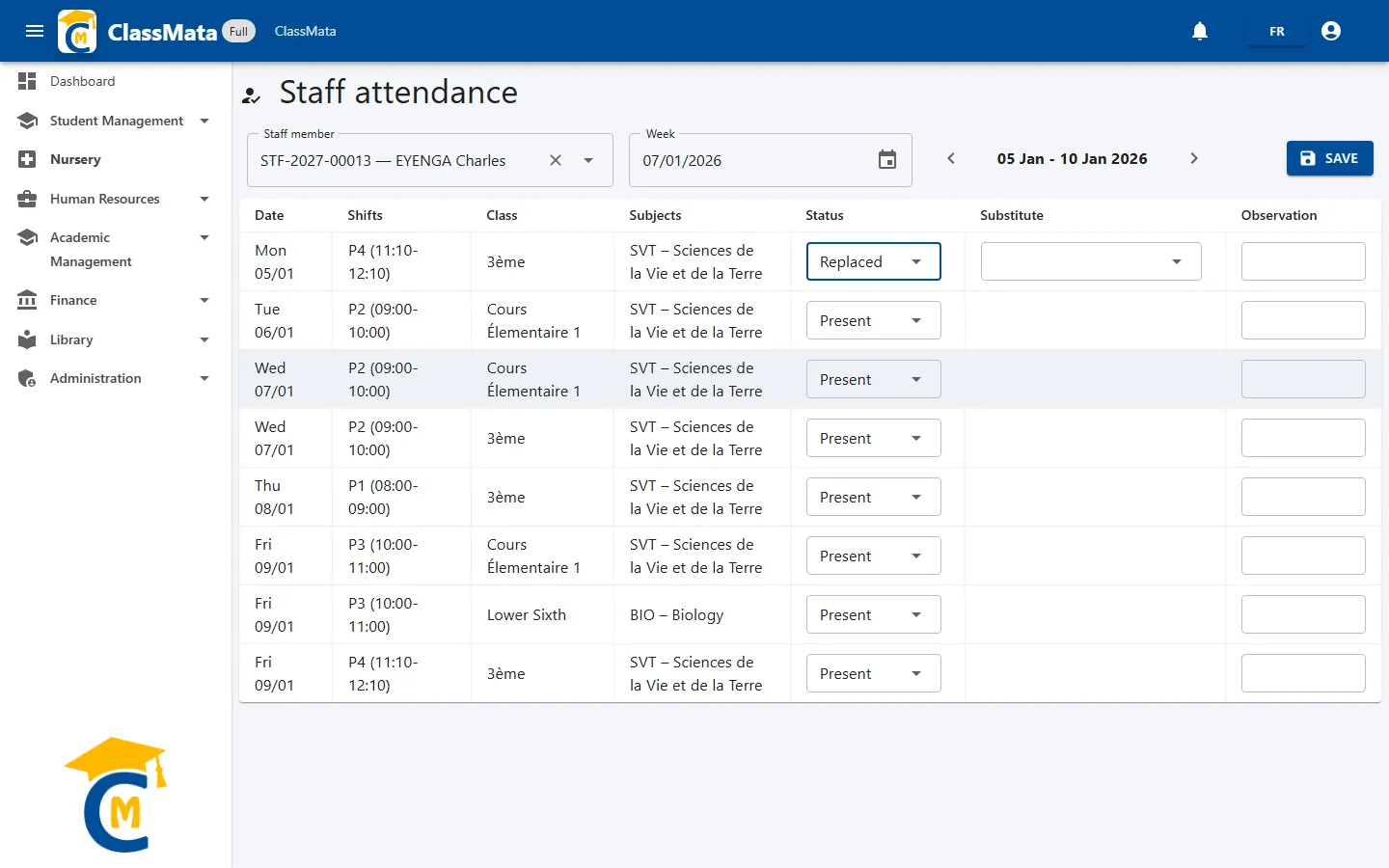
| Replaced | A colleague gave the lesson; choose them in Substitute |
Step 3: Save the week
Click Save; the message Save done ! confirms it. This step matters more than it looks: the "Present" shown on screen is only a display until the week is saved, and unsaved changes are lost when you change week or teacher. Only saved lessons marked Present or Replaced count as hours taught in Lesson Coverage.
Step 4: Open Lesson Coverage
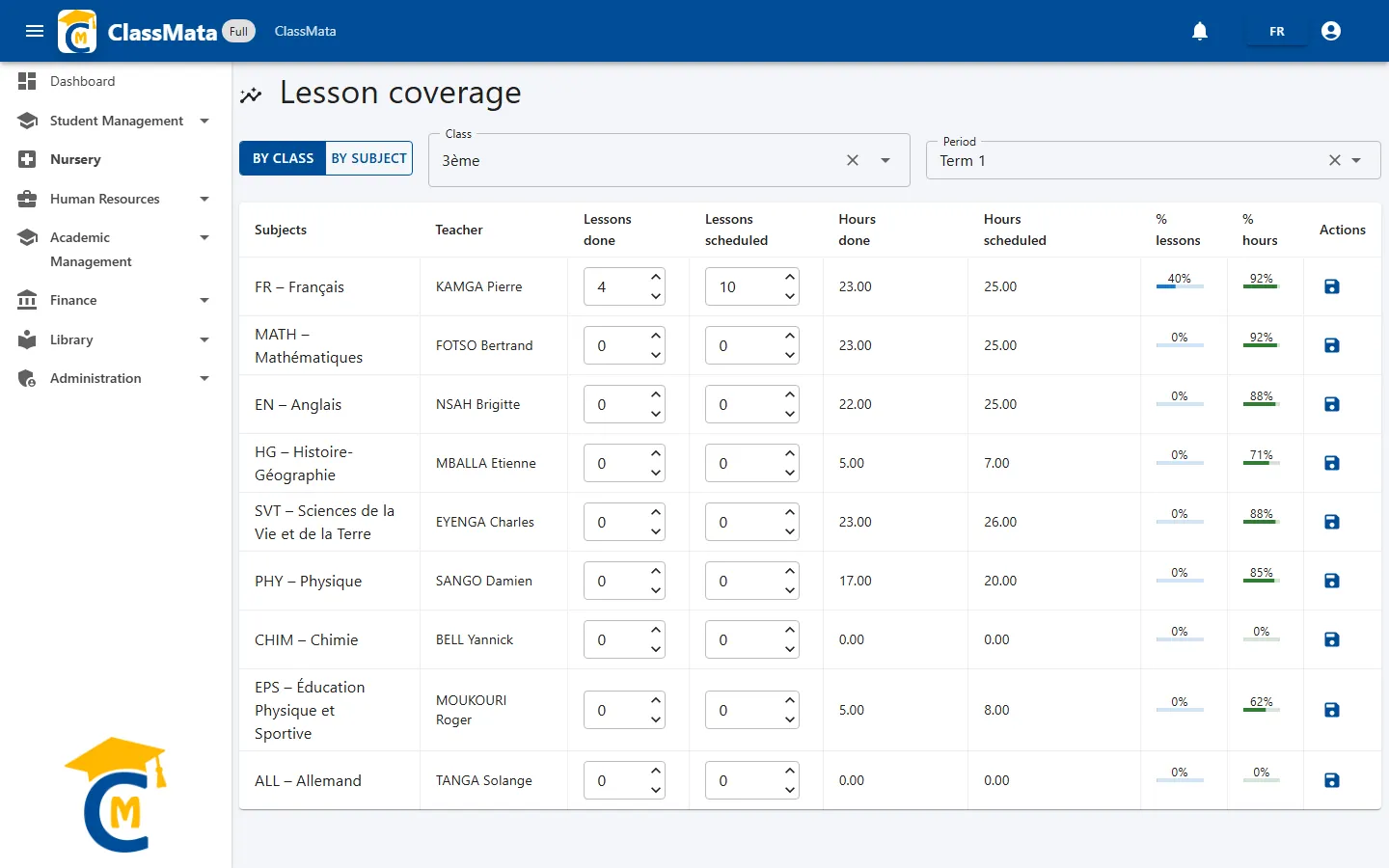
Open Academic Management → Lesson coverage and pick an angle with the selector at the top left:
- By class: all subjects of one class (choose a Class and a Period);
- By subject: all classes following one subject (choose a Subject and a Period).
Step 5: Enter the lessons
In each subject row, update Lessons done and Lessons scheduled (these two are typed by hand), then click the disk icon in Actions. "Save done !" confirms the row. Each row is saved on its own, so save every row you edit.
Step 6: Read the two percentages
| Indicator | How it is obtained |
|---|---|
| % lessons | Lessons done ÷ lessons scheduled, from what you typed |
| % hours | Hours done ÷ hours scheduled, computed from the timetable and saved staff attendance |
Compare them. A subject whose % hours lags far behind its % lessons (or the reverse) deserves a conversation with the teacher: either the attendance was not saved, or the lesson count was not updated.
Step 7: Compare classes
Switch to By subject to see the same subject in every class on one table. This is the quickest way to spot a class that is behind the others for the same subject or teacher.
A simple weekly routine
- At the end of the week, record and save every teacher's week (Steps 1 to 3).
- Update the lesson counters for the subjects taught (Step 5).
- Open Lesson Coverage once a week per class and read the two percentages (Step 6).
Quick troubleshooting
| You see | Cause | Fix |
|---|---|---|
| "No data for the moment" in Staff Attendance | No lesson scheduled for this teacher that week | Check the timetable and the assignment |
| Hours done stays at 0 | The week was never saved, even if it reads "Present" | Step 3 |
| A substitute disappears | The row was set back to Present, Absent or Justified | Set Replaced again and re-pick the colleague |
Last updated: