Notifications
ClassMata informs each user, staff and student alike, of the events that concern them: a password reset, a payment received, a payment overdue… These notifications are personal. They are read from the bell in the top bar or from the Notifications page.
Permissions. Every signed-in user can see their own notifications.
The bell
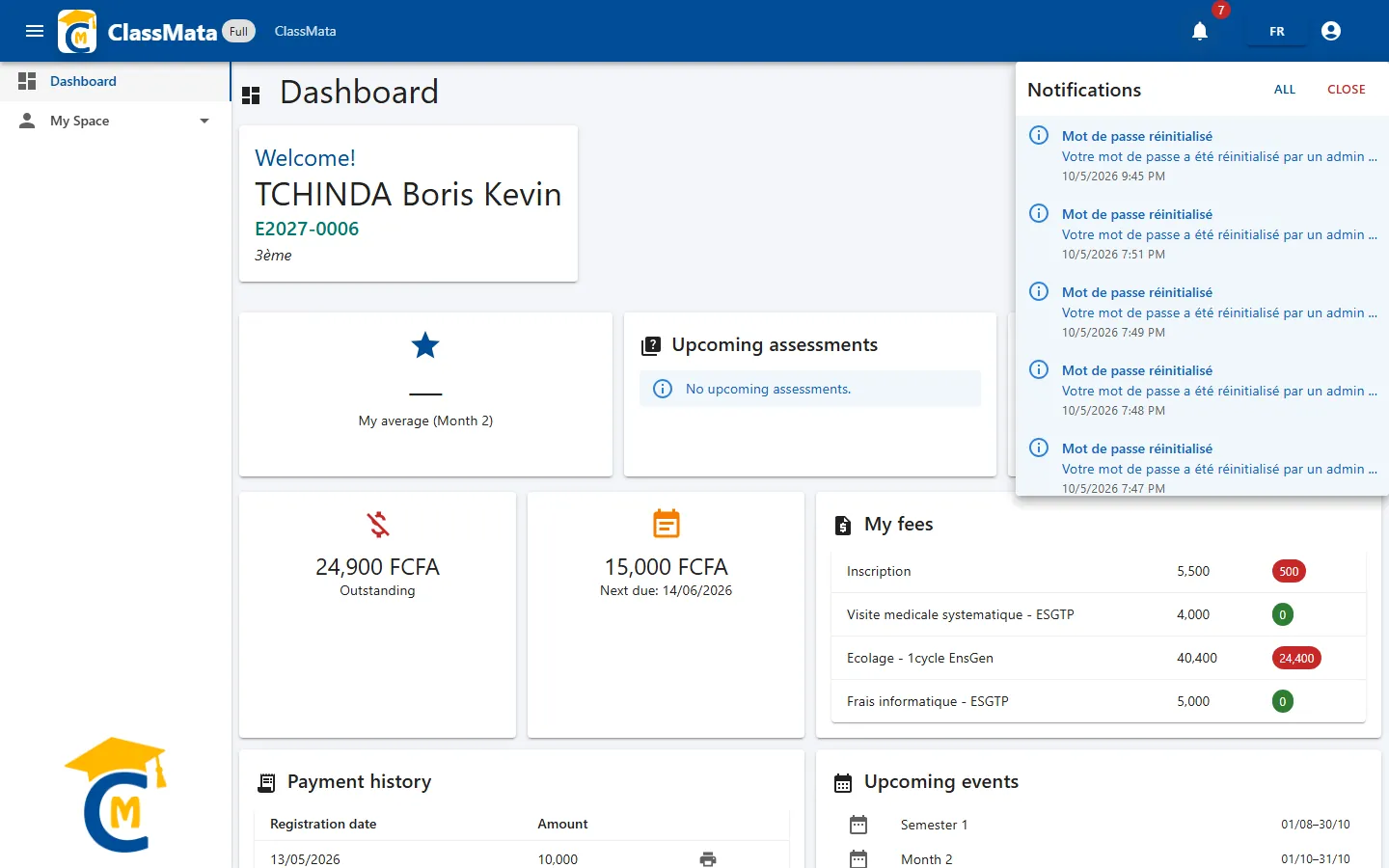
The bell icon, at the top right, carries a red badge with the number of unread notifications ("99" at most). Click it to open the list of unread ones: each shows an icon colored by importance (information, success, warning, error), its title, the beginning of the message and its date. Two buttons at the top of the window:
- All opens the Notifications page;
- Close closes the window.
Clicking a notification opens it directly in the Notifications page.
The Notifications page
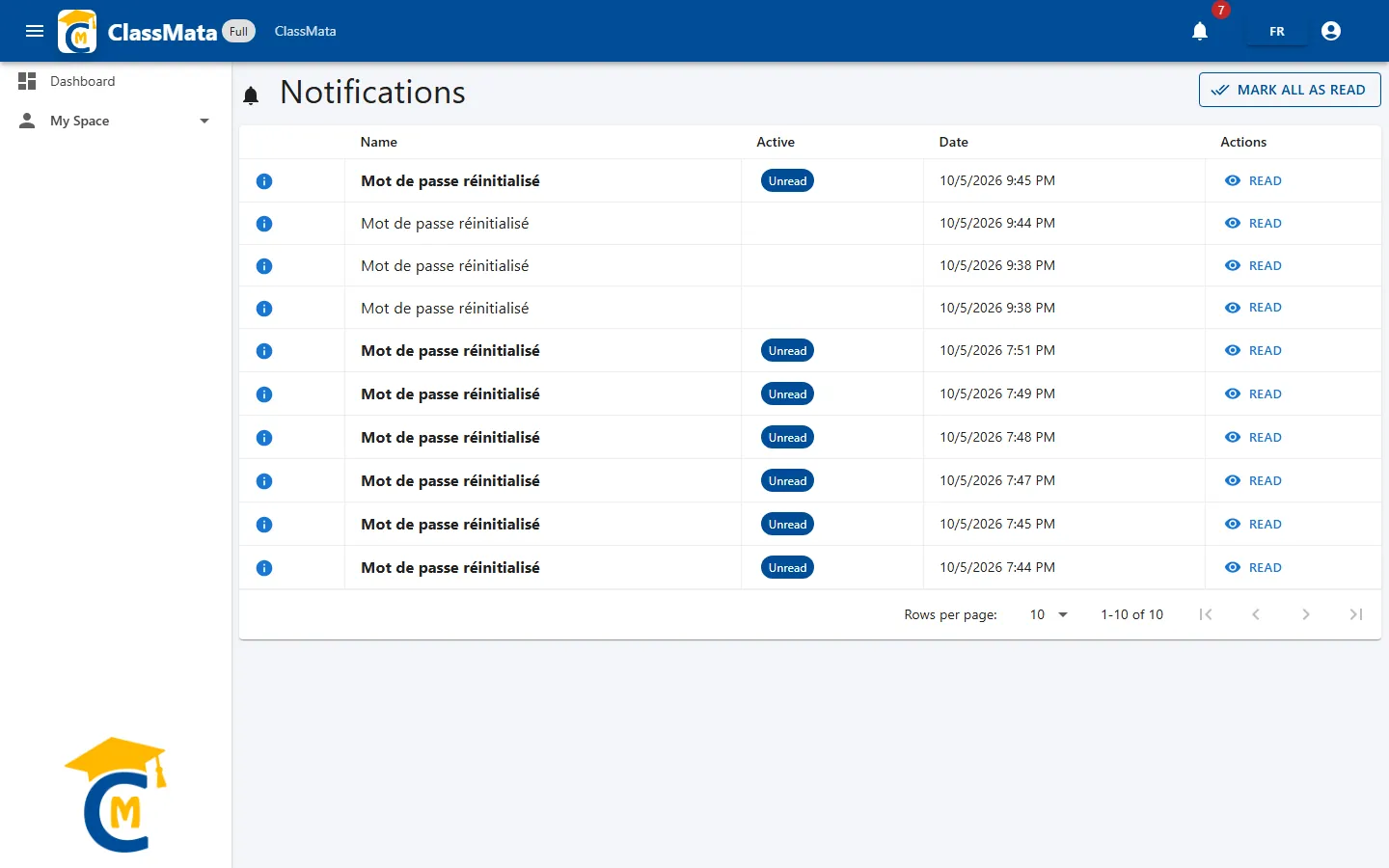
| Column | Content |
|---|---|
| (icon) | Importance: information, success, warning or error |
| Name | Title of the notification, in bold while it is unread |
| Active | Unread chip for the notifications you have not opened yet |
| Date | Date and time of the notification |
| Actions | Read |
The Mark all as read button, at the top right, turns every notification into read in one click; it is greyed out when there are no unread ones left. The list refreshes by itself when a new notification arrives.
Read a notification
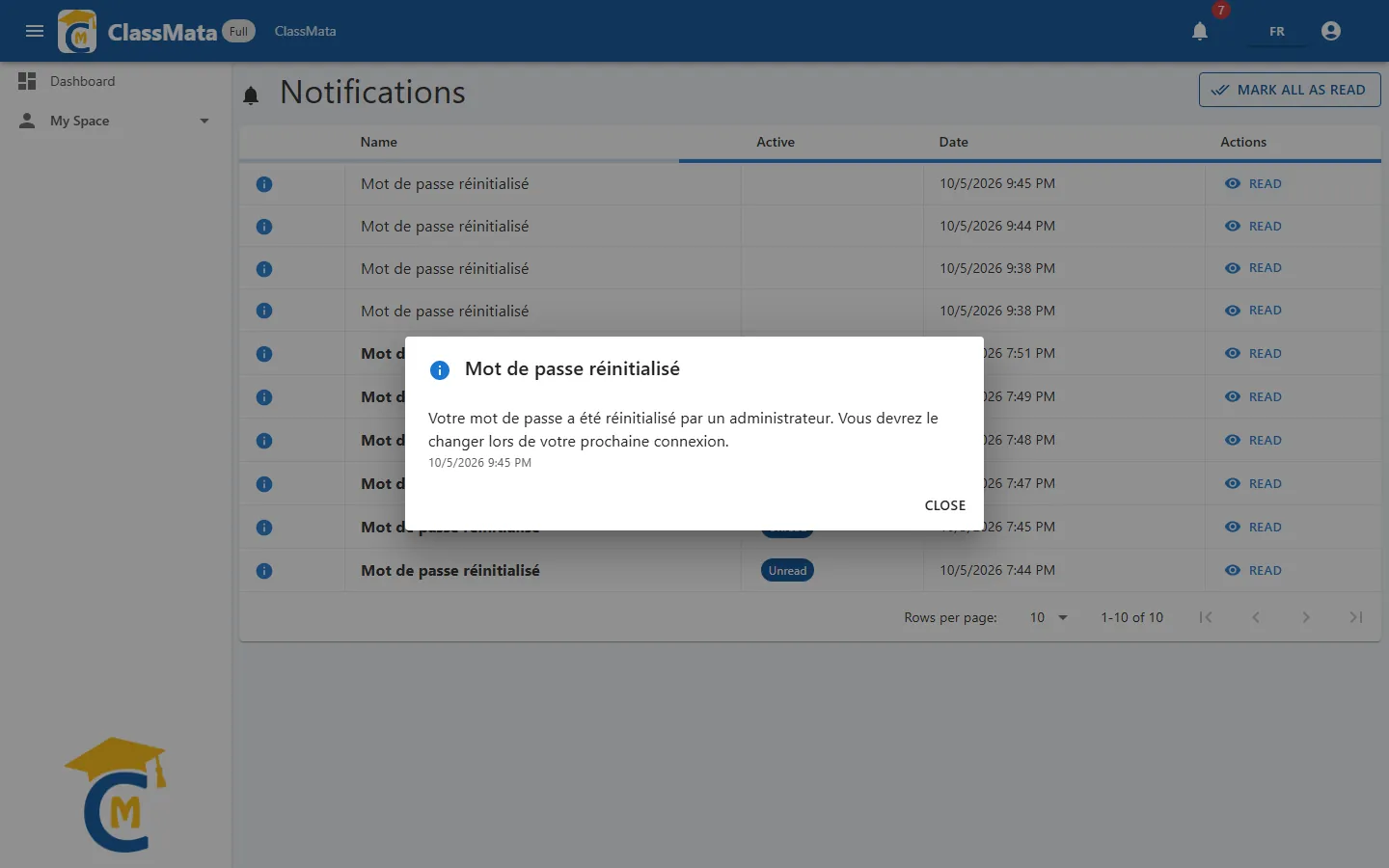
Read (or a click from the bell) opens the full message with its date. Opening it marks it as read: it loses its "Unread" chip and the bell counts one notification less. Close closes the window.
Where do these messages come from? They are produced from the notification templates, which the administration can adapt.
Last updated: