My Grades
The My Space section is the students' entry point: they consult their grades, report card and timetable there, without being able to change anything. The My Grades page gives, period by period, the average, the rank and the detail of each assessment.
Permissions. These pages require the student-space access permission: it is granted to student accounts. An account without it (a staff member's, for example) sees "Access Denied" if it opens one of these pages.
Sign in as a student
A student signs in with the same screen as staff:
- School ID — the school's code;
- Username — their registration number (for example E2027-0006);
- Password — the one the school gave them.
If the student has lost their password, the administration generates a new one from the Students page (Reset or Password buttons). At the first sign-in with a temporary password, ClassMata requires choosing a new password before continuing: enter the current password, the new one, then confirm it.
The My Space menu
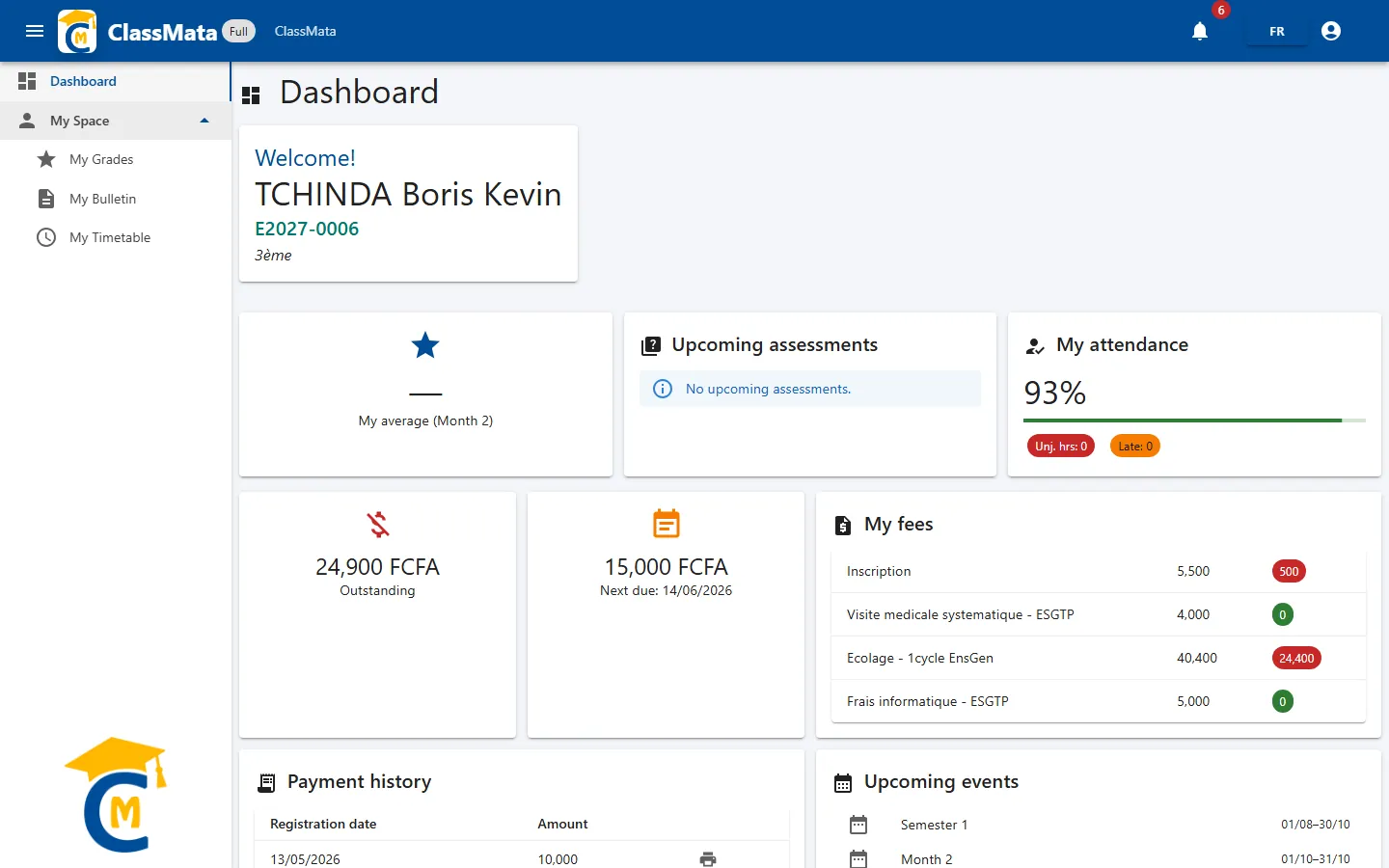
Once signed in, the student lands on their Dashboard (average, attendance, school fees, upcoming events). The My Space group of the side menu gives access to three pages: My Grades, My Bulletin and My Timetable.
Period summary
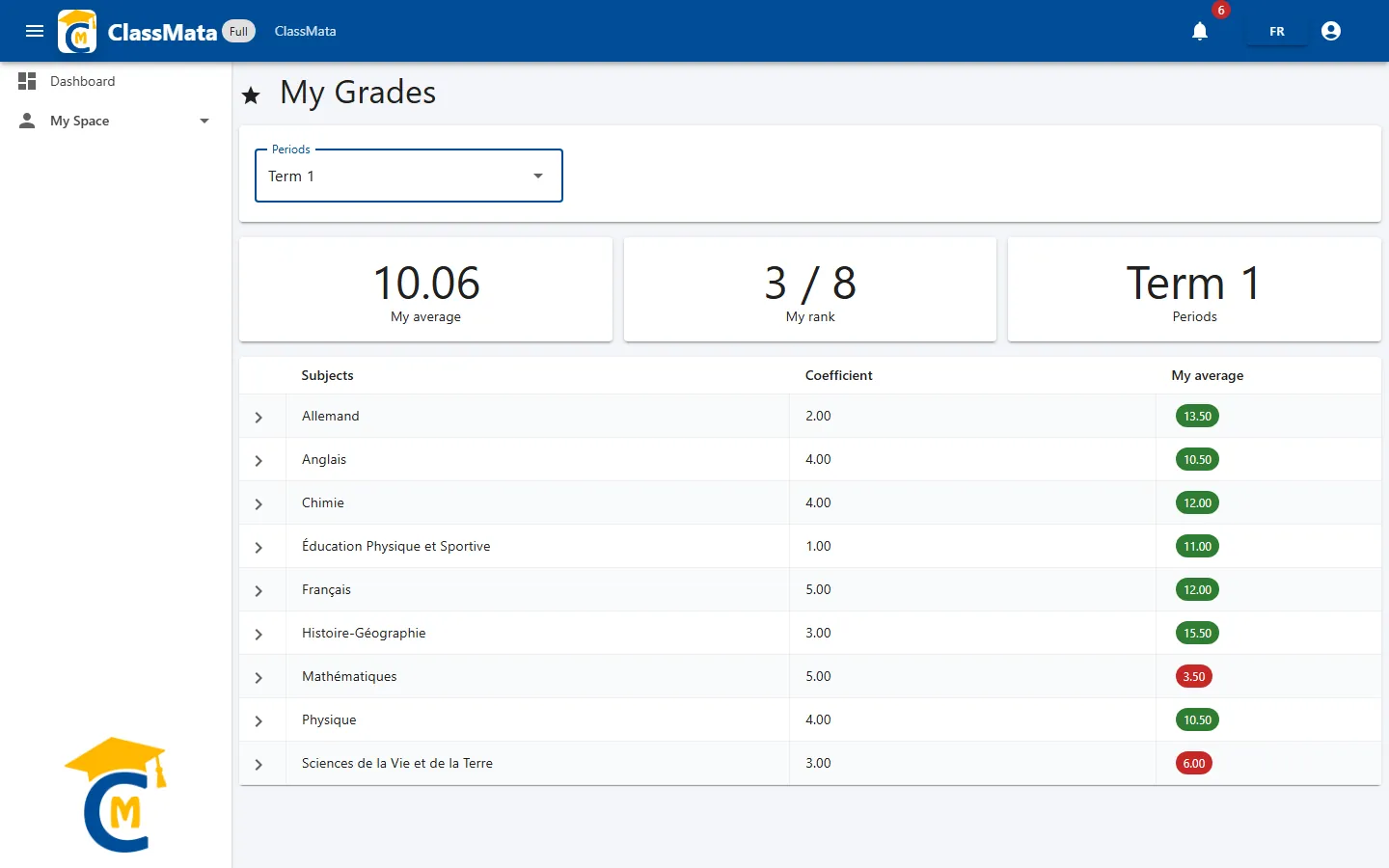
Choose a period in the Periods list (the current period is suggested by default). Three cards then summarise the situation:
- My average — the student's overall average out of 20, computed as on the report card (subject averages weighted by coefficients);
- My rank — their place in the class, shown as "3 / 8";
- the displayed Period.
Below, the table lists each Subject with its Coefficient and My average in the subject, in a green badge from 10/20 and red below. A dash "—" means no mark is available yet.
Assessment detail
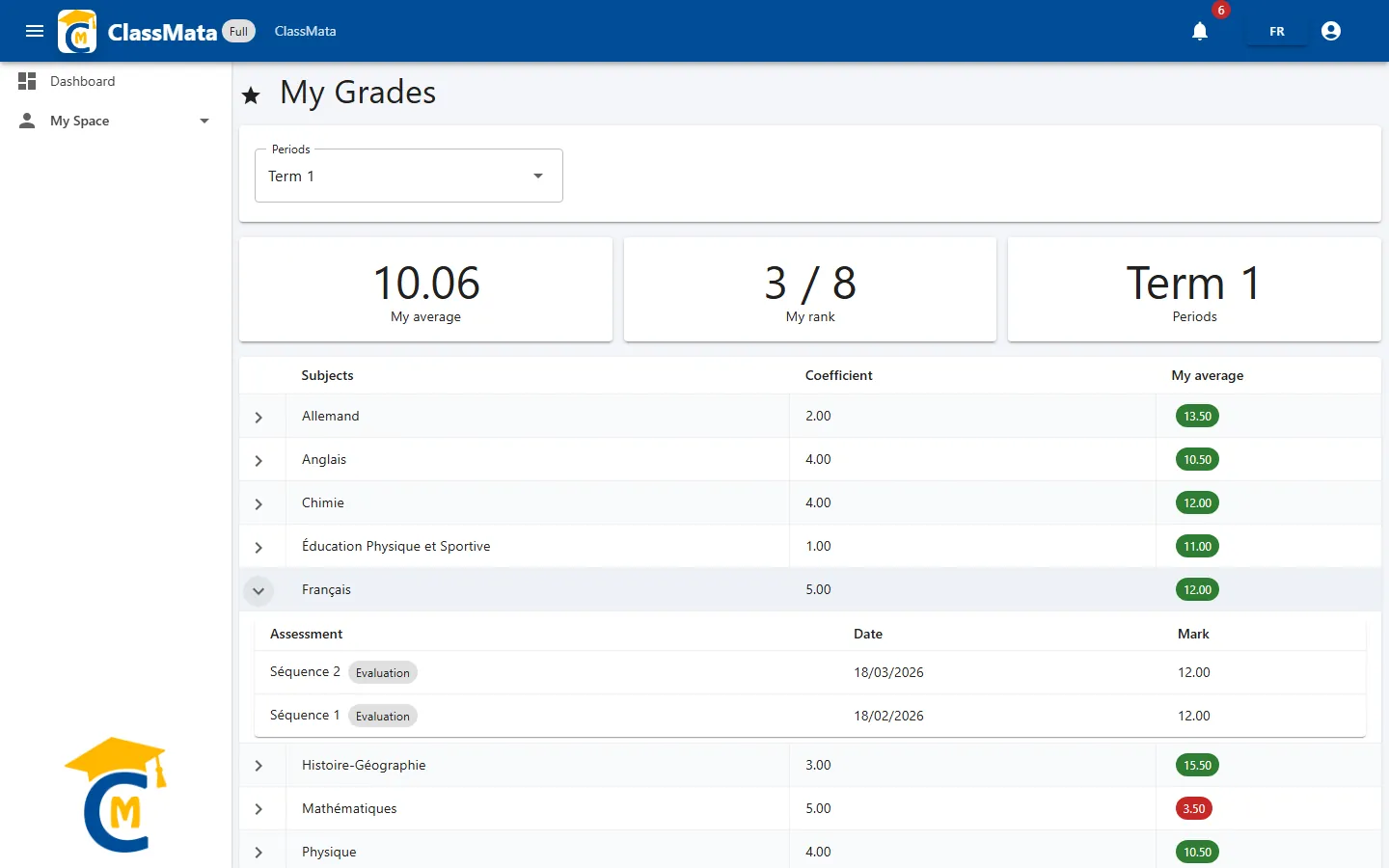
The arrow at the start of a row expands a subject and shows each of its assessments: its name and type (Evaluation, Normal session, Rehearsal…), the Date and the Mark. If no assessment exists for the period, the message "No recent assessments." is shown.
Good to know. Marks only appear here once teachers have entered them. The school can also notify students when an assessment's marks are available (see Mark Entry).
Last updated: