Medical Records
The Nursery module centralises students' health records, nurse visits and health incidents. It opens from the Nursery entry of the sidebar and has three tabs: Medical Profiles, Nurse Visits and Incidents.
Access. The page is reserved for users whose profile grants access to the Nursery module. Without that permission the entry does not appear in the menu.
Medical profiles
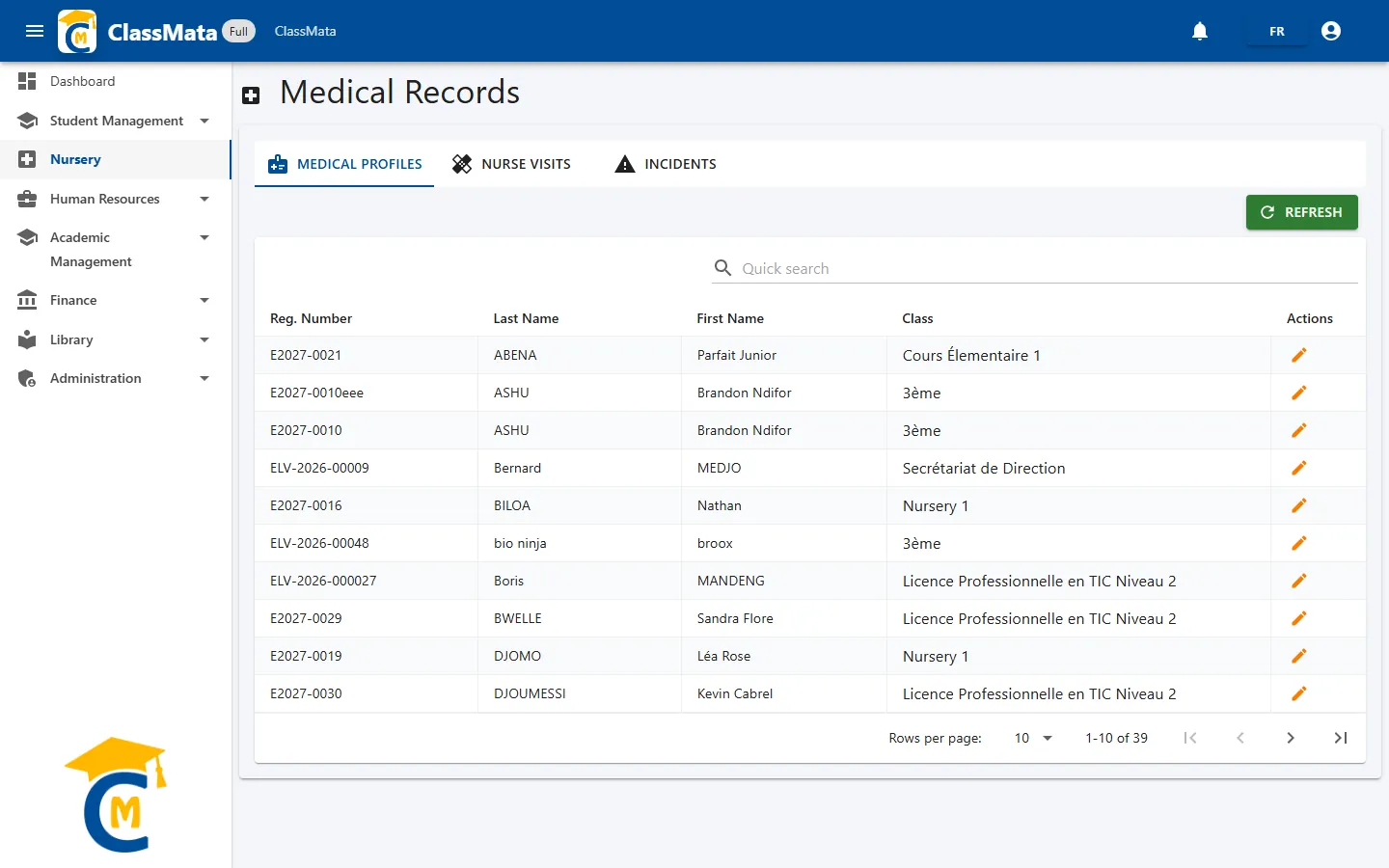
The first tab lists every student with their Reg. Number, Last Name, First Name and Class. The Quick search bar filters the list as you type; Refresh reloads the data.
Click a student's pencil to open their Medical Record:
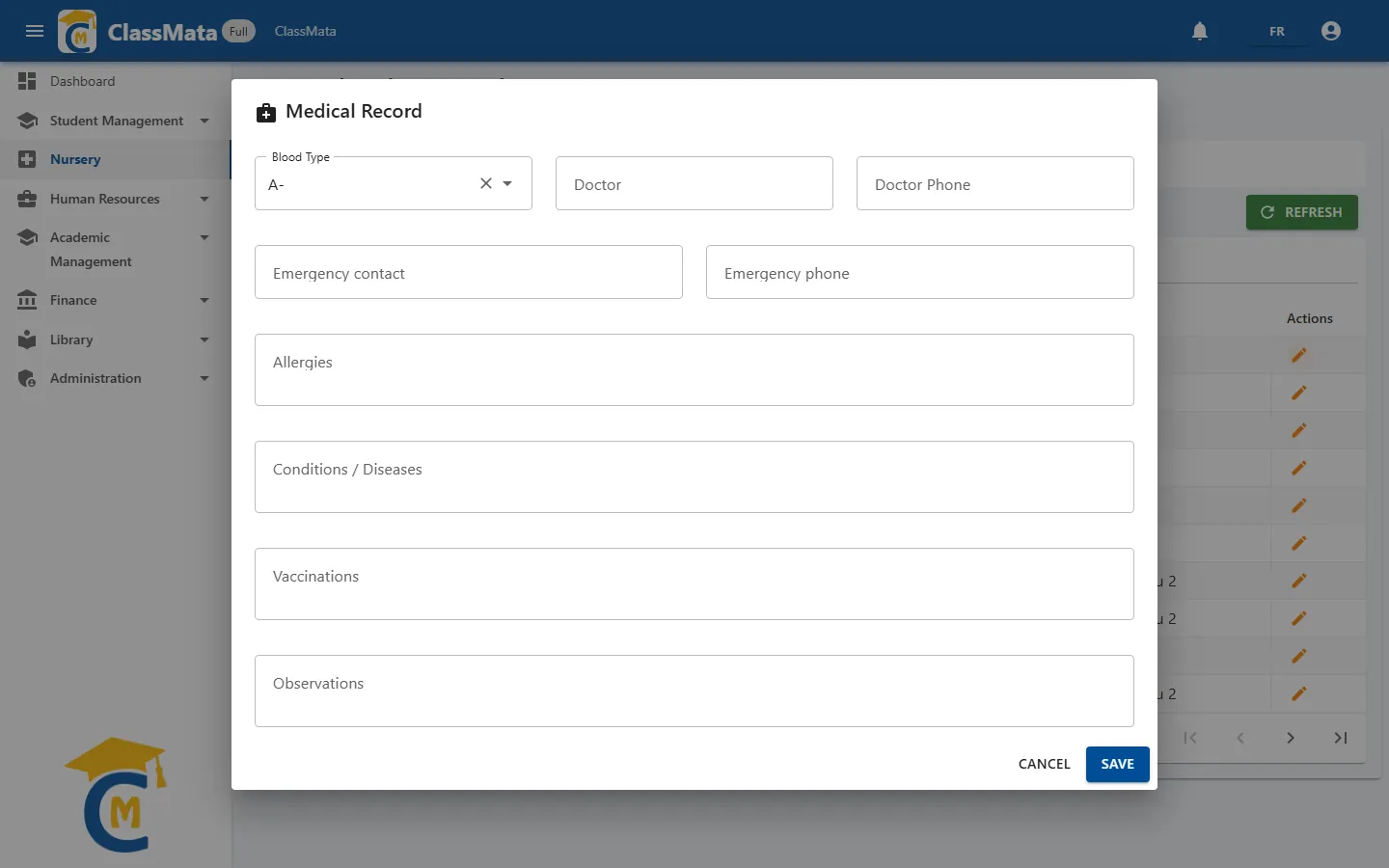
| Field | Content |
|---|---|
| Blood Type | A+, A-, B+, B-, AB+, AB-, O+ or O- |
| Doctor / Doctor Phone | Name and phone number of the family doctor |
| Emergency contact / Emergency phone | Person to call if something happens |
| Allergies | Known allergies (food, medication, stings…) |
| Conditions / Diseases | Asthma, diabetes, sickle-cell disease… |
| Vaccinations | Vaccines received |
| Observations | Free remarks from the nursery |
Save with Save, or back out with Cancel. This is the same information as the Medical tab of the student form (see the Students page): a change made on one side shows up on the other.
Nurse visits
The second tab keeps track of every visit a student makes to the nursery.
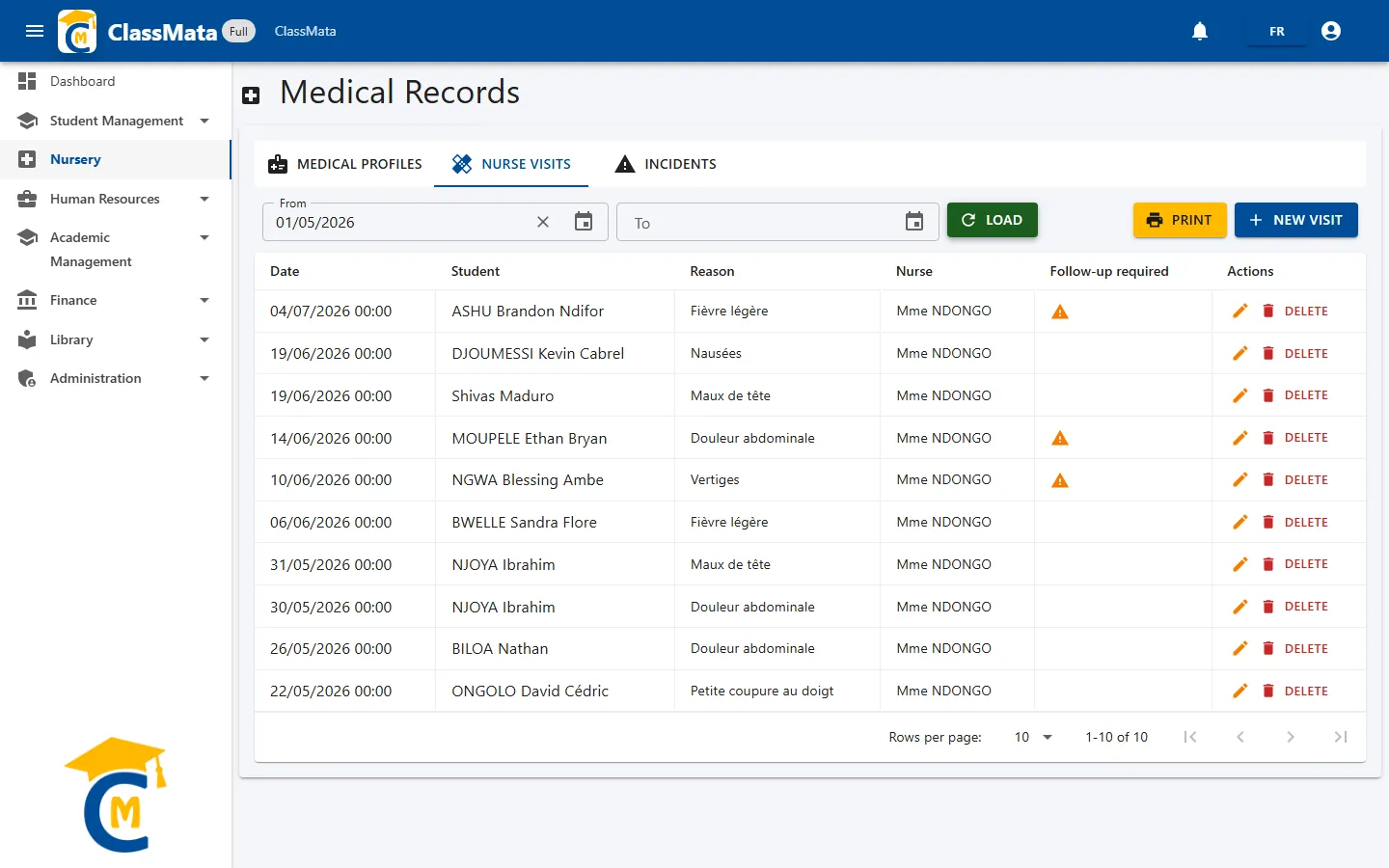
Filter the visits
Pick a start date (From) and, if needed, an end date (To) with the calendar, then click Load. Both dates are optional, but From is pre-filled with today's date: to browse the history, move it back and click Load.
Each row shows the date, the student, the Reason, the nurse and a warning icon when Follow-up required was ticked. The pencil edits the visit; Delete removes it after confirmation.
Record a new visit
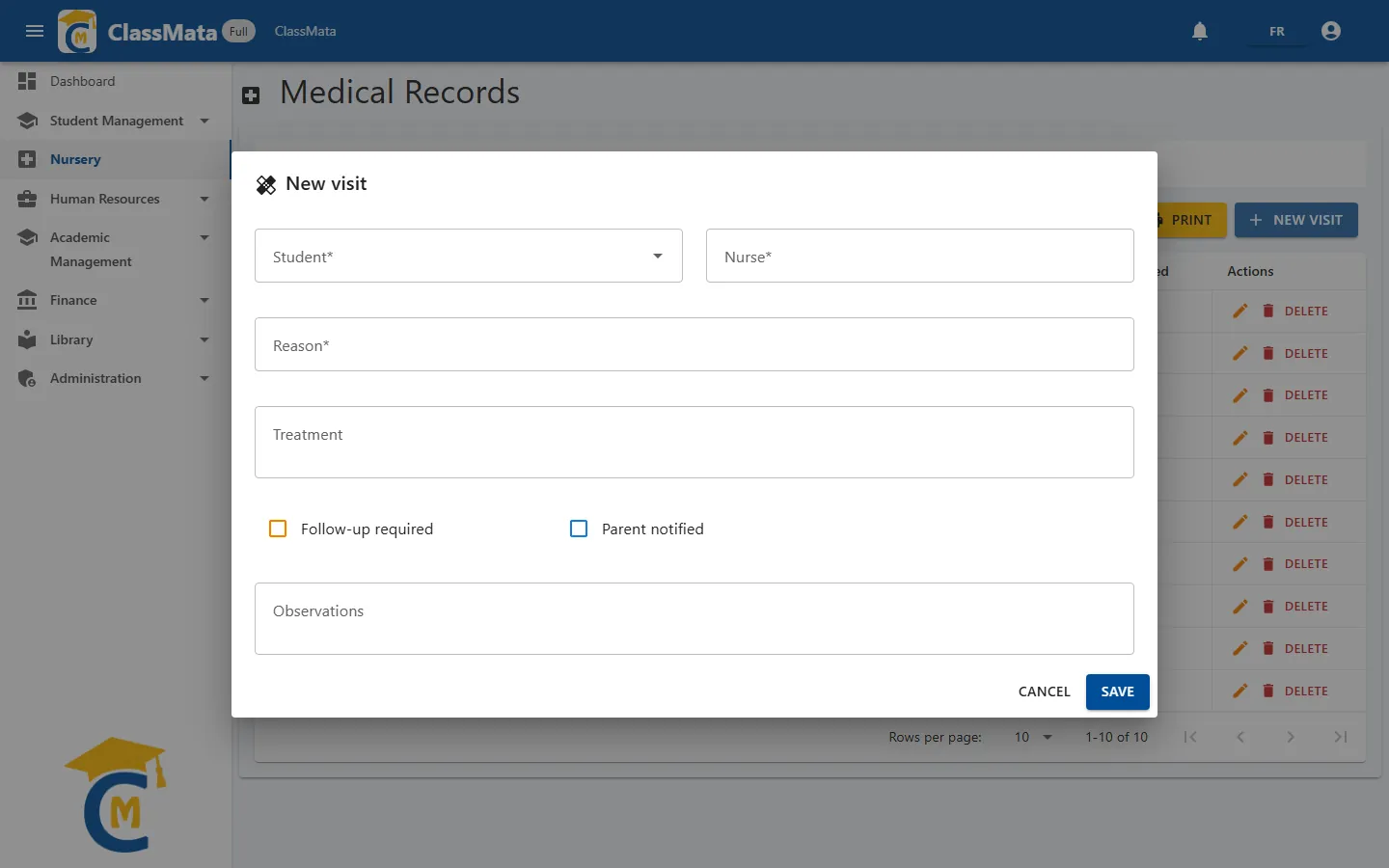
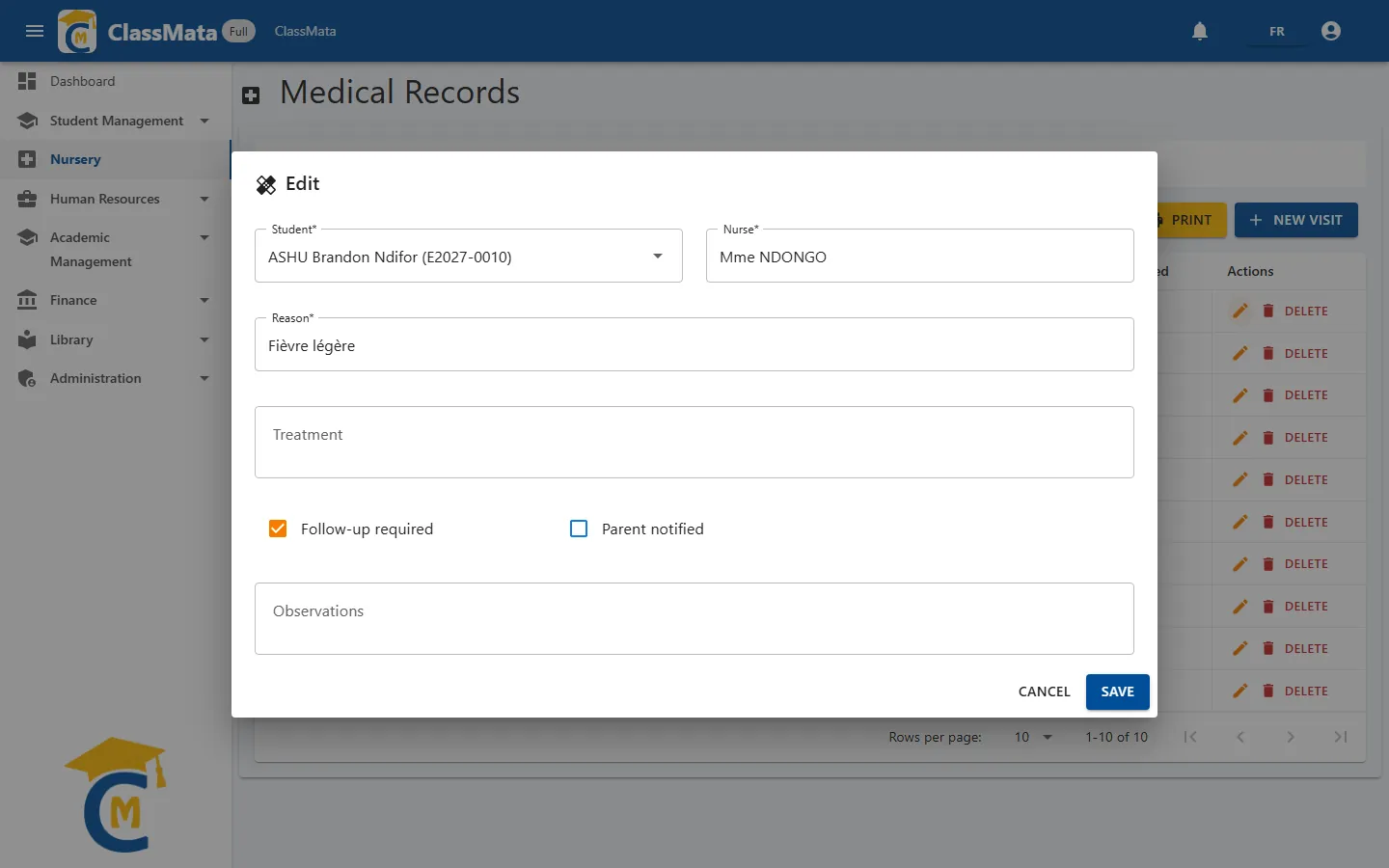
Click New visit and fill in:
- Student (required) — type a few letters of the name to find them;
- Nurse (required) — the person who received the student;
- Reason (required) — for example "Headache" or "Small cut on finger";
- Treatment — care or medication given;
- Follow-up required — tick if the student must be seen again;
- Parent notified — tick to record that the family was informed (the box does not send a message by itself);
- Observations — free remarks.
The visit's date and time are those of the moment you save. If the student or the reason is missing, the form refuses to save and shows a warning message.
Automatic notification. Every saved visit sends an internal notification to the student concerned and to the staff members who are allowed to manage the nursery.
The Print button produces the visits report for the chosen period (same preview window as for incidents, see below).
Incidents
The third tab lists health incidents: injuries, bad feelings, accidents.
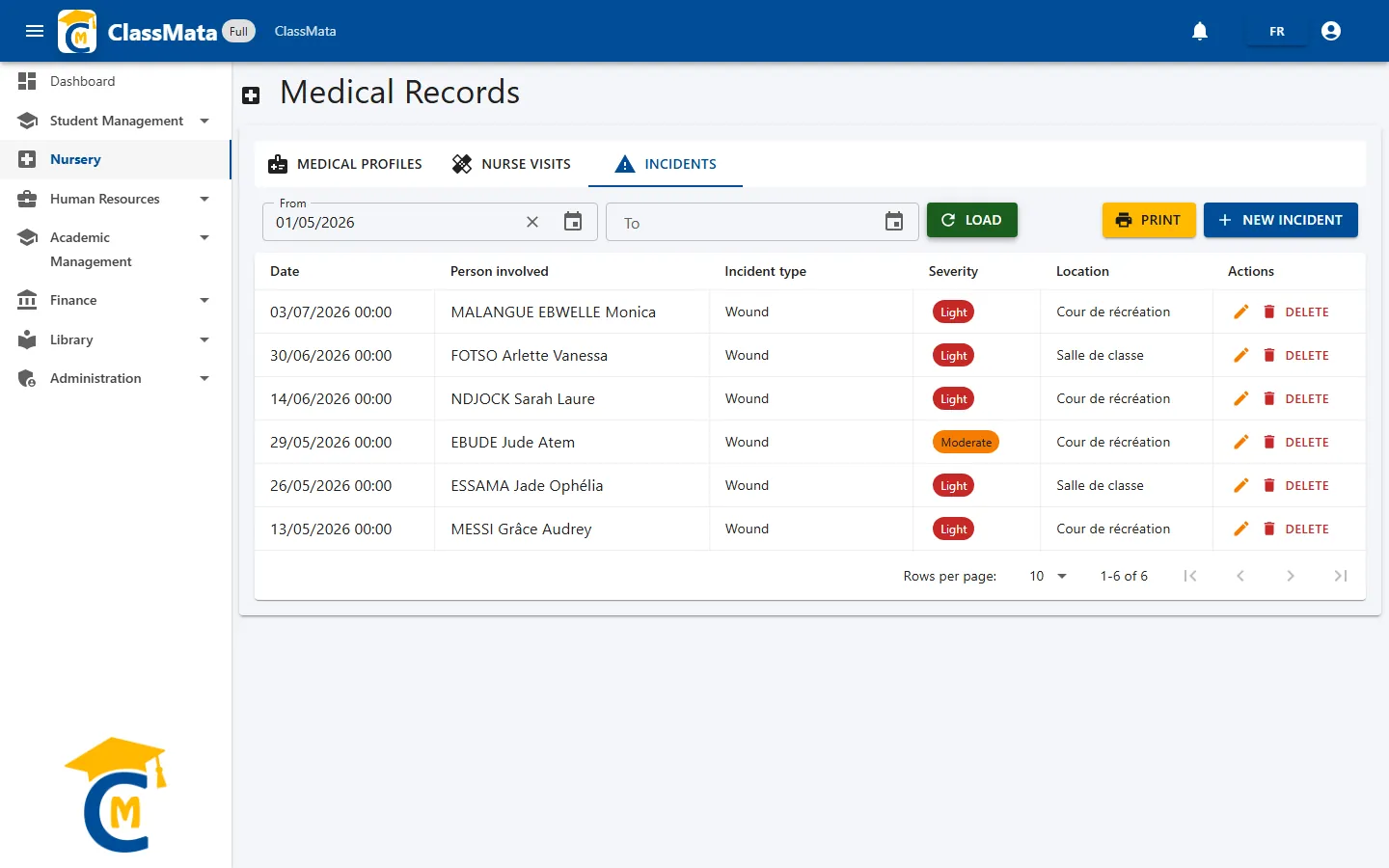
It works like the visits tab: From / To filter then Load, showing for each incident the date, the Person involved, the Incident type, the Severity (colour badge) and the Location.
Report an incident
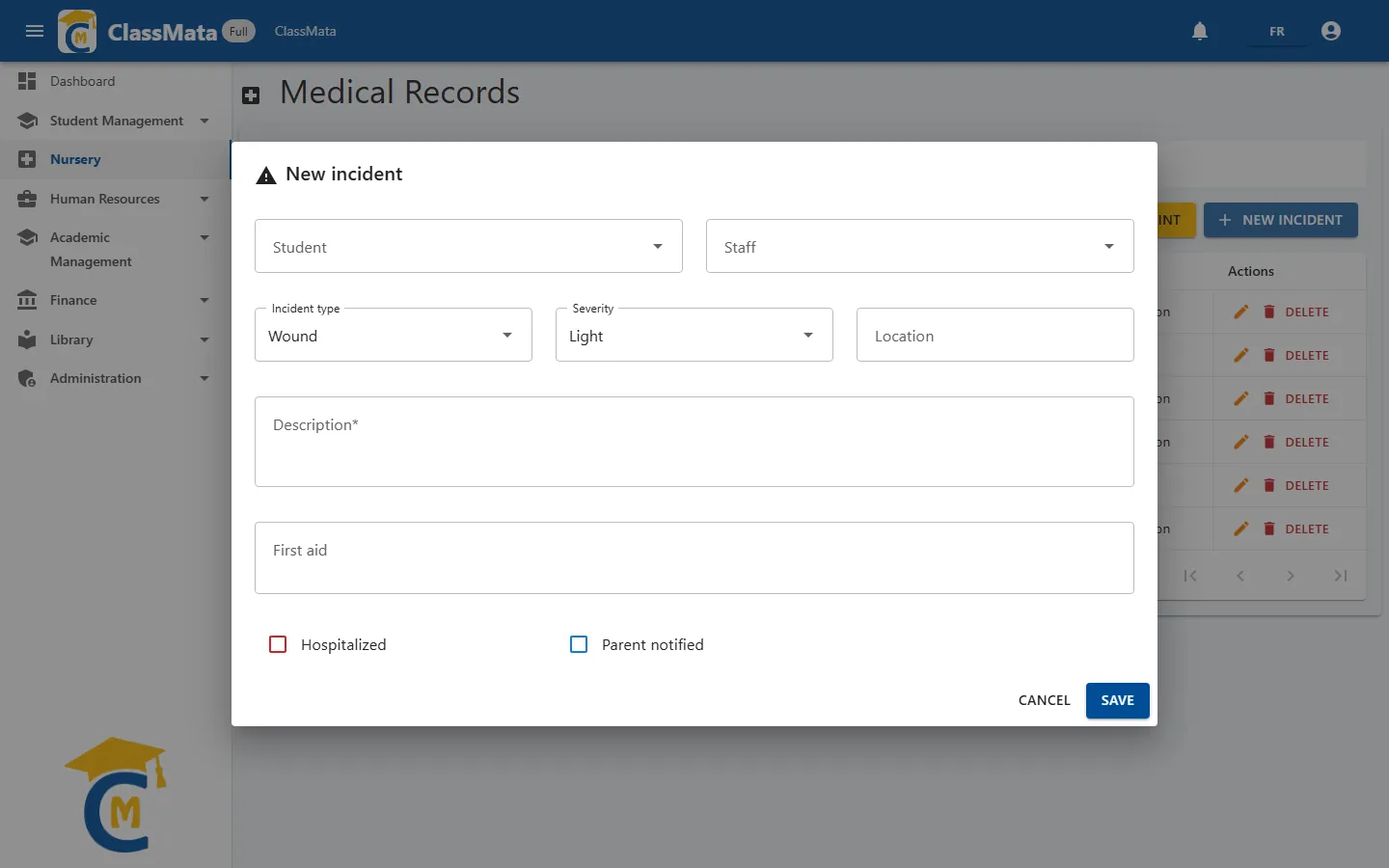
Click New incident:
Student or Staff — pick the person involved from one of the two lists; an incident can therefore concern an adult as well as a student;
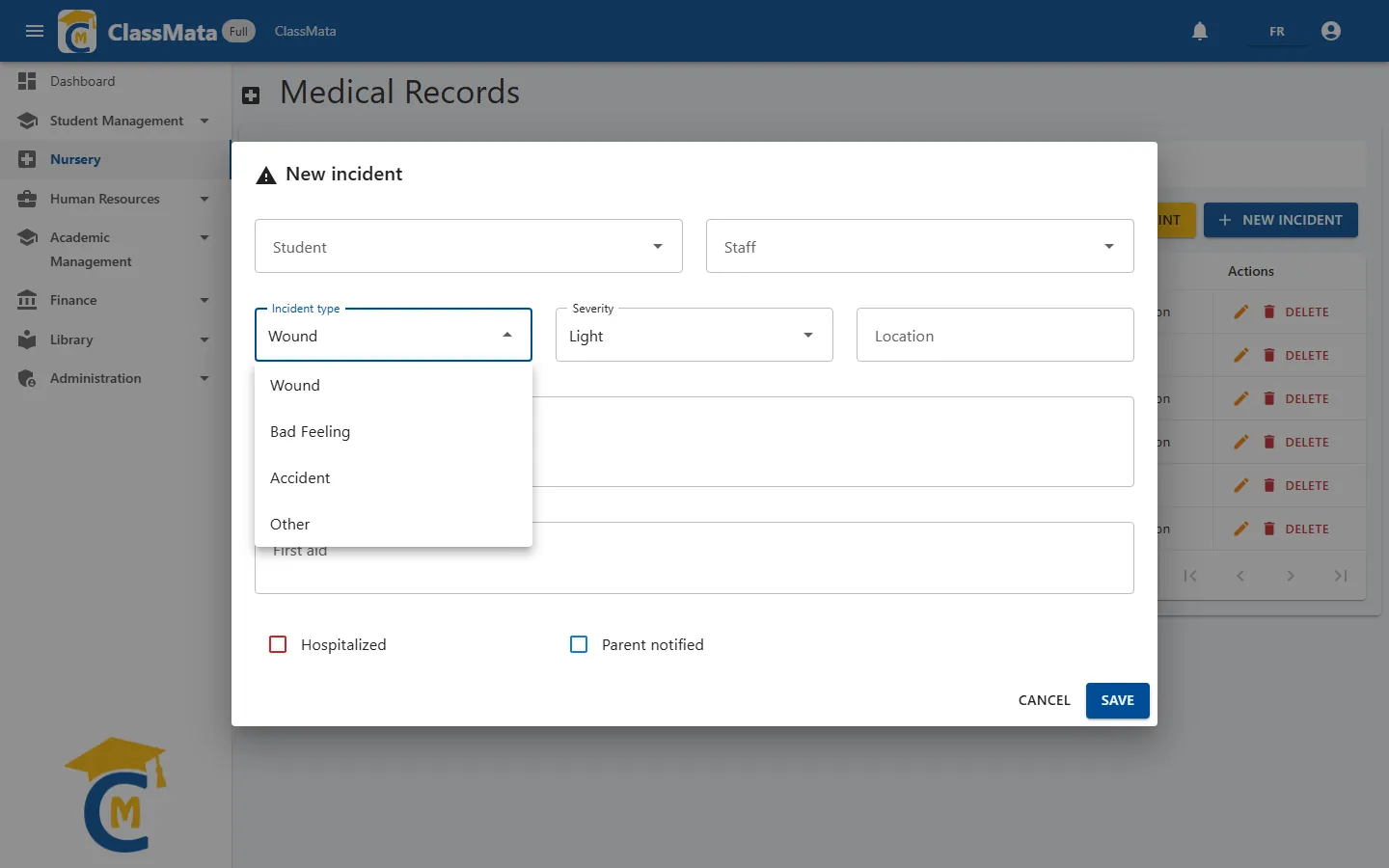
Incident type, to choose from:
Severity — three levels, in order: Light, Moderate and Severe;
Location — where it happened (playground, classroom…);
Description (required) — what happened;
First aid — the actions taken;
Hospitalized and Parent notified — tick boxes for the record.
As with visits, saving an incident that concerns a student notifies that student and the nursery staff (no notification is sent when the person involved is a staff member).
Print the report
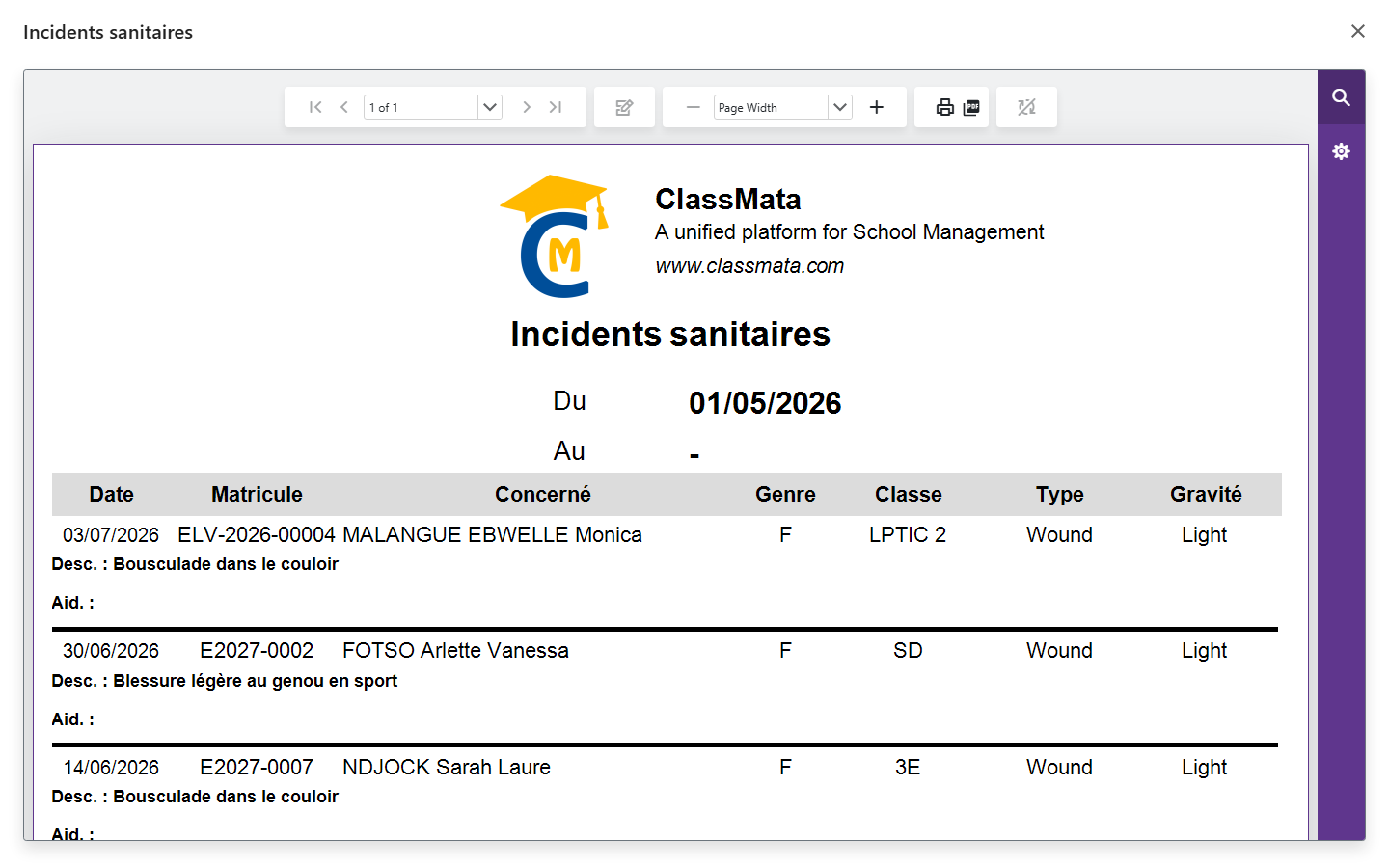
Print opens a preview of the "Health incidents" report for the chosen period, with the detail of each incident (description, first aid, type, severity). From the preview toolbar you can move between pages, zoom, print or export to PDF.
Last updated: