Staff
The Staff page is the school's employee directory: teachers, administrators, accountants, secretaries… It manages their records, their login accounts and their administrative documents. Accessible from Human Resources → Staff, it has two tabs: Staff and Documents.
Permissions. Opening the page requires the "Human Resources" permission. Adding, editing and deleting records are three separate permissions: a button you are not allowed to use is hidden, or an "Access Denied" message appears when you save.
Staff list
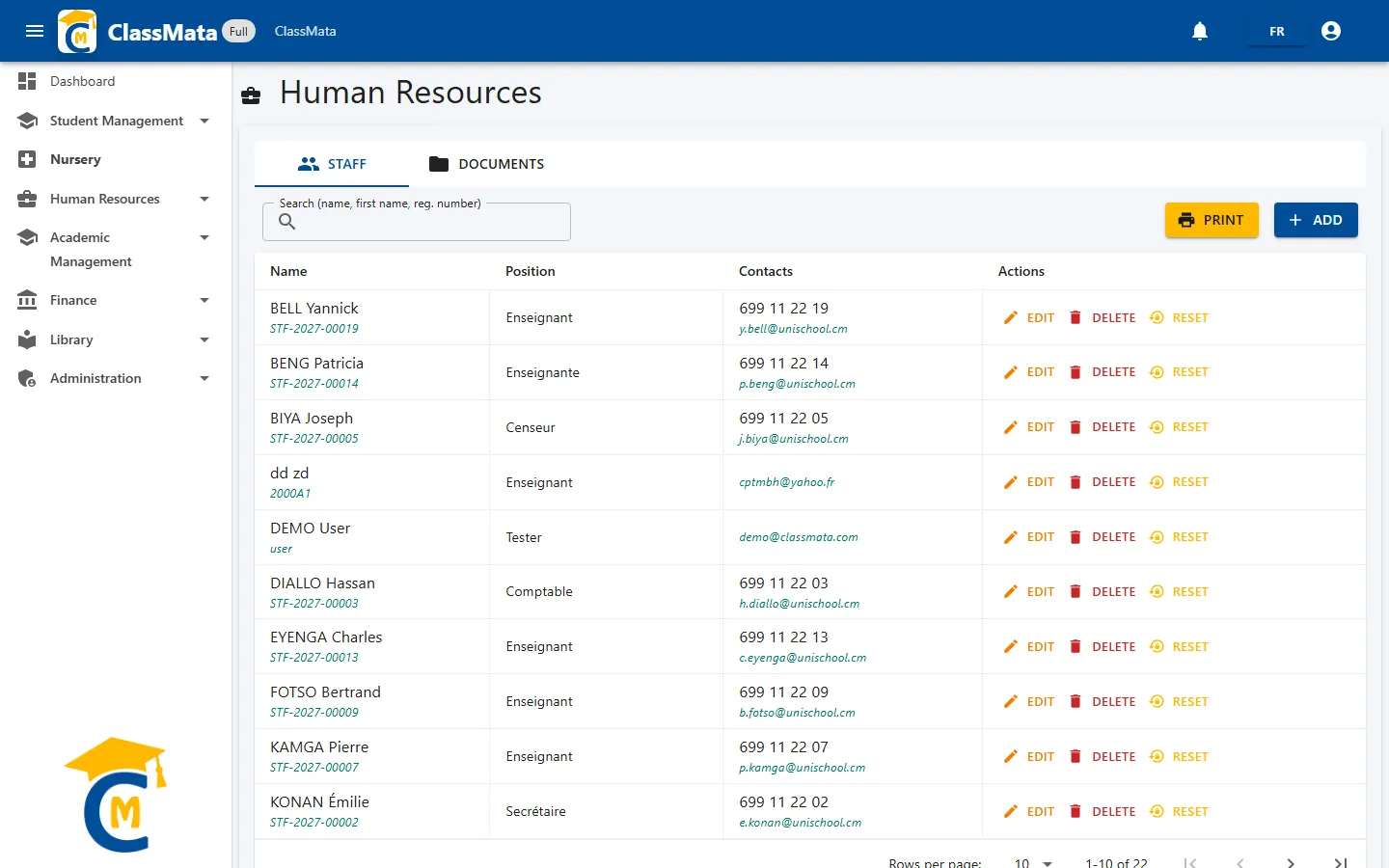
Each row shows the Name (with the registration number underneath), the Position and the Contacts (phone and e-mail). Three action buttons sit on the right: Edit, Delete and Reset (the password).
Search
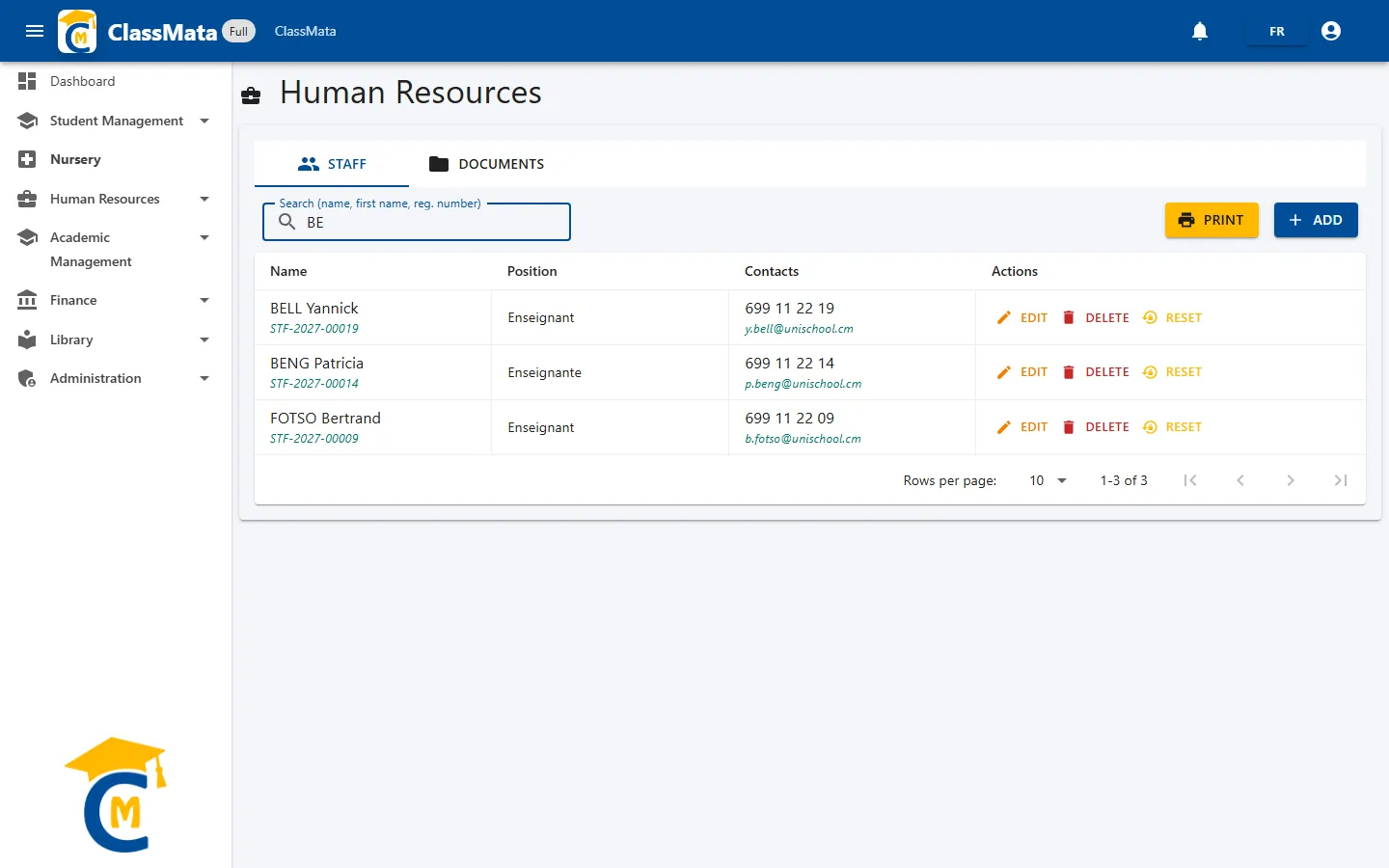
The Search (name, first name, reg. number) field filters the list after a short pause in typing.
Print the list
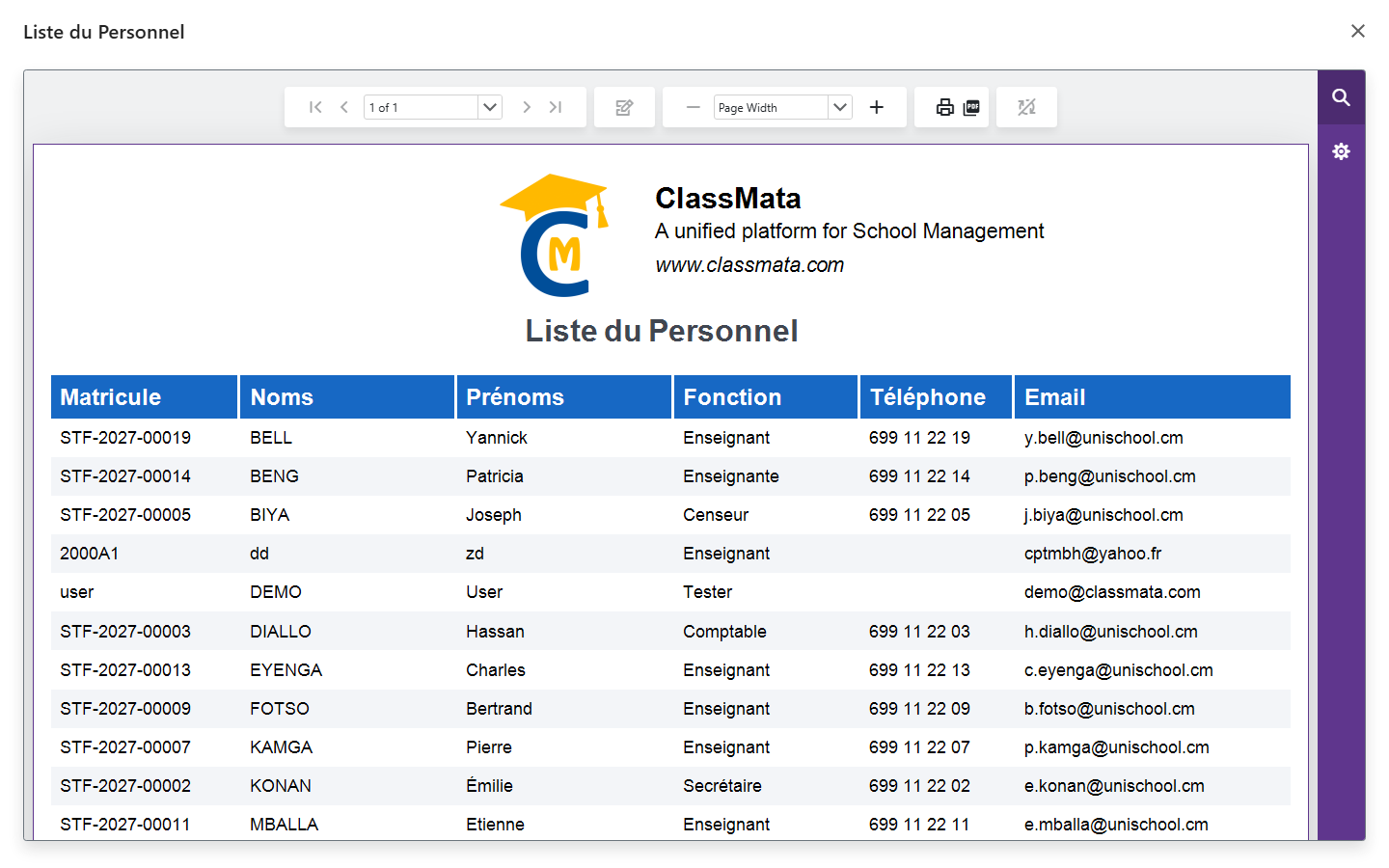
The Print button opens a preview of the "Staff list" report (reg. number, last name, first name, position, phone, e-mail), which you can print or export to PDF from the toolbar.
Add a staff member
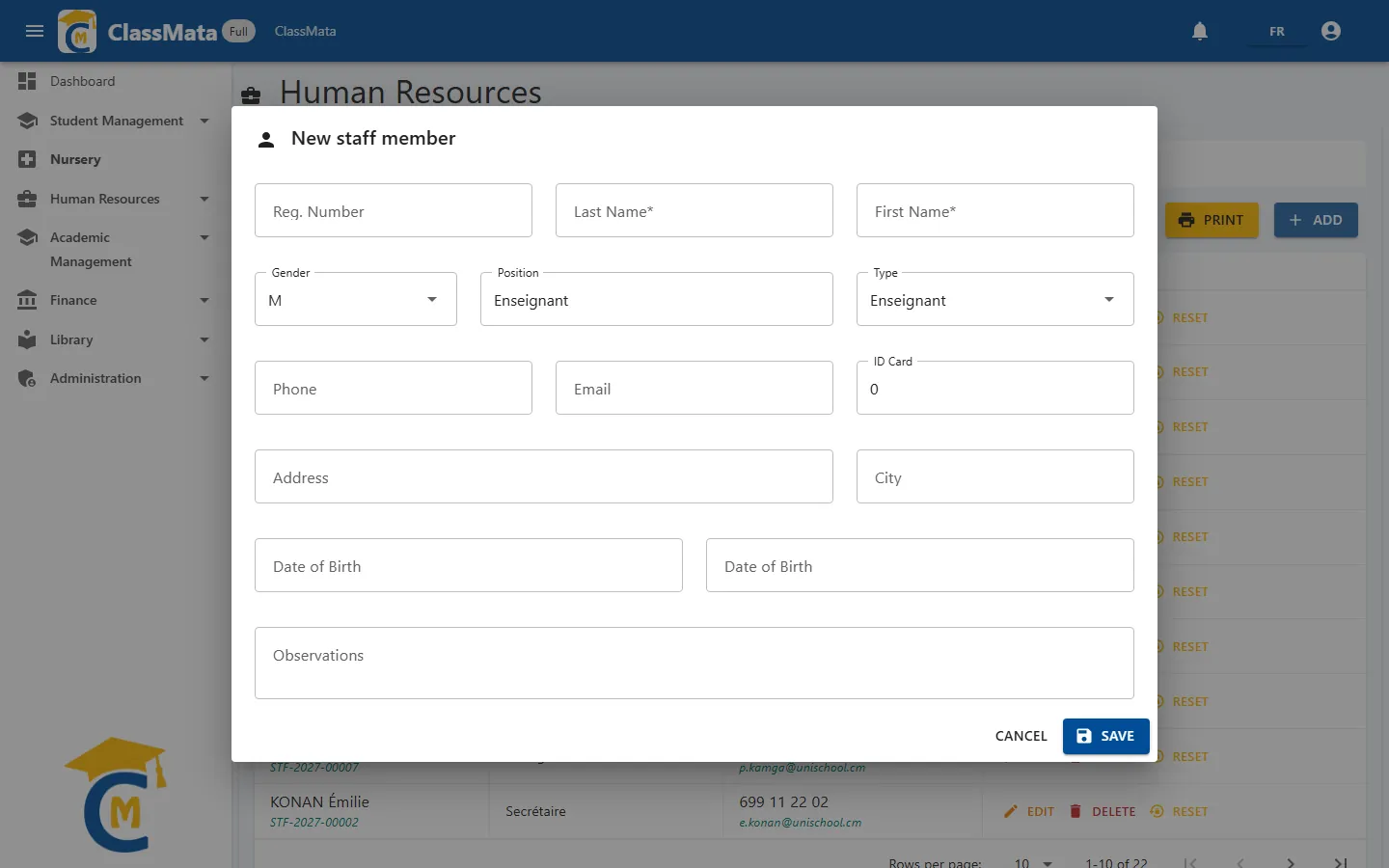
Click Add. Only the Last Name and First Name are required; the form contains:
| Field | Content |
|---|---|
| Reg. Number | Unique identifier, also used as the username. Left empty, it is generated automatically in the form STF-<year>-00023 |
| Last Name / First Name | Identity (required) |
| Gender | M or F |
| Position | Job title: Teacher, Accountant, Censor… (pre-filled with "Enseignant") |
| Type | Super-admin, Admin, Enseignant (teacher) or Autre (other) — these four labels are always displayed in French |
| Phone, Email | Contact details |
| ID Card | ID card number |
| Address, City | Postal address |
| Birth | Date then place of birth |
| Observations | Free remarks |
When you save, ClassMata automatically creates the staff member's login account (their registration number is the username), gives them the default staff role, then shows a window with their temporary password.
Write down the temporary password before closing the window: it is shown only once. The person will have to change it at their first login. Their detailed permissions are then set in Administration → Role Management.
The registration number must be unique: one that is already in use is rejected.
Edit a record
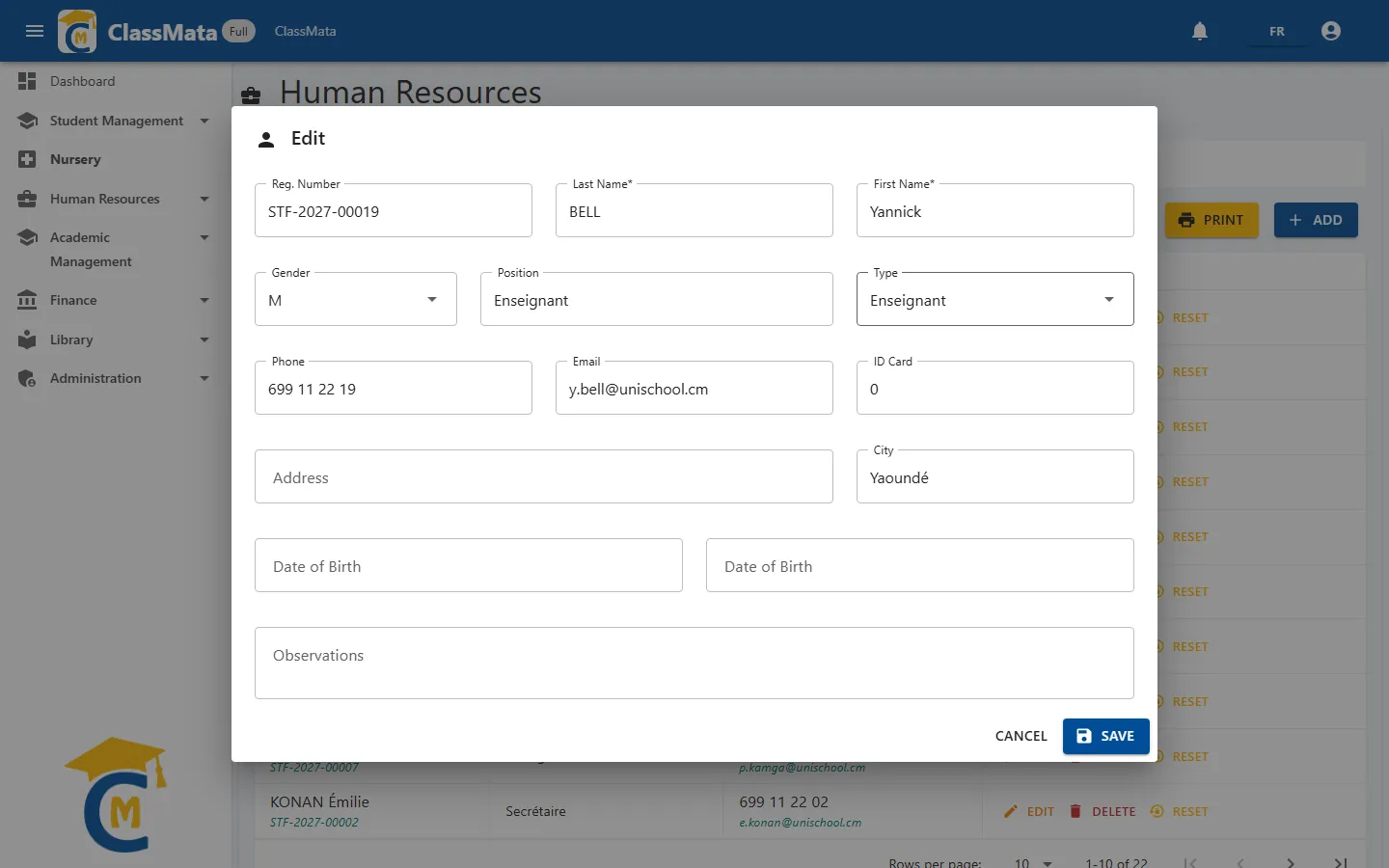
Edit reopens the same form, pre-filled. Changing the Reg. Number also renames the person's login; if the new login is already taken, nothing is saved.
Reset a password
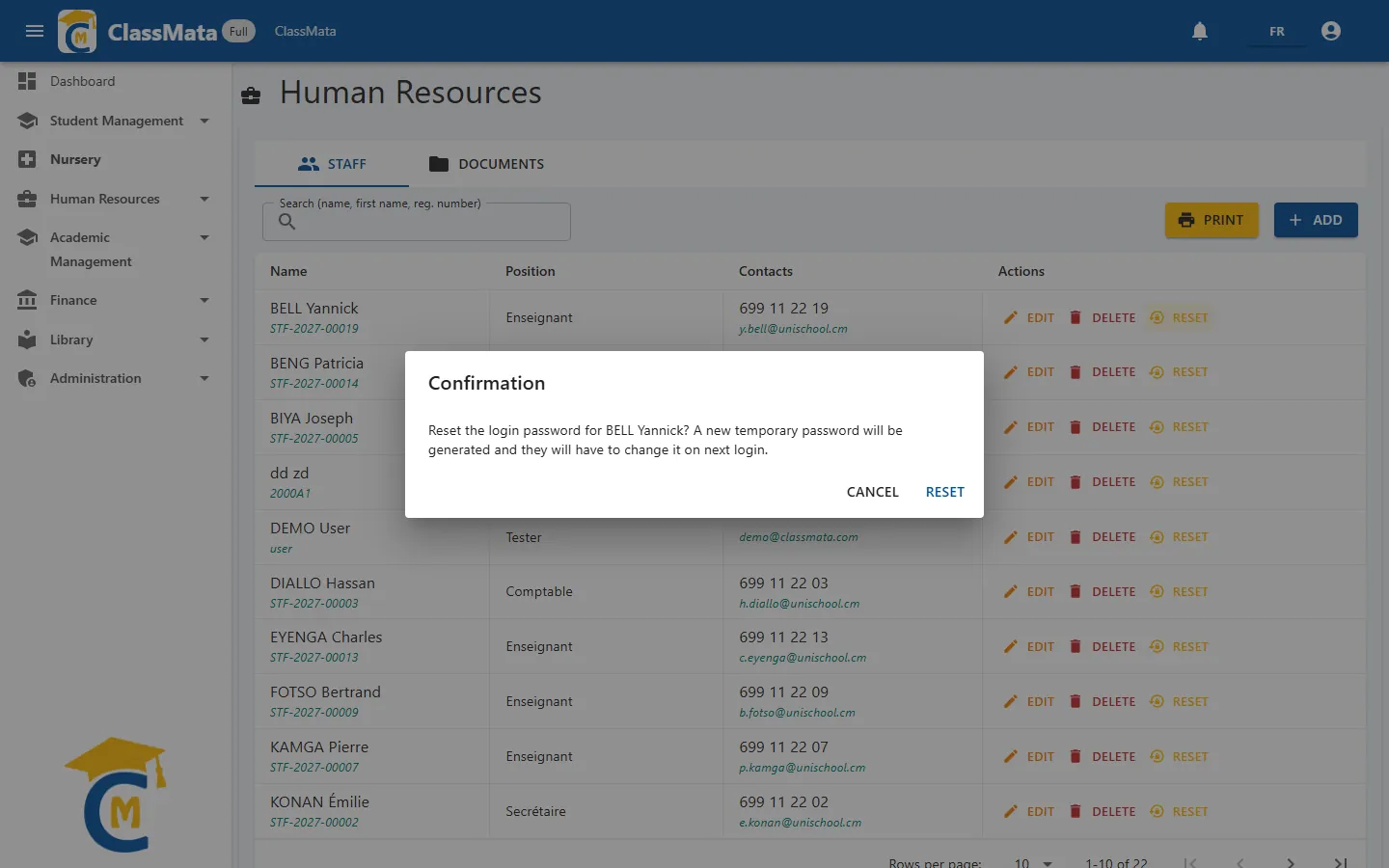
Reset gives access back to someone who lost their password: after confirmation, ClassMata generates a new 12-character temporary password, shows it on screen (only once) and notifies the person that their password was reset. They will have to change it at their next login. It is the same procedure as for students (see the Students page).
Delete a staff member
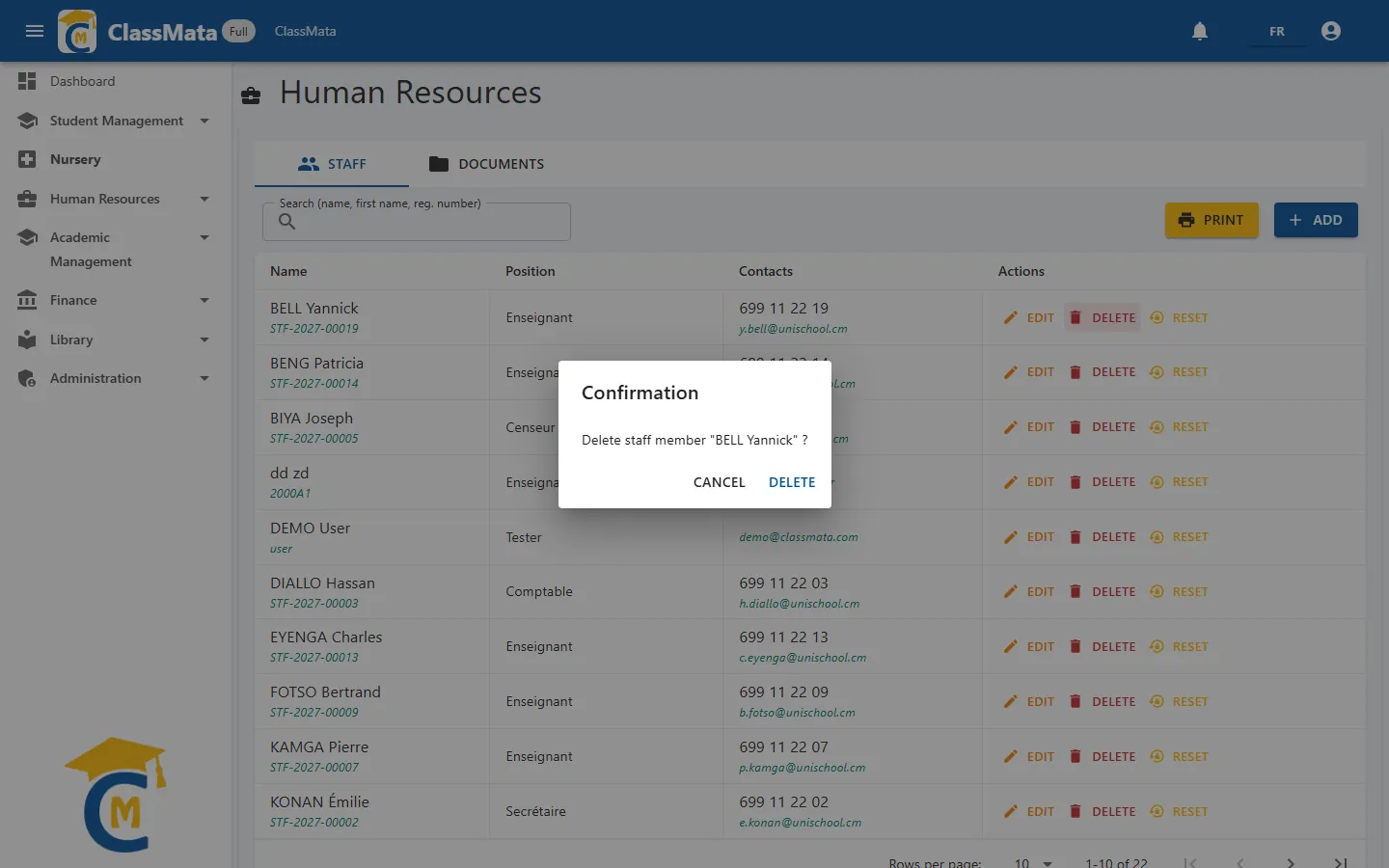
Delete asks for a confirmation naming the person ("Delete staff member … ?") before removing the record. The action requires the delete permission.
Staff documents
The Documents tab gathers each employee's administrative papers (contract, diplomas, ID document, résumé…).
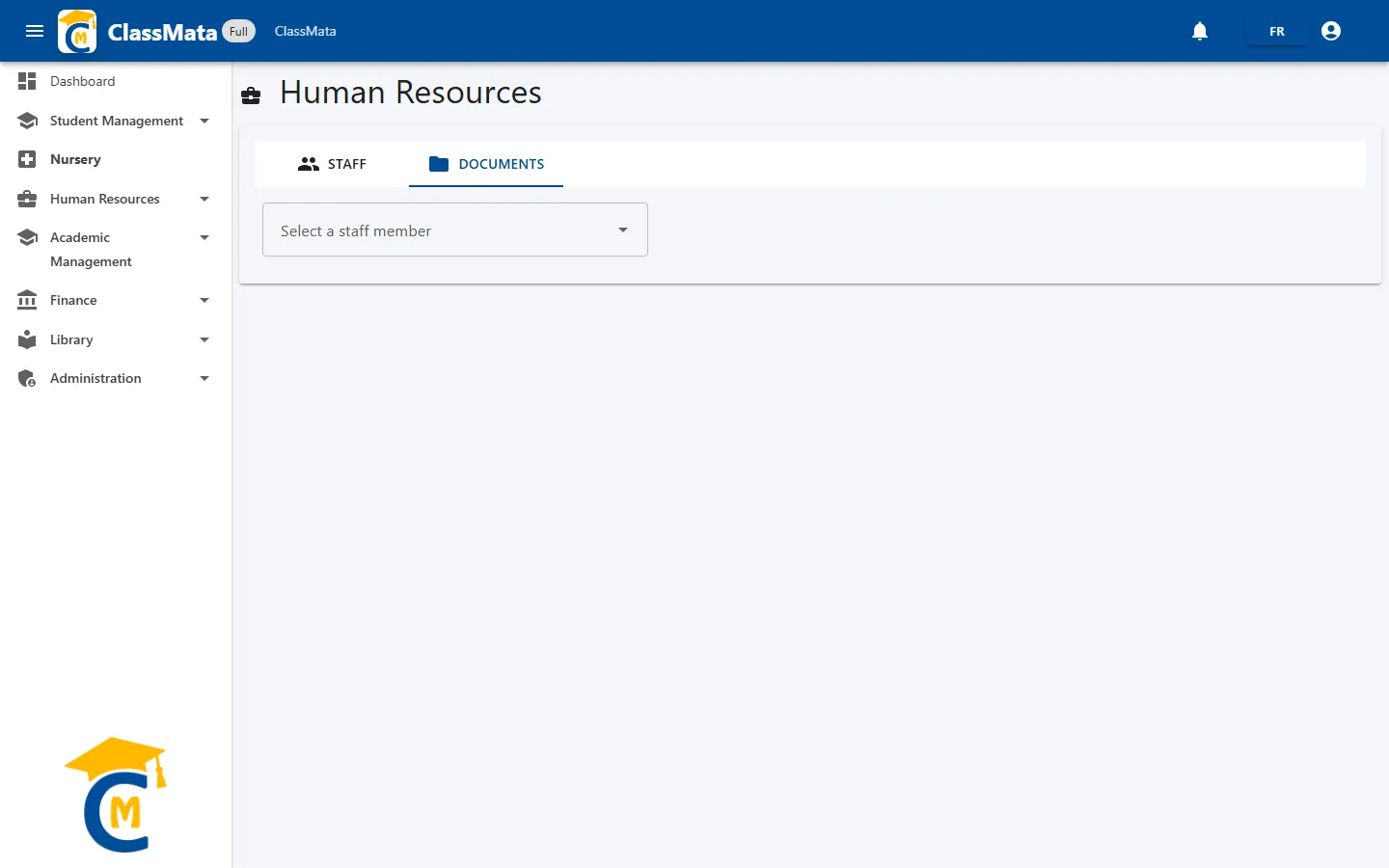
First pick a staff member in the search list: their documents appear with their File name, Document type, Size and upload date. The arrow icon downloads the file; the trash can deletes it, after confirmation.
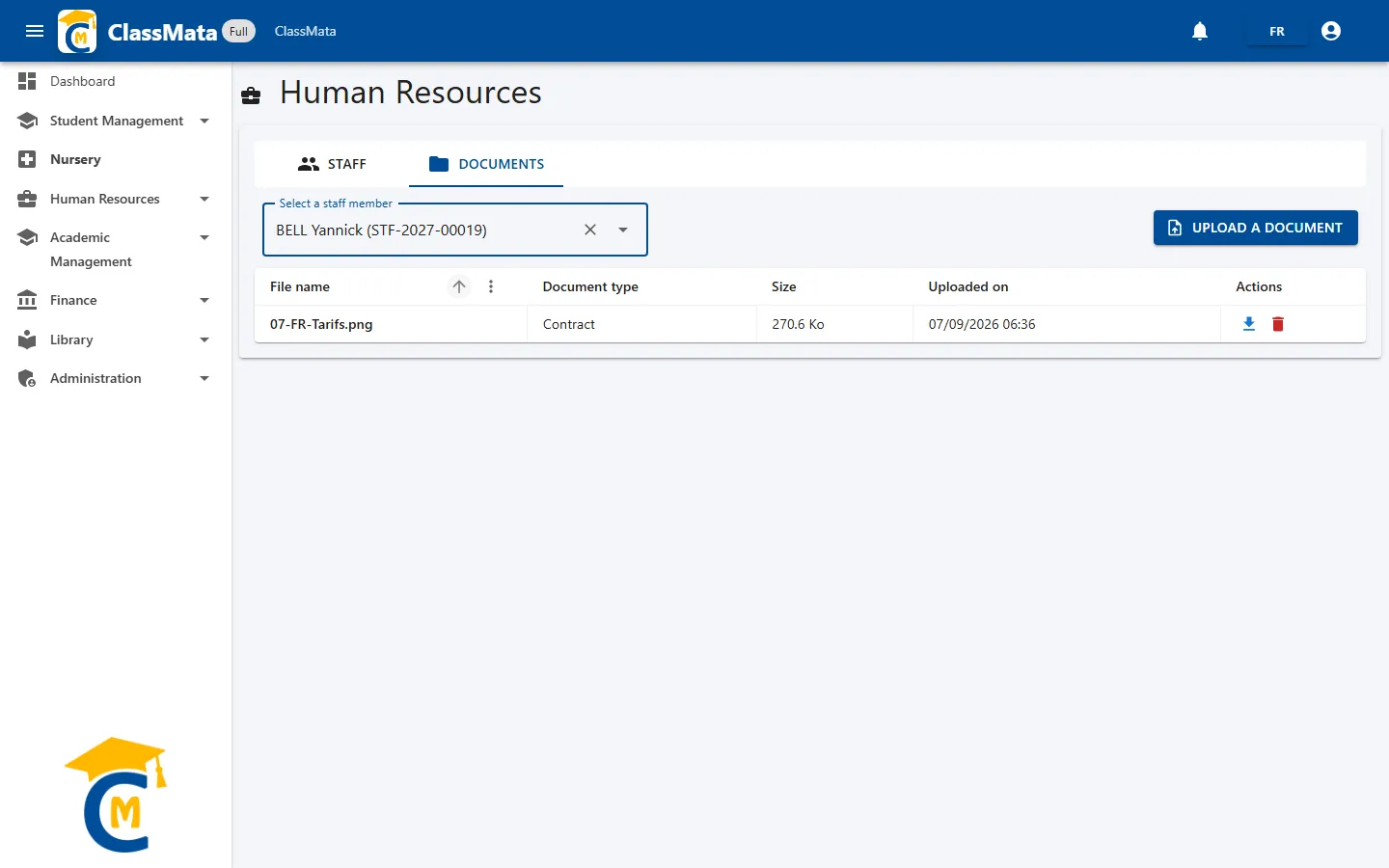
Upload a document
Click Upload a document (visible when a staff member is selected and you have the edit permission).
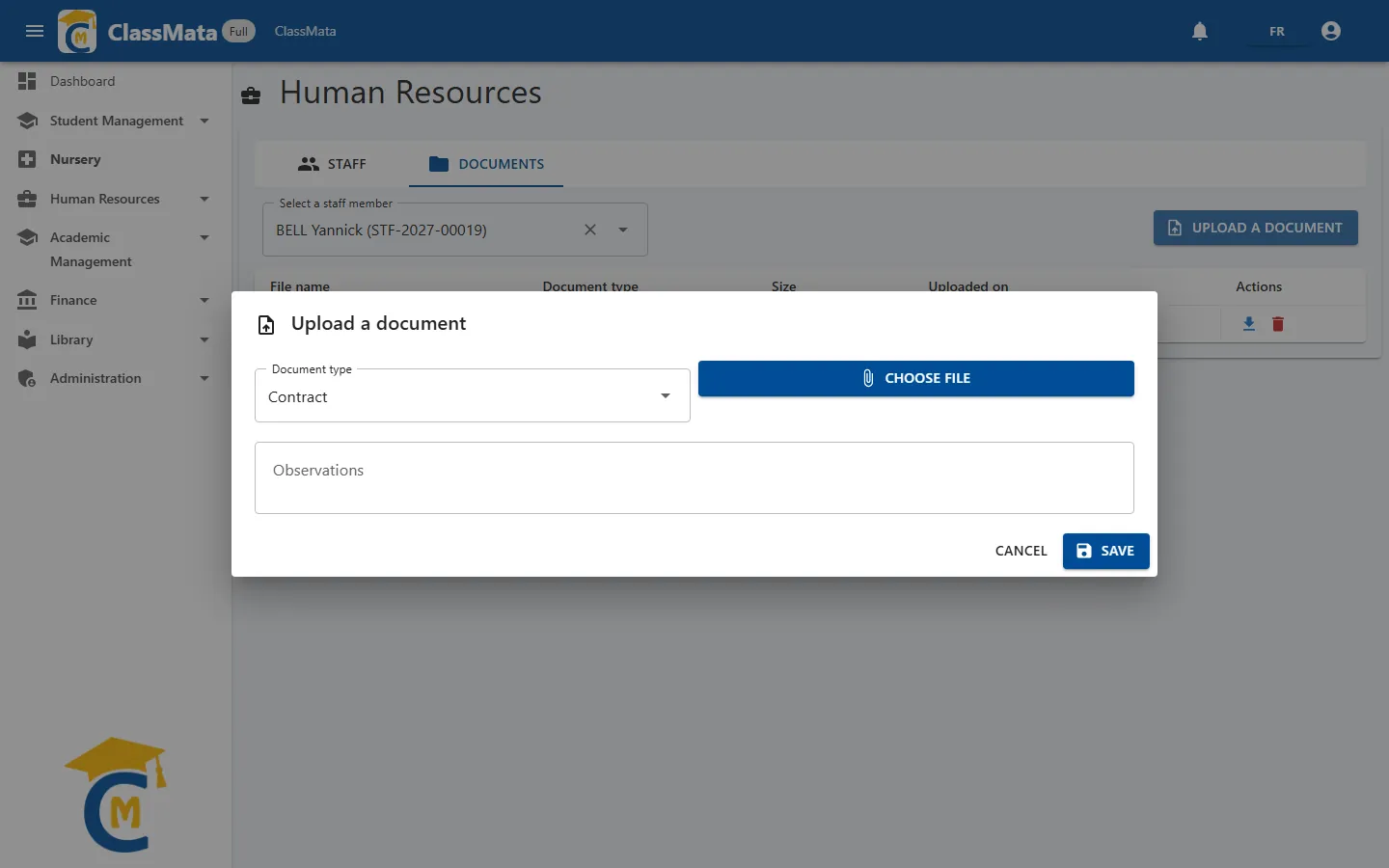
Choose the Document type: Contract, Diploma, ID document, Resume / CV or Other.
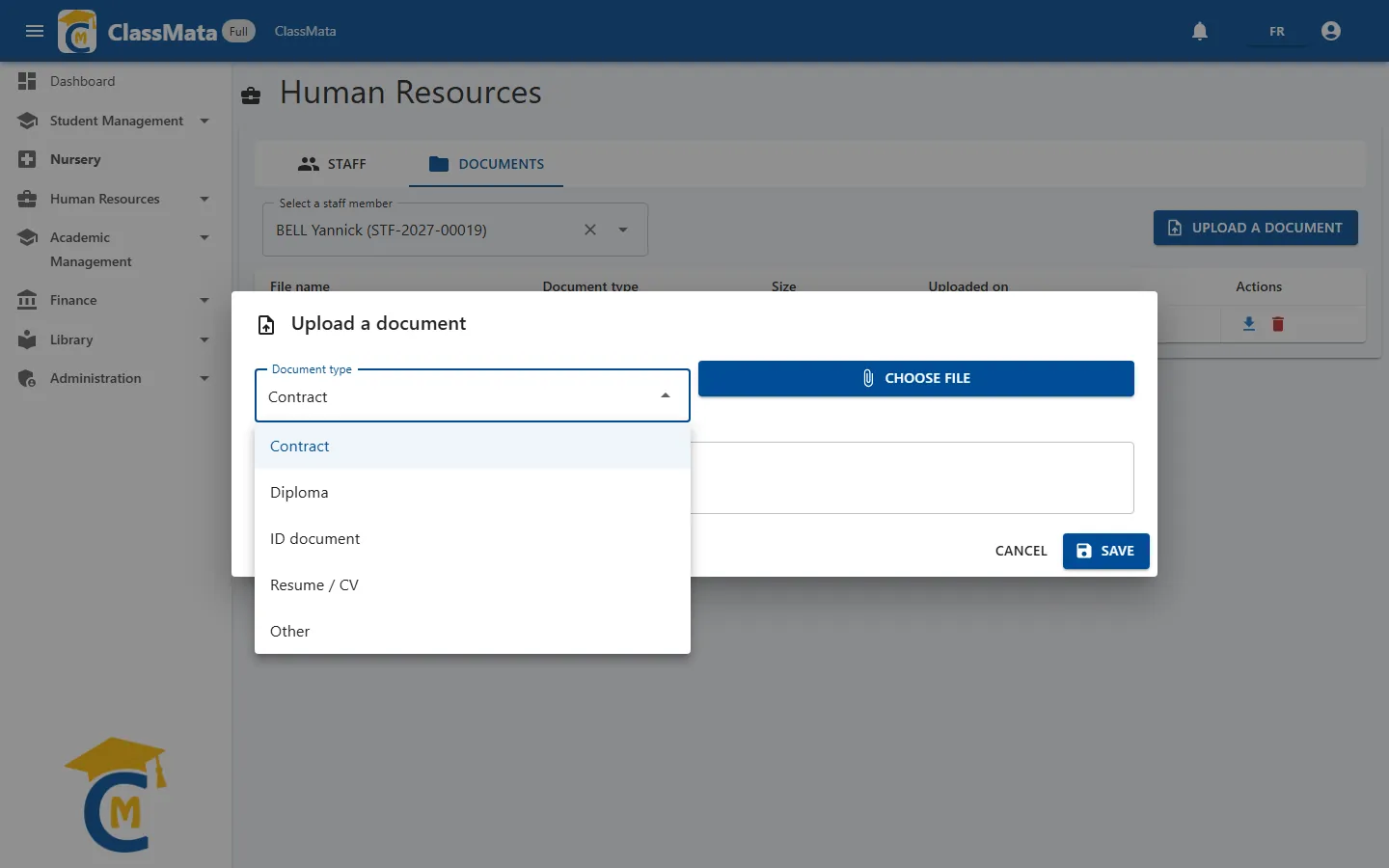
Click Choose file and select it on your computer.
Add an Observation if needed, then Save.
Formats and size. Accepted files are PDF, Word (
.doc,.docx) and images (.jpg,.jpeg,.png), up to 5 MB. A file that is too large is rejected with the message "File too large — maximum size is 5 MB.", and you must choose a file before saving.
Last updated: