Attendance & Discipline
This module covers the daily roll call and discipline tracking, by class and by period. It has two tabs: Attendance (absences, detentions, lateness and suspensions, day by day) and Discipline (conduct mark and sanctions, period by period). Accessible from Student Management → Discipline & Attendance.
The screenshots on this page show the 3ème class: 9 January 2026 for attendance, and the Term 1 period for discipline.
Attendance
When the tab opens, a message asks you to pick a Class and a Date. As soon as both are set, the day's roll-call grid appears.
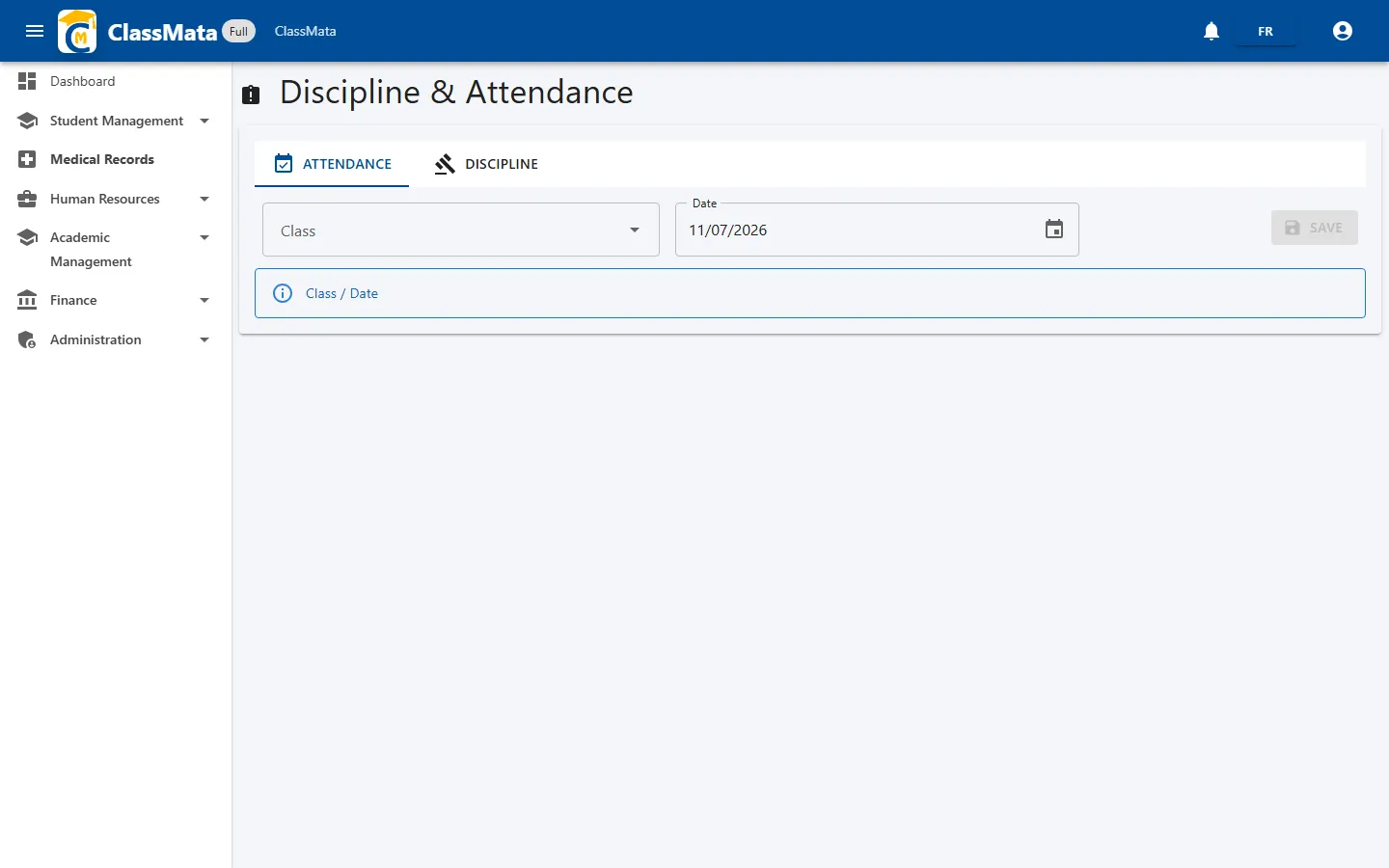
Pick the class and the date
- Class — type a few letters of the class name (for example "3") then choose it from the list.
- Date — click the calendar icon and select the day. Today's date is suggested by default; use the calendar arrows to go back to a past day.
The roll-call grid
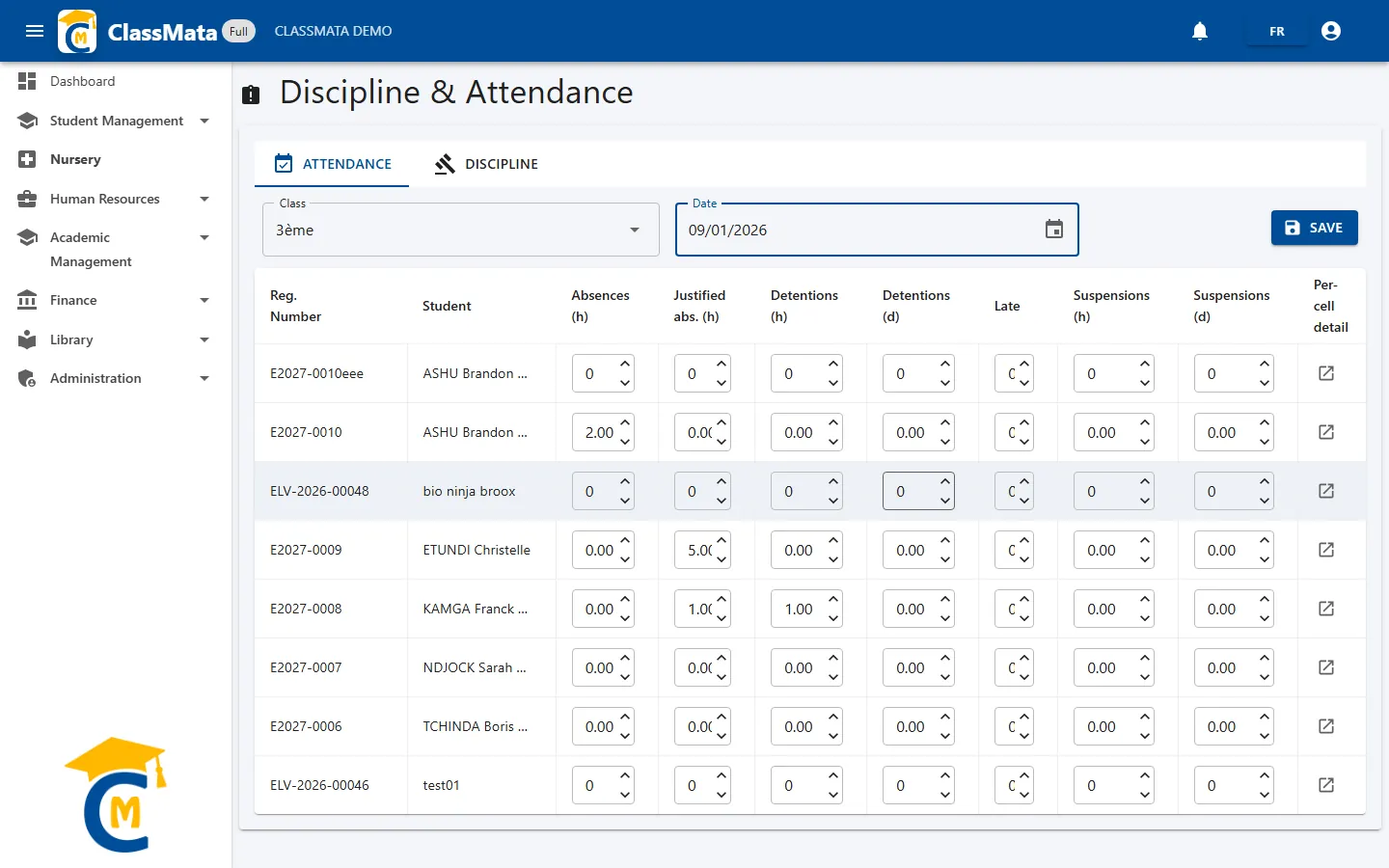
Each student in the class gets a row, with their Reg. Number and name. The following columns are filled in directly in the grid:
| Column | Meaning |
|---|---|
| Absences (h) | Hours of unjustified absence |
| Justified abs. (h) | Hours of justified absence (medical note, parents' letter…) |
| Detentions (h) / Detentions (d) | Detention in hours, or in whole days |
| Late | Number of late arrivals during the day |
| Suspensions (h) / Suspensions (d) | Suspension in hours, or in whole days |
| Per-cell detail | Opens the slot-by-slot detail (see below) |
In the example above, one student has 2 h of unjustified absence, another 5 h of justified absence, and a third 1 h of justified absence plus 1 h of detention; the other students are at zero. Hour values accept decimals (for example 1.5 for an hour and a half); the number of late arrivals is a whole number. Negative values are not accepted.
Click Save to save the whole grid at once: every row is saved, including those left at zero. A green message confirms it. The button stays greyed out until a class is selected.
Read-only. If your profile does not allow entering attendance, the fields are greyed out and the Save button does not appear: you can view the roll call without changing it.
Per-cell detail
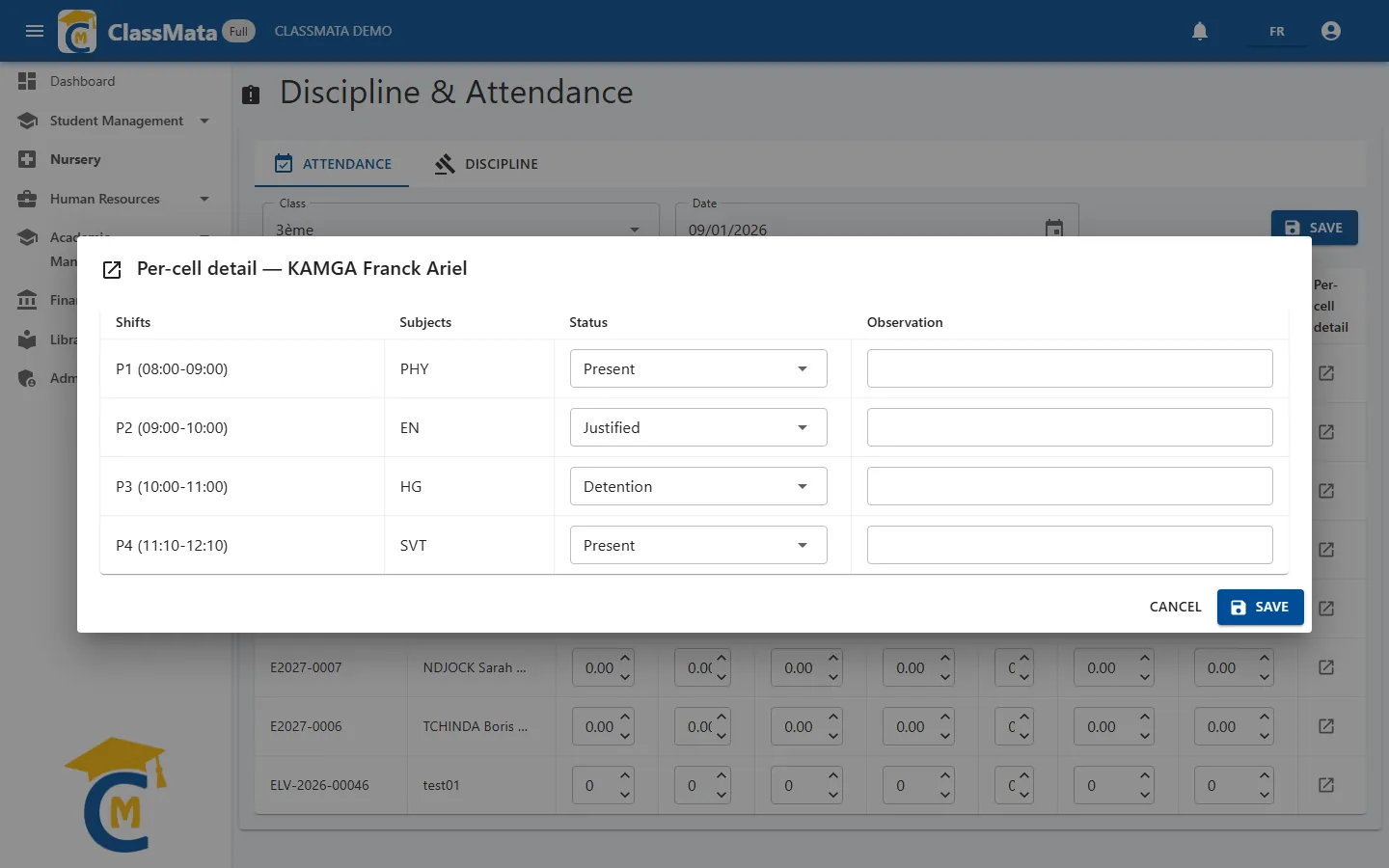
For finer tracking than the daily total, the icon in the Per-cell detail column opens a window listing the class's lessons that day, according to the timetable: time slot (P1 08:00-09:00, P2…), subject and Status. The student is "Present" by default on every slot.
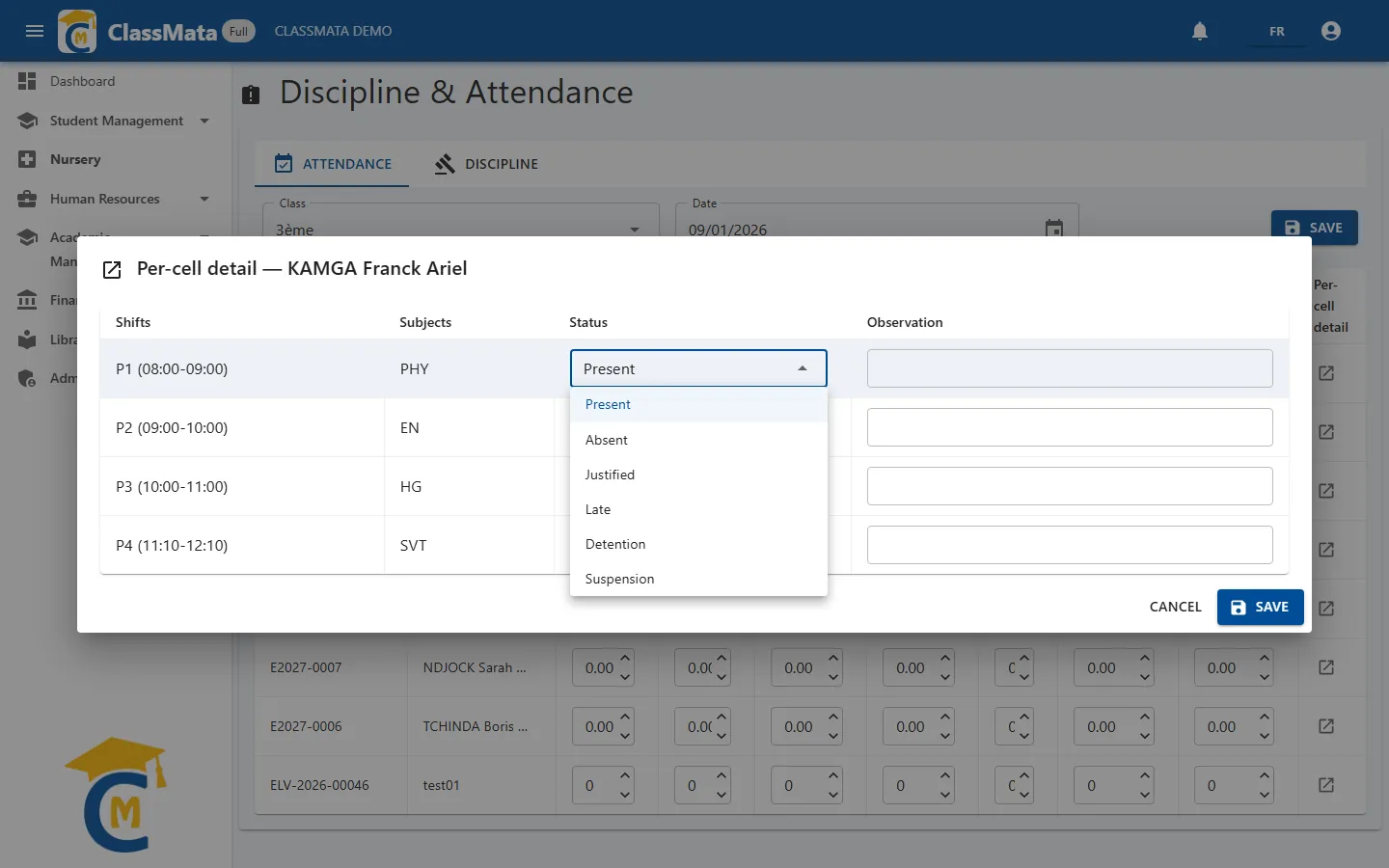
For each slot, pick a status and, if useful, add an Observation:
| Status | Effect on the student's row |
|---|---|
| Present | None |
| Absent | Adds the slot's length to Absences (h) |
| Justified | Adds the slot's length to Justified abs. (h) |
| Late | Adds 1 to Late |
| Detention | Adds the slot's length to Detentions (h) |
| Suspension | Adds the slot's length to Suspensions (h) |
The window's Save button stores the statuses and automatically recalculates the student's totals in the grid. Those totals are only kept, however, once you click Save on the main screen. If the class has no lessons that day in the timetable, the window simply shows "No data for the moment".
Careful: the recalculation replaces hand-typed totals. The Absences (h), Justified abs. (h), Detentions (h), Late and Suspensions (h) columns of the row are rewritten from the slot statuses (so a day where every slot is "Present" resets them to zero). The day-based columns (Detentions (d), Suspensions (d)) are left untouched. For a given student and day, stick to one entry method: the grid or the per-cell detail.
Locked period
When a class's discipline is locked for a period (see below), every date covered by that period becomes locked in the Attendance tab: an Editing blocked for this period badge appears, the fields are greyed out and Save is disabled.
Discipline
The second tab works by Class and by Period (Term 1, Semester 2, Annual…). The periods offered are the ones configured by the school.
Enter a period's conduct
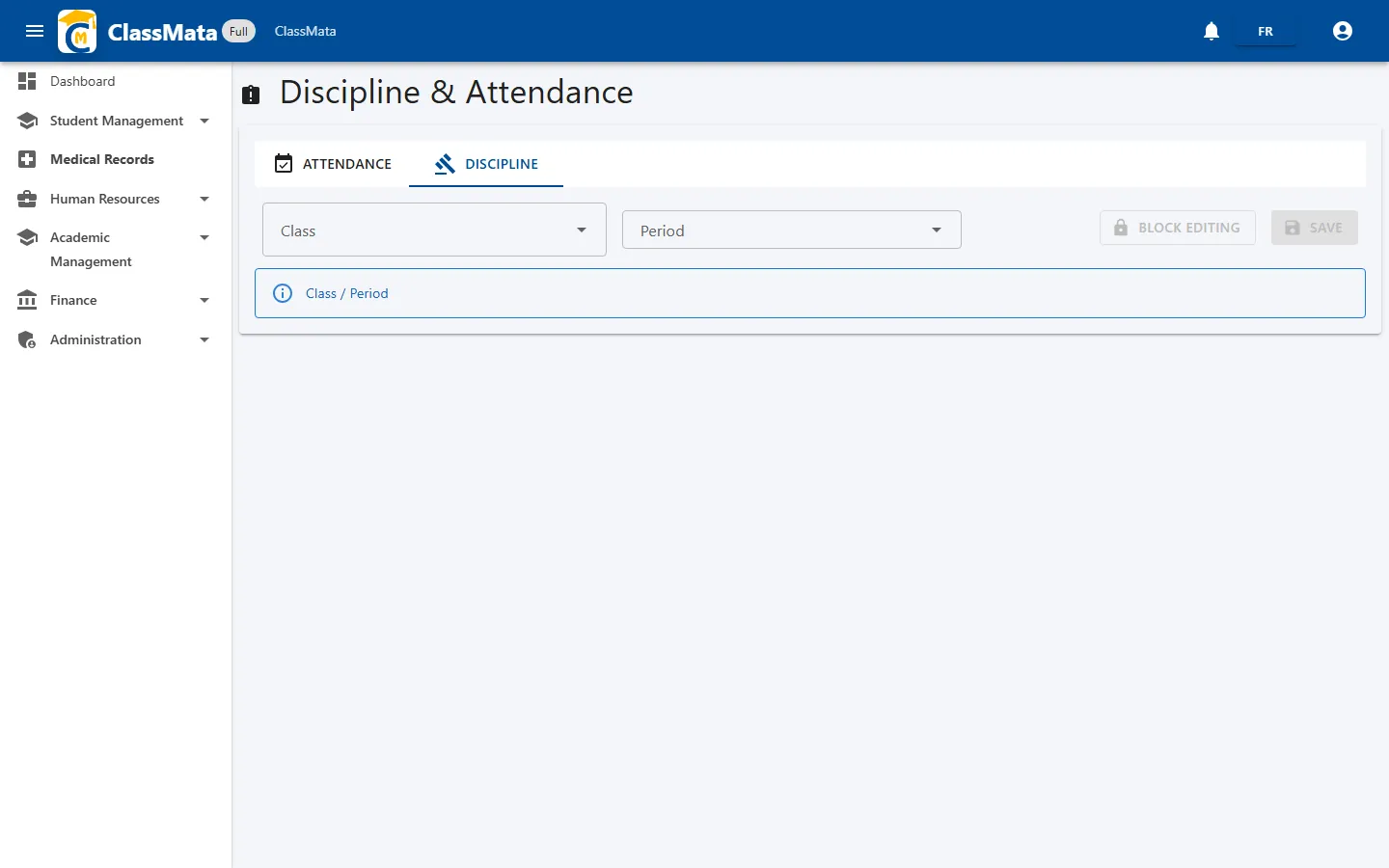
Pick the class then the period: the student list appears with any sanctions already entered.
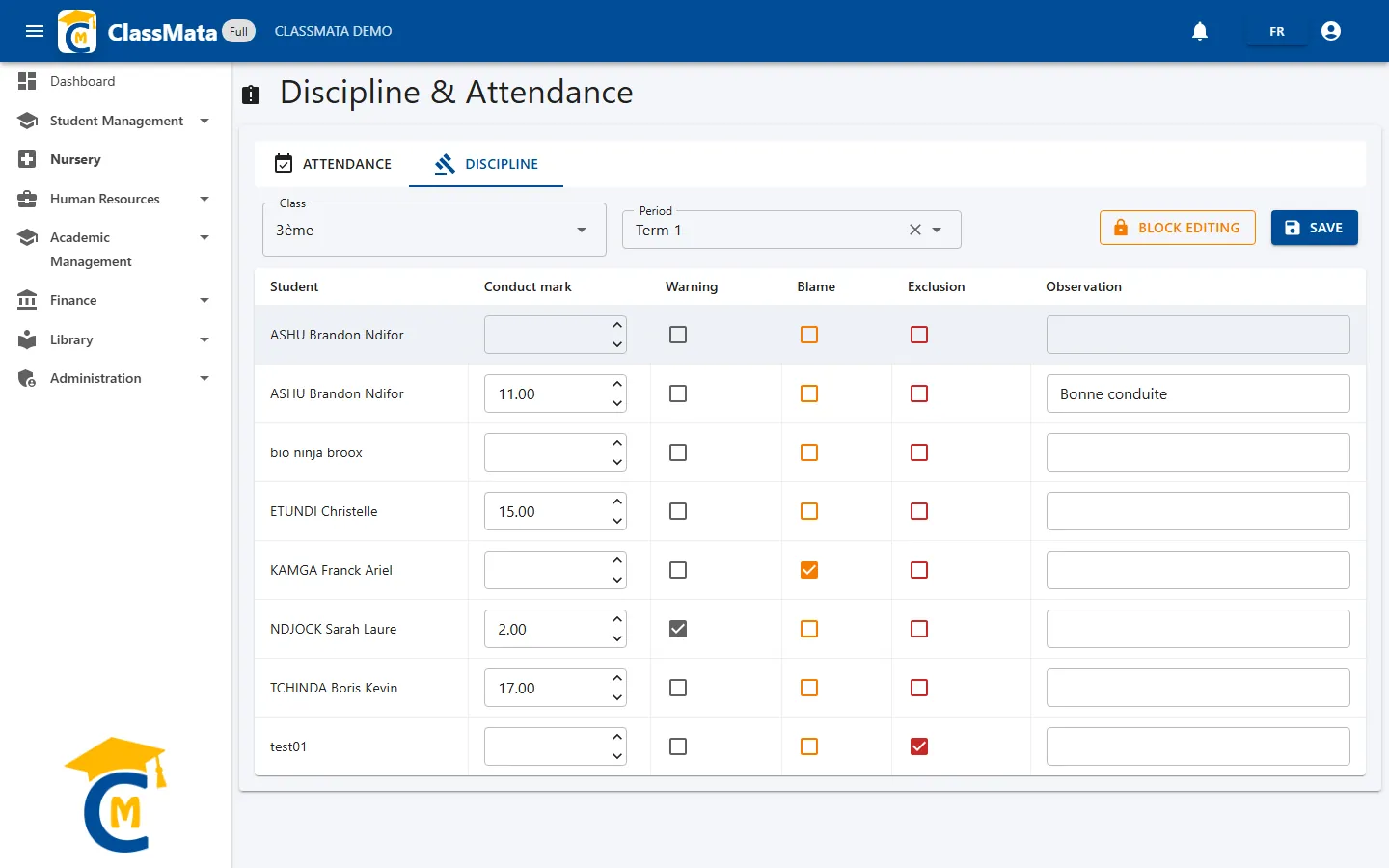
| Column | Content |
|---|---|
| Conduct mark | Mark from 0 to 20 for the period (left empty if not assessed) |
| Warning | Checkbox: the student received a warning |
| Blame | Checkbox: the student received a blame |
| Exclusion | Checkbox: the student was excluded |
| Observation | Free comment (for example "Good conduct") |
In the example, one student has 17/20, another 2/20 with a warning, a third received a blame and a last one is marked as excluded. The three checkboxes are independent: tick the ones matching the decision taken. Click Save to store the whole list; the Save done ! message confirms it.
Lock a period
Once the period is closed (for example at the end of a term, after the class council), the Block editing button freezes that class's discipline for that period. The Blocked ! message appears, an Editing blocked for this period badge shows up, the fields are greyed out and the Save button disappears.
To fix a mistake after locking, a user with the unlock permission clicks Unblock editing (message Unblocked), edits the data, then locks the period again.
Separate permissions. Locking and unlocking are two permissions separate from data entry: a user may be allowed to enter data without being able to lock the period, and vice versa. Buttons you cannot use do not appear.
Last updated: